
Notifications & Alerts
No need to watch the screen — we tell you when it matters
First connect a notification channel (Telegram, Discord or device push), then set up the conditions you want to hear about in the Alerts page. When a strategy trades or a price is reached, the message comes straight to you.
Connect a notification channel
You can connect Telegram, Discord and mobile / device push. How many channels you can add depends on your plan.
Telegram: add our notification bot
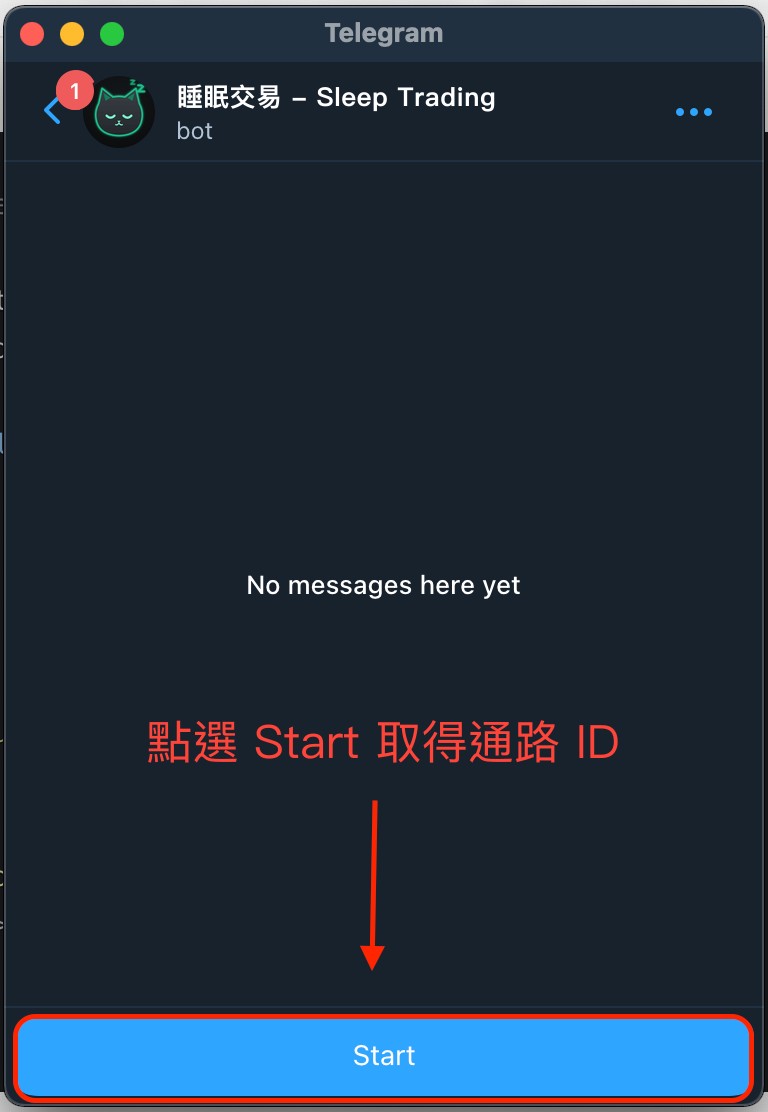
In "How to get the ID?", click "Add the Telegram bot". Telegram opens a chat with our bot "睡眠交易 - Sleep Trading". Tap "Start".
Telegram: copy the ID and paste it back
The bot replies with a message. The number in it (boxed in red in the picture) is your channel ID.
Copy it, go back to Notifications, paste it into "Enter channel ID" and click "Add".
The bot's reply may say your account is not activated. You can ignore that — just copy the number.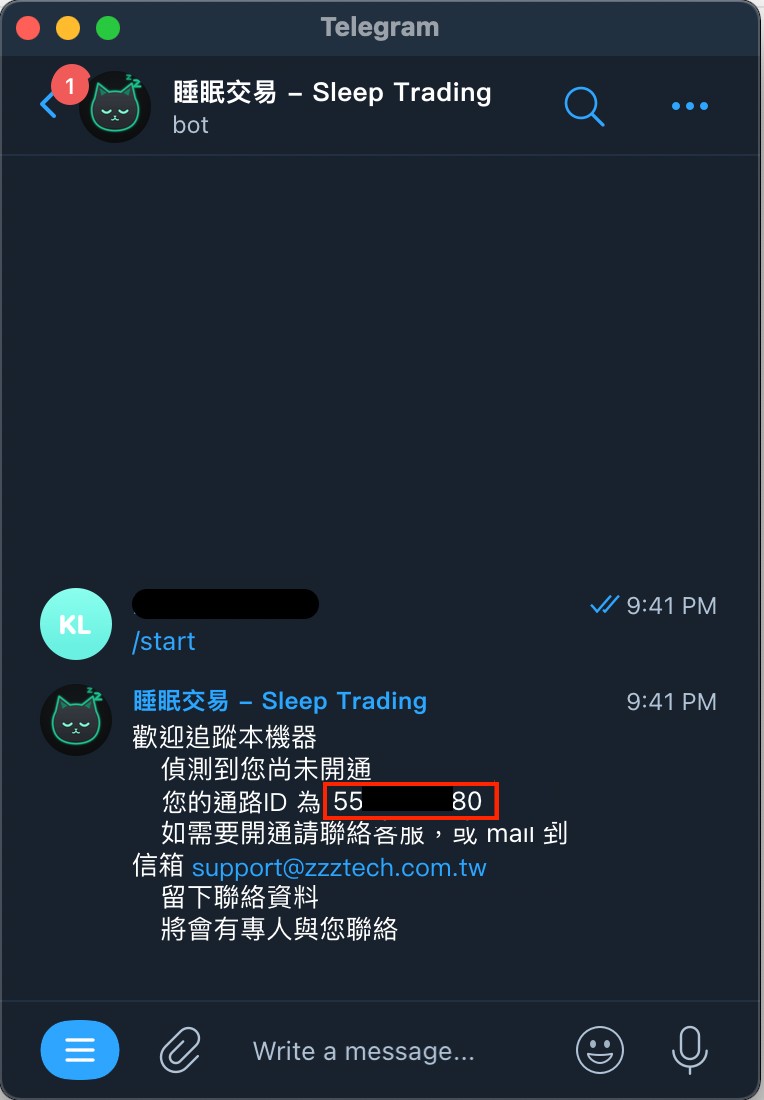
Discord: invite the bot to your server
You need a Discord server of your own. In "How to get the ID?", switch to Discord and click "Open authorization link". Choose your server, click "Continue", then "Authorize".
No server yet? Click the "+" on the left side of Discord to create one for free.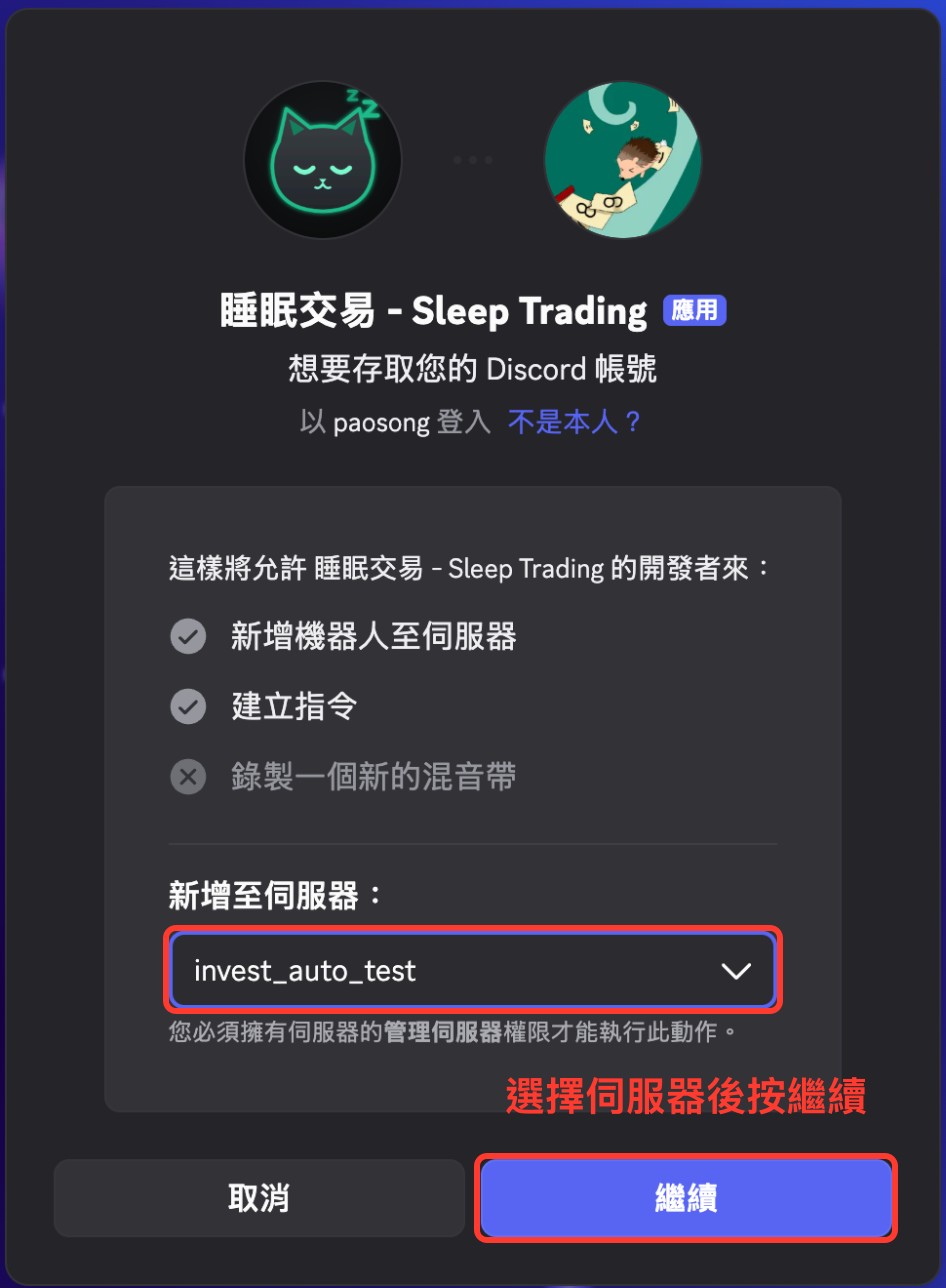
Discord: turn on Developer Mode
In Discord, click the gear next to your name at the bottom left (User Settings), type "Developer" in the search box at the top left, open "Developer" and turn on "Developer Mode" so you can copy channel IDs.

Discord: copy the channel ID and paste it back
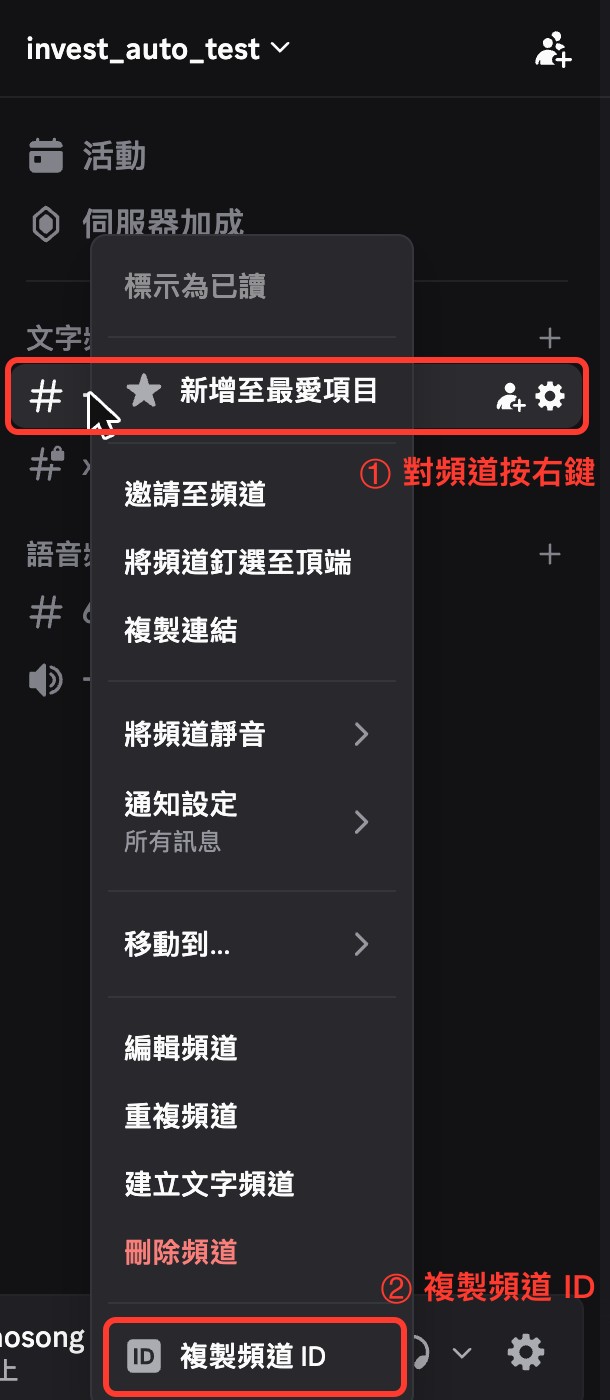
Back in your server, right-click the text channel that should receive notifications (e.g. "general") and choose "Copy Channel ID".
Paste it into "Enter channel ID" in Notifications and click "Add".
Mobile / device push
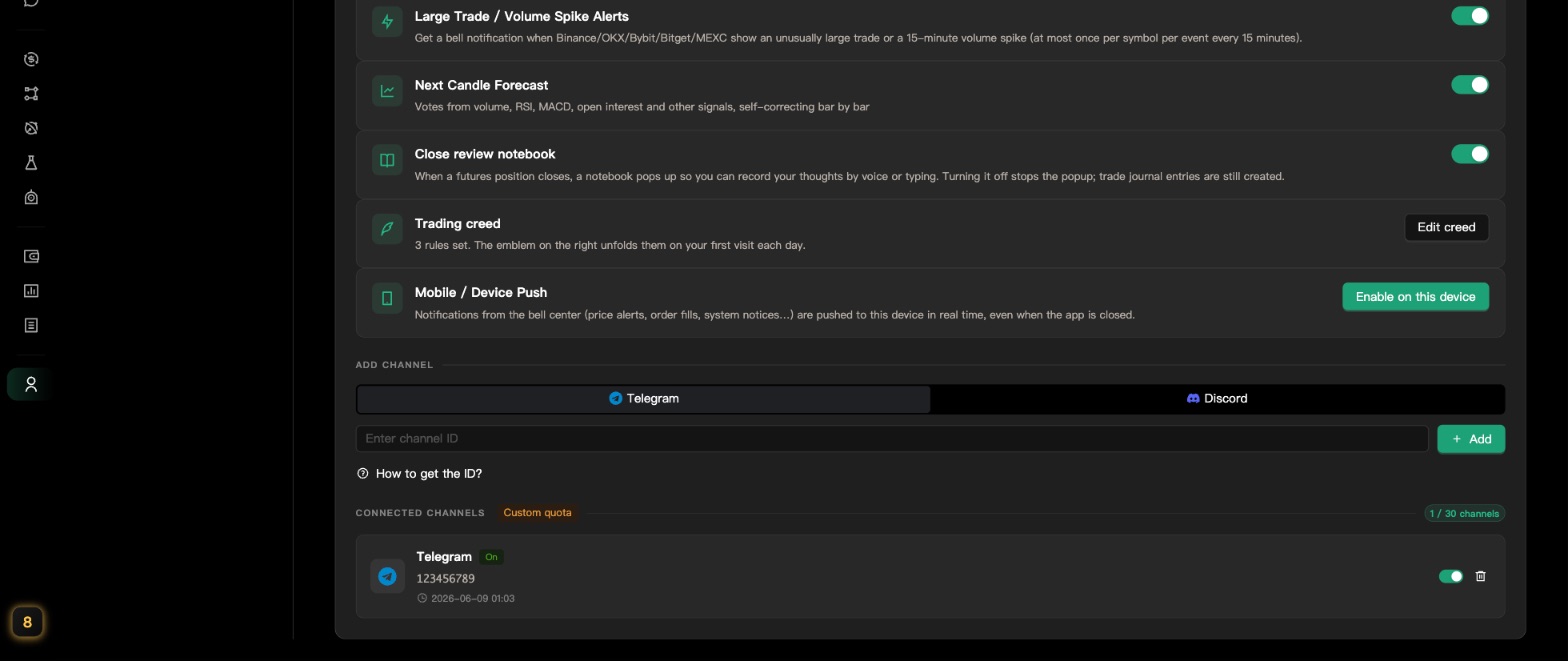
Under "Mobile / Device Push", click "Enable on this device" and choose "Allow" when the browser asks. When you see "Enabled on this device", you're done — you'll get notifications even when the site is closed.
On iPhone / iPad, first use Safari's "Share" → "Add to Home Screen", open the site from the Home Screen and enable it there. Each device has to be enabled separately.
Manage connected channels
Your channels appear under "Connected channels", along with how many you've used out of your limit. Use the switch to pause or resume a channel, and the trash icon to delete it.
LINE Notify has been shut down by LINE, so new LINE channels can't be added. LINE channels you connected before still show in the list and can be deleted.
Choose what to be notified about
The switches at the top of the same page decide what gets pushed to you.
Turn notification types on or off
Switch these on or off as you like; changes apply right away:
- Strategy fill notifications: entries, add-ons, take-profit, stop-loss and closes, plus when a strategy fails to place an order or is stopped
- Also notify dry-run fills: include strategies running in simulation (by default only live trading is notified)
- Assistant notifications: recommendations and results from the smart assistant
- Trade context radar: when the market looks like the setups of your past winning manual trades
- Next Candle Forecast: the next-candle forecast on the trading page chart, based on volume, RSI, MACD and other signals; turn it off if you don't want to see it
- Close review notebook: pops up after a futures position closes so you can write down your thoughts; turning it off stops the popup, and trade journal entries are still created
- Trading creed: this row has a button, not a switch. Click "Edit creed" to write down your trading rules, and you'll be reminded on your first visit each day
Want fewer messages? Turn off the types you don't need — no need to delete the channel.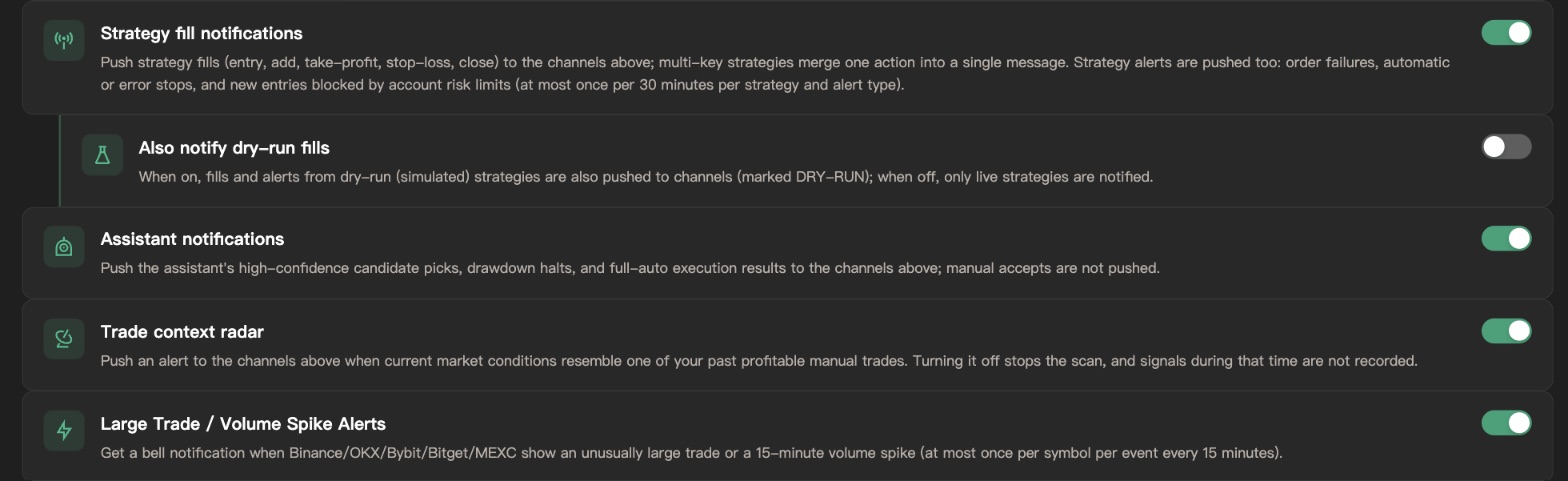
What the in-app notification center shows
The bell at the top right is the notification center. It only carries platform announcements (events, maintenance) and the alerts you turn on (large trades / volume spikes, arbitrage opportunities). Fills never appear there: bind a Telegram / Discord / LINE channel for fill messages, or check the strategy detail page's Execution Log.
Want a message the moment a fill happens? Bind a Telegram / Discord / LINE channel first, then turn on "Strategy fill notifications" above.
Create alerts in the Alerts page
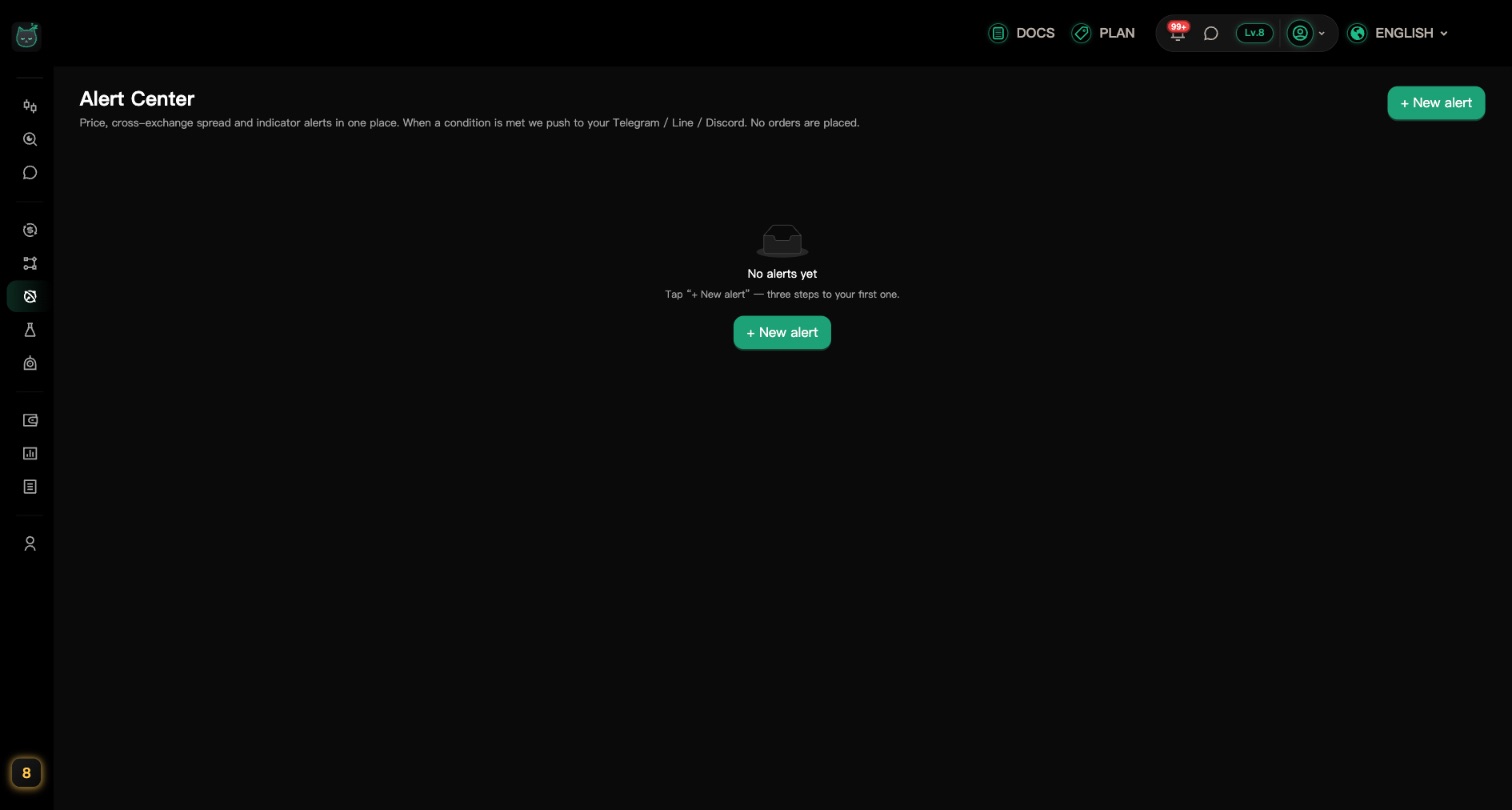
Price, spread and indicator alerts all live in the Alerts page. Alerts only notify you — they never place orders.
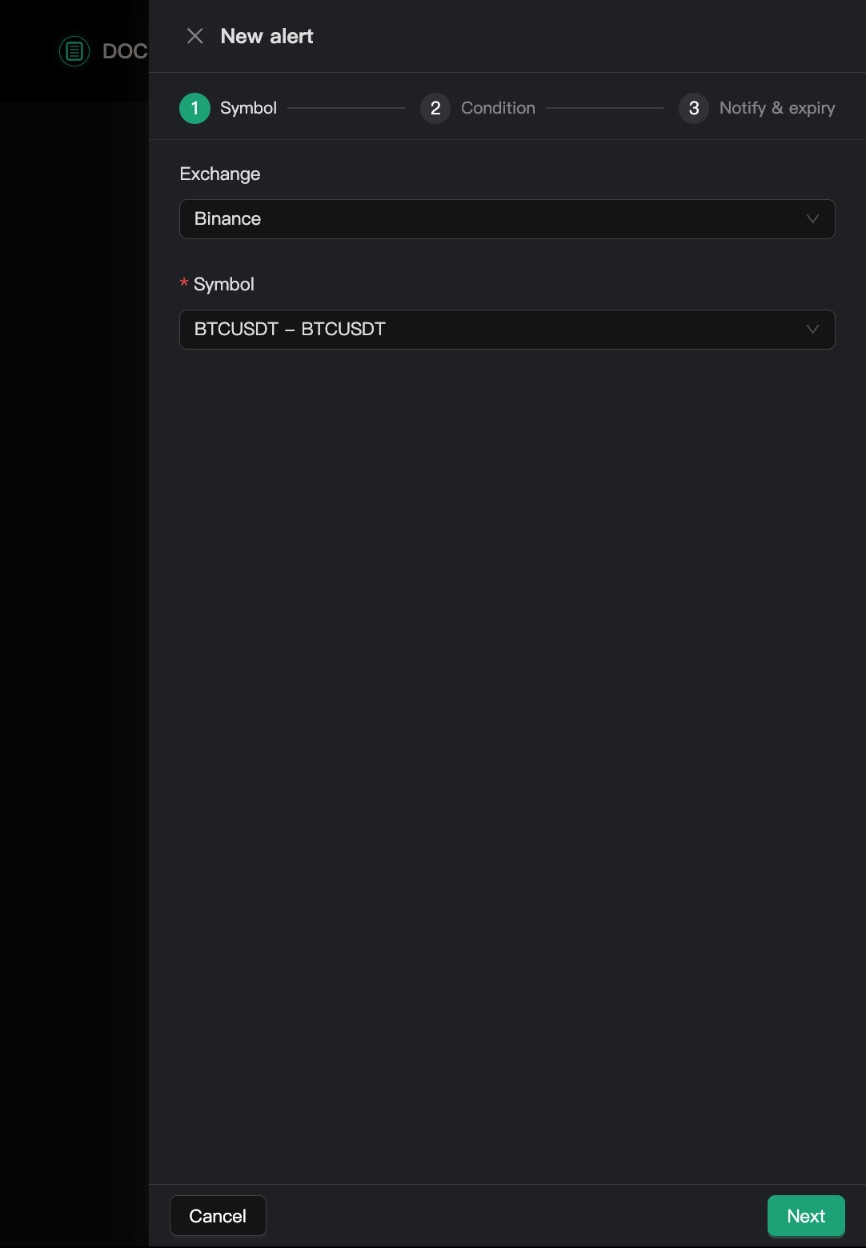
Step 1: Symbol
Choose the "Exchange" and "Symbol" — you can type to search, e.g. BTC. Then click "Next".
Step 2 (Price): set a target price
Choose "Price", pick a "Trigger" — "Rises to", "Falls to" or "Nears" — and enter the "Target price".
The current price is shown next to the target price to help you decide.Step 2 (Spread): set the threshold
Choose "Spread", tick 2 to 5 "Exchanges to compare", then set the "Threshold" (in % or USDT) and the "Cooldown". You're notified when the price gap for the same symbol between exchanges, after fees, reaches the threshold.
Cooldown is the minimum time between two notifications, so you aren't pinged over and over.Step 2 (indicator alert): build conditions
Choose "Indicator alert", pick a candle interval, then build a bullish alert and a bearish alert with the same condition blocks as custom rules (for example RSI below 30, MACD divergence, TD 9 count reaching 9). Turn off a direction you do not need. Conditions are checked when each candle closes, and you are notified once when they go from not met to met.
Indicator alerts support Binance, OKX, Bybit, Bitget, MEXC and Gate; spot or futures follows the symbol you pick. If you have an operation lock set, you will be asked for the password when creating one.Step 3: Notify & expiry
Optionally add a "Note"; price alerts can also have an "Expires on" date. Make sure "Enable right away" is on, check the "You will be notified like this" preview, and click "Create alert".
Manage your alerts
Once you've created alerts, they're listed on the Alerts page and filters appear above the list: filter by type or by "All" / "Enabled" / "Paused" (the filters don't show while you have no alerts). Use the switch on each row to pause or resume, and "⋮" (More actions) for "Trigger history", "Edit" or "Delete".
Price, spread and indicator alerts share one alert limit; the top right shows how many you have used. Disabled alerts count too; delete one to free a slot.
What a strategy fill notification looks like
With "Strategy fill notifications" on, every strategy fill is pushed to your channels.
What's in a notification
Each notification shows:
- The symbol and what happened, e.g. "BTCUSDT — take-profit close"
- The strategy name and which exchange account filled
- Buy or sell, filled quantity and price, and the remaining position
- The profit or loss of this trade when a position closes
Simulated (dry-run) fills are marked "DRY-RUN", so you can tell at a glance they aren't real trades.Fills within 1 minute are combined
Fills from the same strategy in the same direction (all buys or all sells) are combined into one notification for 1 minute from the first fill, with each fill listed. Even if the strategy trades on several exchanges at once, you get a single message instead of a flood.
Orders you place by hand still get one message each.