Using the Trading Page
Watch the market, place orders and manage positions in one place
The Trading page lets you send the same order to several exchange accounts at once. This guide walks you from picking a symbol and reading the chart to placing an order, closing it and writing down what you learned.
Pick a symbol to trade
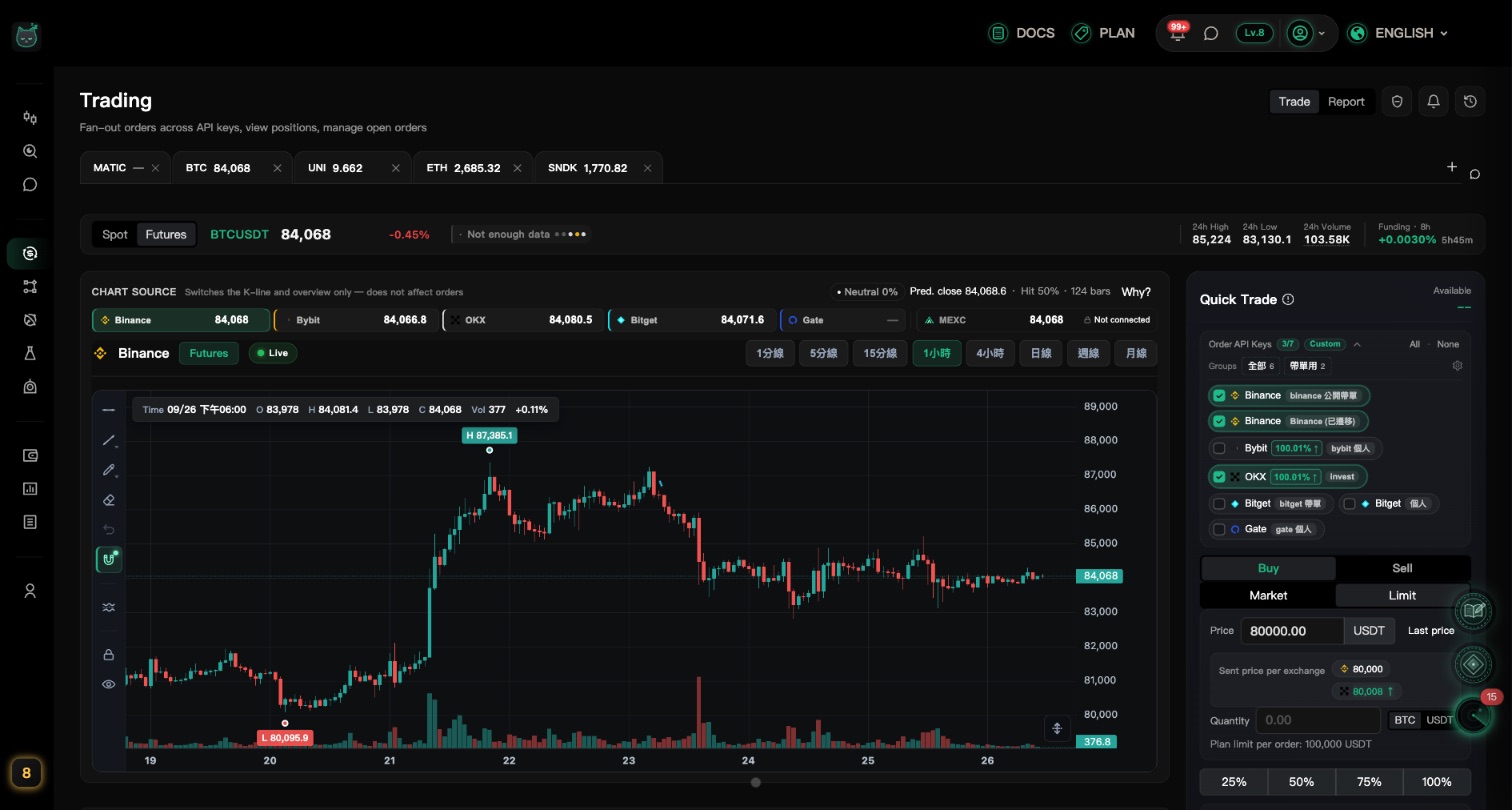
The tabs at the top are the symbols you are watching. You can keep up to 10 open at once.
Add a symbol
Click the "+" (Add symbol) at the right end of the tab bar. It first shows the "Popular" and "All symbols" lists. Once you type a symbol (e.g. BTC) in the search box, the list switches to "Results" and "Popular" is no longer shown.
Click a result, or use ↑↓ and press Enter, and it opens as a new tab.
Not sure what to pick? Before typing anything, choose one from the "Popular" list.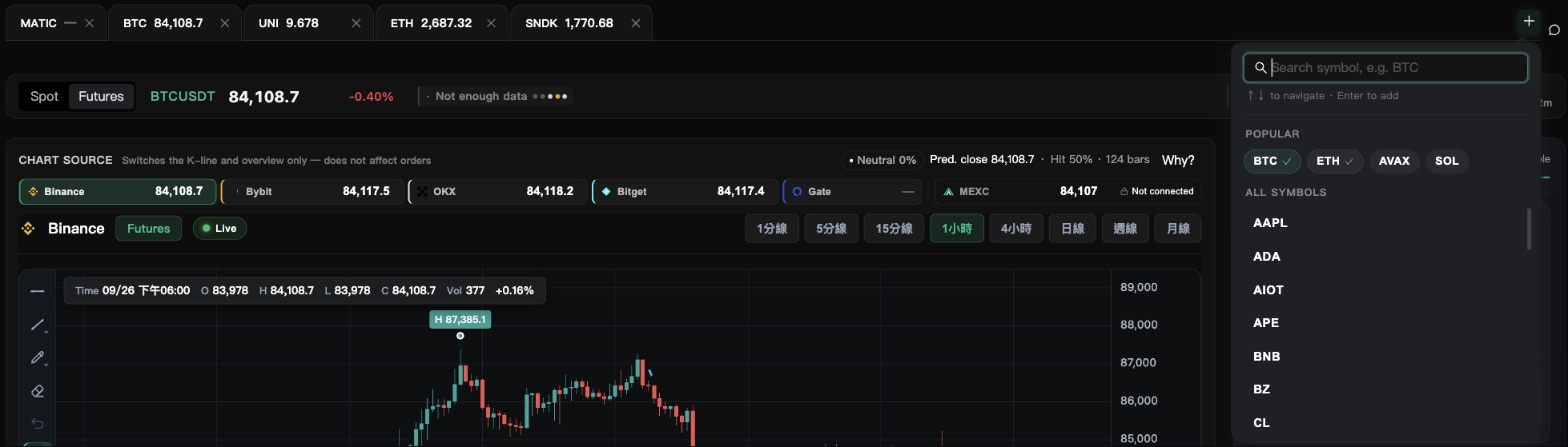
Switch and close tabs
Click a tab to switch symbols. To close one you no longer need, click the × on the tab (Remove this symbol tab).
Open tabs are added to your tracked symbols automatically. Closing a tab removes it, unless that symbol still has alerts, chart lines or journal entries — then it is kept.
Choose Spot or Futures
Pick "Spot" or "Futures" below the tab bar. The chart, order panel, open orders and positions all switch with it.

Read the chart and draw lines
You can switch the chart between exchanges, draw lines and set reminders on key price levels.
Choose the chart source
"Chart Source" above the chart lists each exchange with its live price. Click one to show that exchange's candles.
This only changes the chart you are looking at. It does not change where your orders go.
Draw on the chart
The drawing tools on the left of the chart include "Horizontal Line", "Trend Line", "Pen" and "Eraser".
Pick a tool and click on the chart (a trend line needs a start and an end point).
You need to be logged in to draw. Your lines are saved automatically and will be there next time.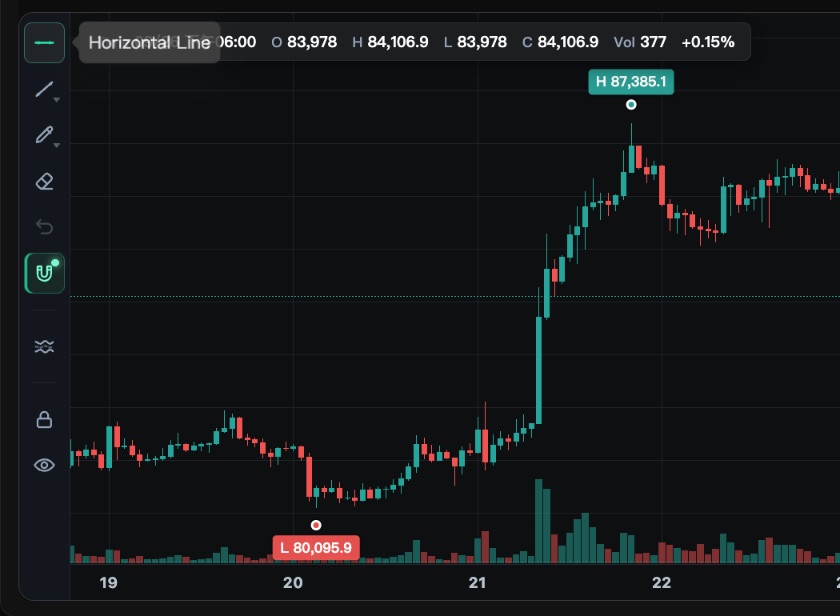
Adjust or delete a line
Click a line you drew and a small row of buttons appears:
- Extend: stretch the line to the right edge of the chart
- Set Alert: get notified when the price reaches this line
- Delete: remove the line
- Close: hide this row of buttons
Set a reminder on a line
Click "Set Alert" to open "Chart Line Alert Settings". Tick "Enable Touch Alert" (price touches the line) or "Enable Cross Alert" (price crosses the line), then click "Save".
Quick price alert
The bell button to the right of the page title is "Price Alerts". Enter a "Target price" and click "Add" — you will be notified when the price rises or falls to it.
To manage all your alerts, or set spread and indicator alerts, use the "Alerts" page. See the "Notifications & Alerts" guide.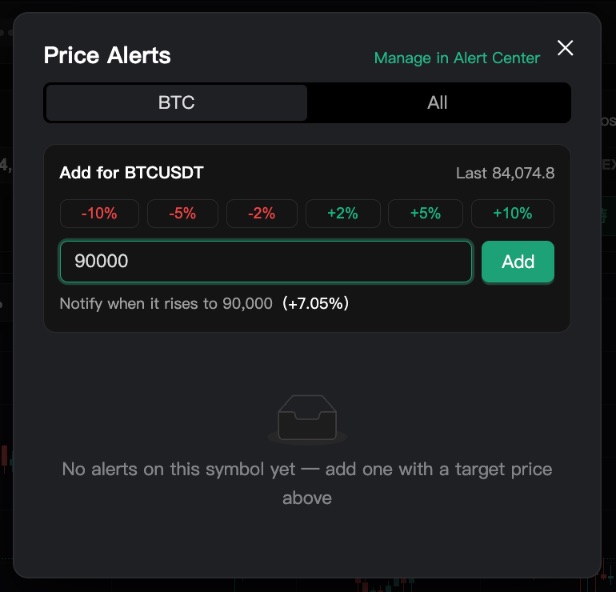
Place an order manually
The order panel on the right sends the same order to several exchange accounts at once.
Choose the accounts to trade with
Under "Order API Keys", tick the exchange accounts you want to use. You can pick more than one.
If you have not connected an exchange yet, go to "Account & Settings" → "Exchange API Keys" first.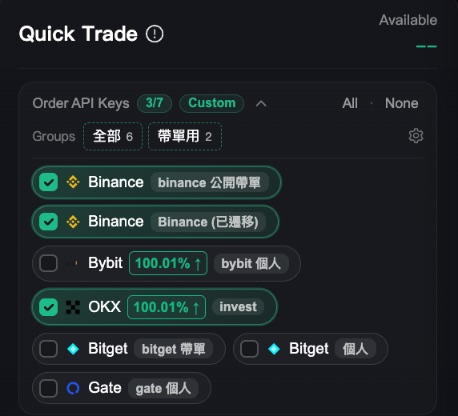
Choose direction and order type
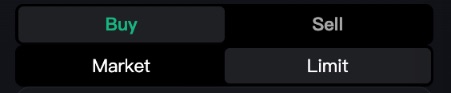
First choose "Buy" or "Sell", then the order type:
- Market: fills right away at the current market price
- Limit: you set the "Price"; it only fills when the market reaches it, and stays open until then
Enter the quantity
Enter the amount in coins, or switch to "USDT" to enter a dollar amount and let us convert it to coins.
The 25%, 50%, 75% and 100% buttons fill in a share of your balance or position.
Each plan has a maximum amount per order, shown in the panel as "Plan limit per order".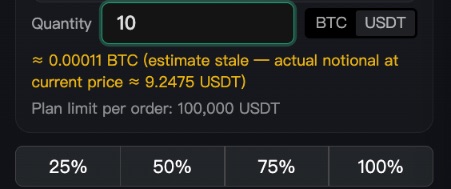
Futures: attach take-profit and stop-loss
On futures, open "Advanced (Futures)" to find two options: "Reduce only" and "Attach TP / SL". Tick "Attach TP / SL" and enter a "Take-Profit Price" and "Stop-Loss Price"; they are placed for you once the main order fills. (This option is hidden while "Reduce only" is ticked.)
After you enter a quantity, if your leverage setting on the exchange can be read, the panel also shows "Current Exchange Leverage" and the "Est. Liq" (estimated liquidation) price.
Leverage multiplies both gains and losses. Leverage is changed on the exchange itself; here you can only see it.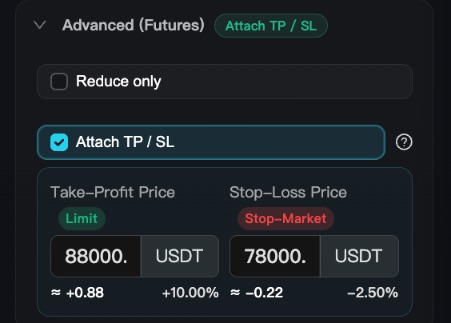
Send the order
Double-check direction, price and quantity, then click the green "Buy" or red "Sell" button at the bottom.
If you set up an action password lock, you will be asked for it first.
The order goes straight to the exchange. Market orders fill immediately and cannot be cancelled, so check once more before you click.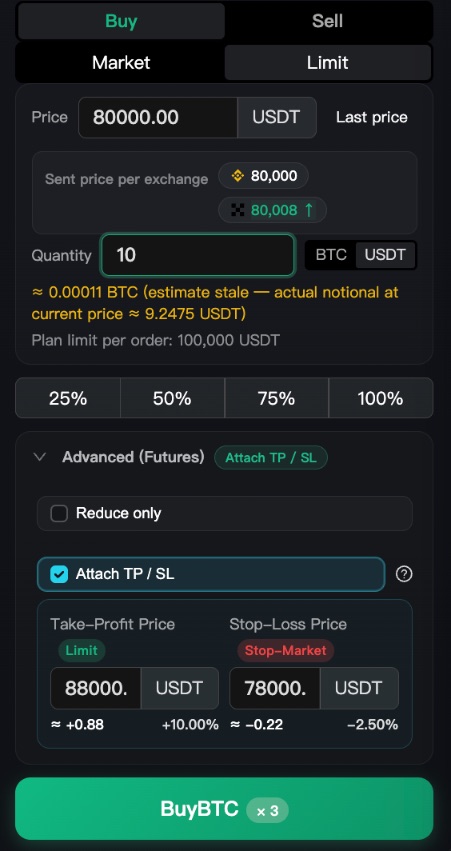
Manage open orders and positions
After you trade, unfilled orders and current positions appear at the lower right of the page.
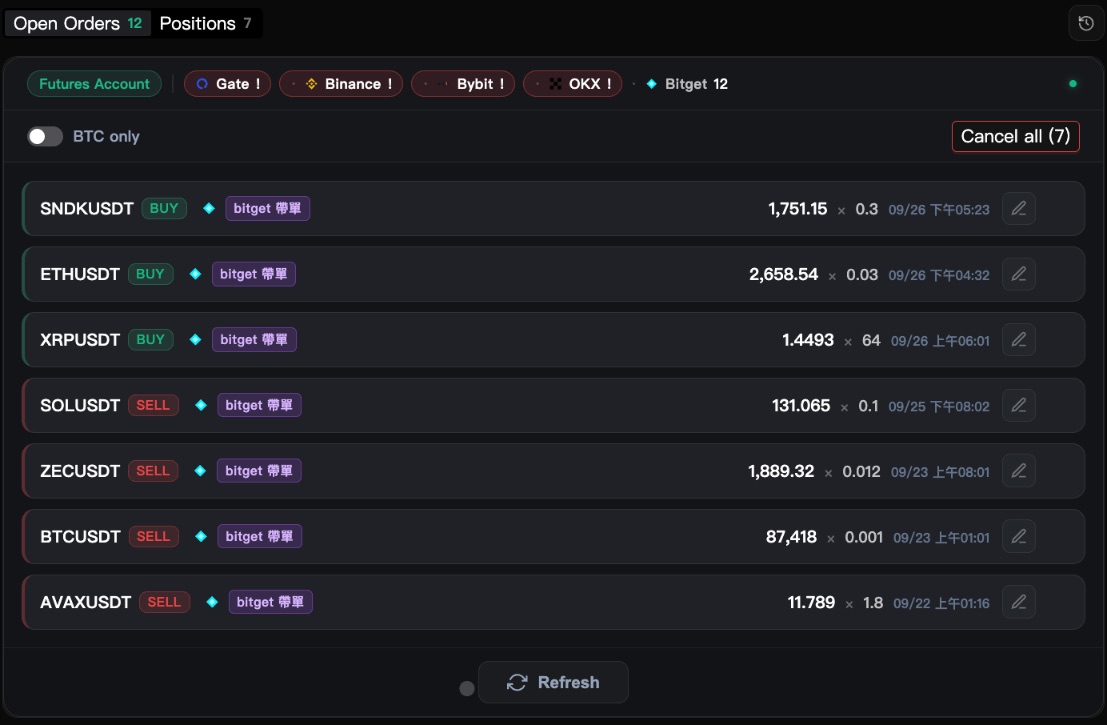
See open orders and positions
Switch between the "Open Orders" and "Positions" tabs; the numbers show how many there are. Everything updates live, no need to refresh.
Modify or cancel an order
Find the order under "Open Orders". The pencil icon on the right of the card is "Modify order": change the price or quantity, then click "Apply".
Hover over the card and an × ("Cancel order") appears next to the pencil; click it, then "Confirm cancel". On a phone, tap the card first to expand it and the × shows up.
Got many orders to cancel? Use "Cancel all" above the list to do them in one go.
Close a position
Find the position under "Positions" and choose "Close (Market)" (fills now) or "Close (Limit)" (places an order at a better price), then click "Confirm Close".
You can also click "TP / SL" to add protection to an existing position.
A market close fills immediately and cannot be undone.Set stop-loss on every exchange at once
The shield button to the right of the page title is the "Stop-loss manager (all exchanges)". It shows whether your positions in this symbol have a stop-loss on each exchange. Enter a "Trigger price" and click "Apply to all" to place the stop-loss everywhere at once.
A red dot on the button means at least one position has no stop-loss. This works for futures positions only.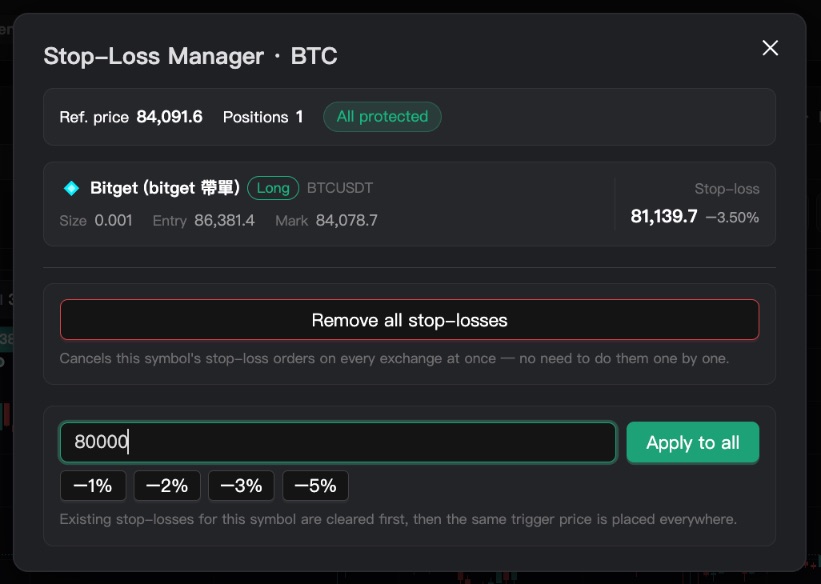
Clear All
"Clear All" under the order panel sells or closes everything at once, using what you hold on each exchange. Choose "Clear (Market)" or "Clear (Limit)"; nothing is sent until you confirm.
This acts on every selected exchange at once. Read the list in the confirmation window carefully before you confirm.See past trades
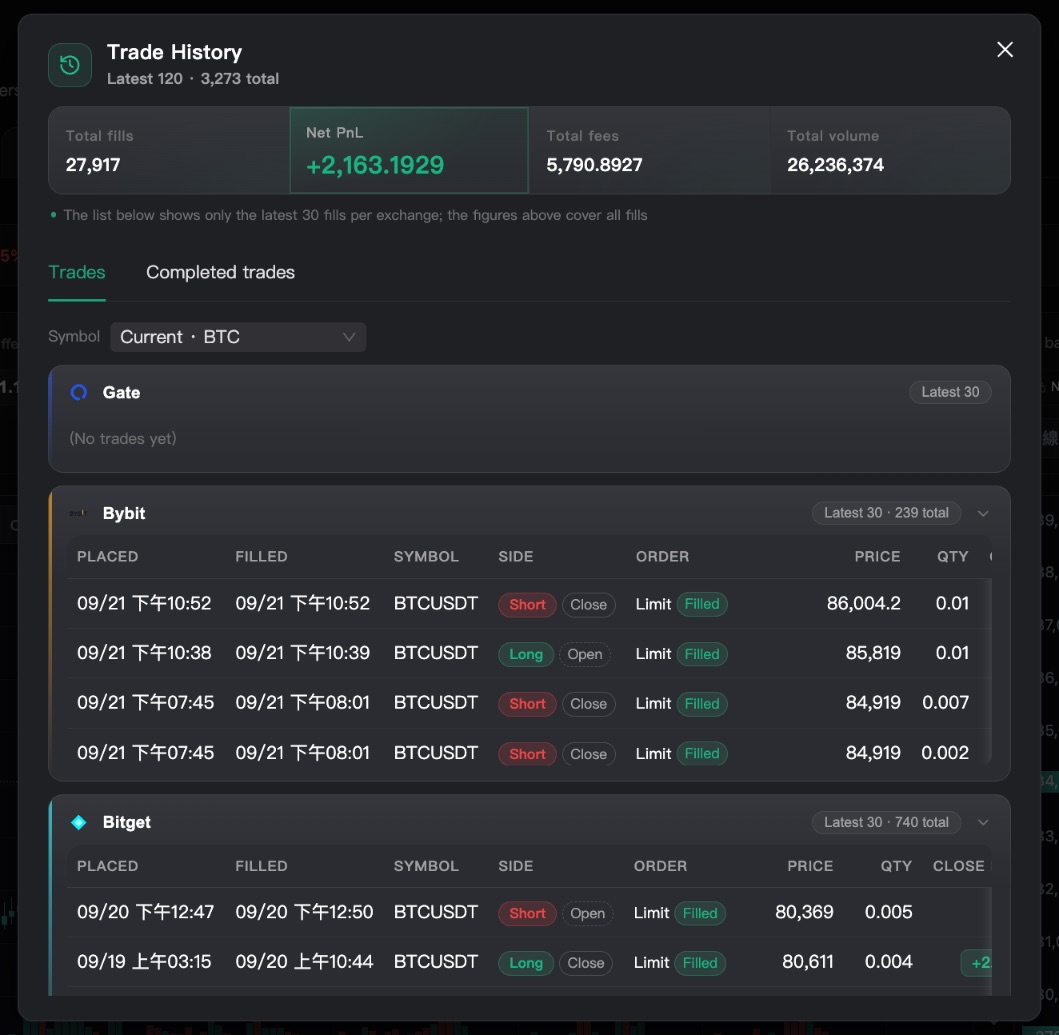
The clock icon at the right of the page header and the clock icon at the top right of the orders area open the same "Trade history" window. "Trades" lists every fill; "Completed trades" shows the net profit of each trade from entry to exit.
Diary and reports after you close
Spending a minute on notes after each close, and reading the report the next day, is a simple habit that makes you a better trader.
Write a close review
When a futures position closes, "Close Review" pops up with the entry, exit and net profit.
Pick "How do you feel", rate the trade with stars, add a few words and click "Save to diary". Not in the mood? Click "Skip".
You can speak into the microphone instead of typing. To stop the automatic pop-up, turn off "Close review notebook" in "Notifications".Open today's diary
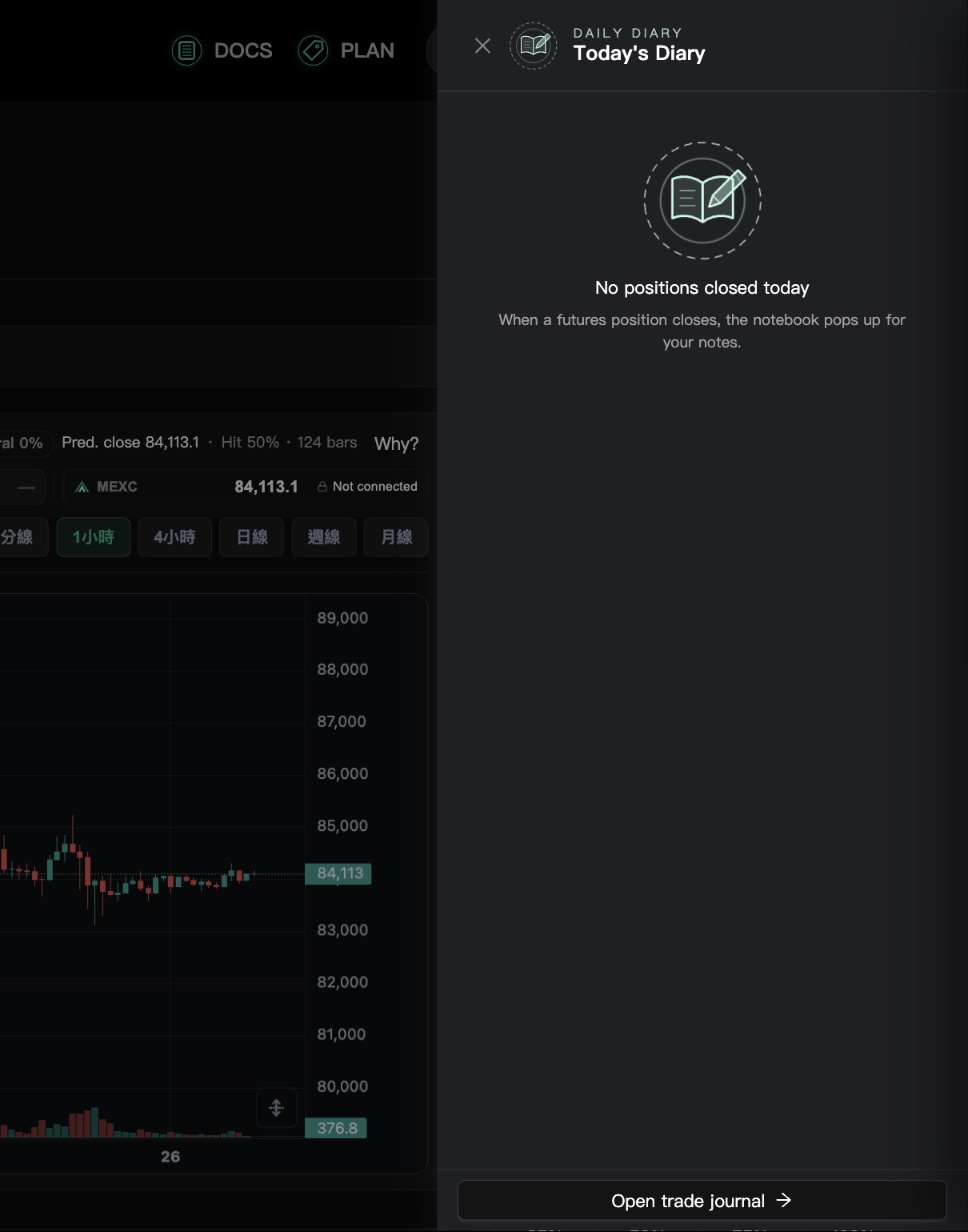
The notebook button in the corner of the screen is "Today's diary". It shows today's net P&L, number of trades and every closed trade. For any without notes, click "Write" to add them.
Yesterday's Trading Report
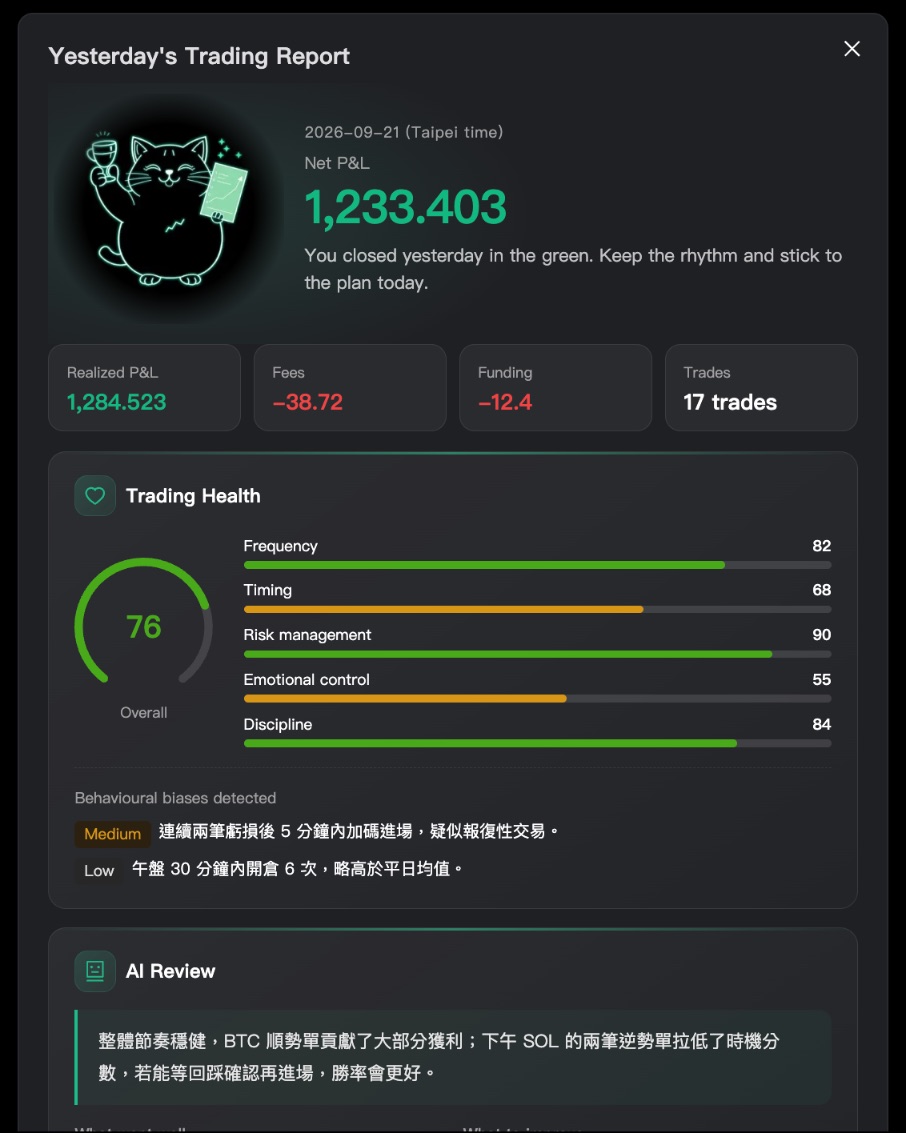
If you traded yesterday, "Yesterday's Trading Report" pops up the first time you open any dashboard page after 10:00 (Taiwan time). It shows net profit, fees, "Trading Health" and an "AI Review".
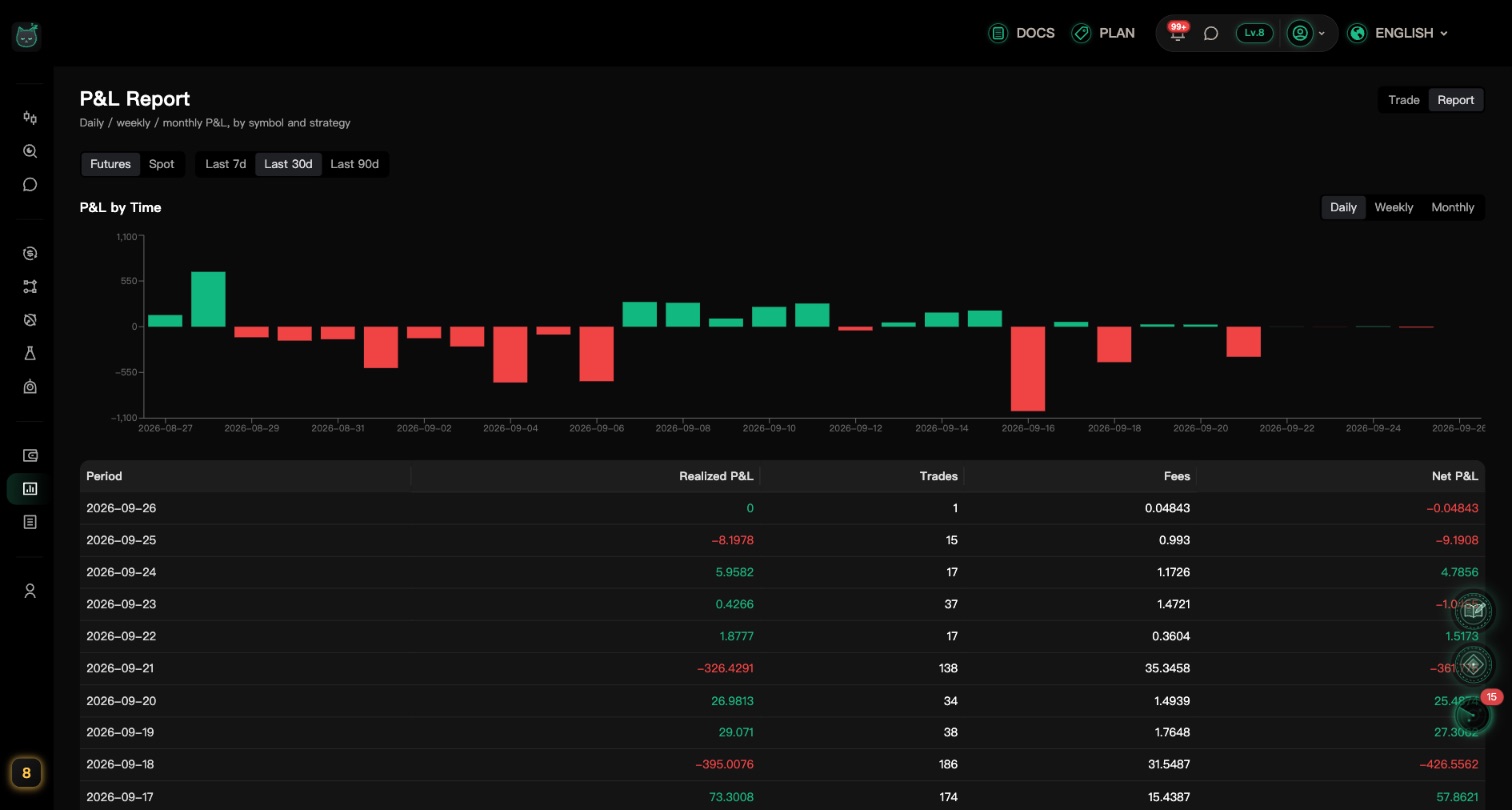
The report pops up at most once a day, and only if you traded the day before.