
Using Strategies
From creating and starting a strategy to reading its results, step by step
This guide walks you through the whole strategy flow: reading the strategy list, creating a strategy in three steps, filling in each strategy type, stopping and editing, and reading the strategy detail page. If it's your first time, keep “Simulation” on for a while before going live.
Reading the strategy list
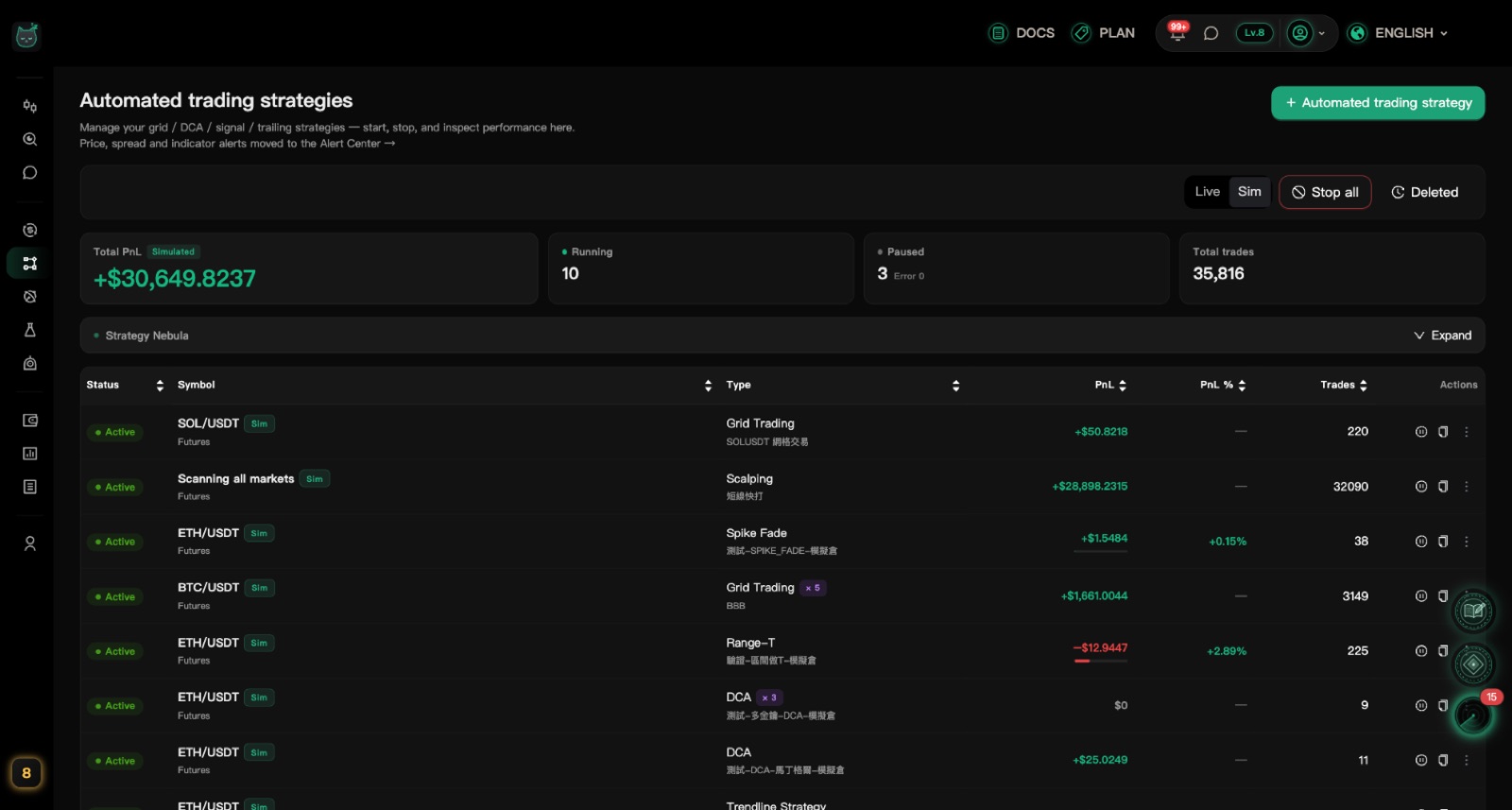
Every strategy you create lives on the “Strategies” page. Check status, profit and loss, and start or stop them here.
Switch between “Live” and “Sim”
Above the list are two buttons, “Live” and “Sim”. The list shows only one kind at a time.
The number bar next to it shows how many strategies are Running, Paused or in Error, plus Total PnL and Total trades.
Can't find the simulated strategy you just created? You're probably on “Live” — switch to “Sim”.What each column means
Each row is one strategy. From left to right:
- Status: “Active” means it's running; “Paused” means it's stopped; “Error” means something went wrong and needs your attention.
- Symbol: the coin being traded, with Spot or Futures underneath. A “Sim” label means it's a simulated strategy.
- Type: the strategy type, with the name you gave it underneath. If it uses several keys you'll see something like “× 2”.
- PnL: how much this strategy has made or lost so far in USD, after fees.
- PnL %: profit or loss as a share of the money put in.
- Per order: how much each order puts in. Some strategies are set by total investment, amount per grid or a share of your balance instead, and are labelled that way.
- Actions: start or stop, duplicate, and more options.
The buttons on the right of each row
The play icon is “Start” and the pause icon is “Stop”; the two-squares icon is “Duplicate”.
Click “⋮” for “Details”, “Edit” and “Delete”. Clicking anywhere on the row also opens the detail page.
“Deleted” above the list shows strategies you've removed; “Stop all” stops every strategy at once.

Create a strategy
Creating a strategy takes three steps: Trading Setup → Configuration → Confirm. You can click the step bar at the top to go back and change things at any time.
Click “+ Automated trading strategy”
On the Strategies page, click “+ Automated trading strategy” in the top-right. The “Create New Strategy” panel slides in from the right.
If you have no strategies yet, the same button also appears in the middle of the list.
Choose a strategy type
At the top of the first step is “Select Strategy Type”, with “Grid Trading” already selected. Each card says what the strategy does; hover over a card to read the full description.
Click a card to choose it — a check mark appears in its corner.
- A card with a lock and “Needs …”: your current plan can't use this strategy yet.
- Not sure which one? Read “Filling in each strategy type” below, or the “Automated trading strategies” overview page.
Fill in Trading Setup
Further down the same step is “Trading Setup”. Fill in, in order:
- Strategy Name: optional. If left empty, it's named after the coin and strategy type.
- Run period: pick a number of days if you want it to stop on its own, or “No end date” to keep it running.
- API Key: which exchange account places the orders. You can pick several keys; each runs its own copy of the strategy.
- Trading Pair: choose a key first, then type a coin name to search, e.g. BTC.
- Account Type: “Spot” or “Futures”. Some strategies only work with Futures and pick it for you.
If you haven't connected an exchange key yet, you'll see “Add API Key” here. Connect one first, then come back.Fill in Configuration
Click “Next” to reach “Configuration”. The fields here depend on the strategy type — see the next section for each one.
The small question marks next to fields explain them; fields marked “Optional” can be left empty.
“Trigger Condition (Optional)” at the bottom makes the strategy wait for a certain market move before it starts. You can skip it the first time.
Confirm
Click “Next” to reach “Confirm” and check the summary at the top: type, name, trading pair, account type and number of keys.
- “Try Backtest”: runs your settings against past prices to see how they would have done. No real orders. Not available on the Free plan.
- “Simulation (no real orders)”: on by default. While it's on, nothing touches your money.
The first time you use a strategy, keep Simulation on. Let it run a few days, check the log looks right, then switch to live.Click “Create Strategy”
Once you click “Create Strategy”, the strategy starts right away — no separate start needed.
If you turned Simulation off, a “Create strategy in live mode” reminder appears first. Check the exchange and coin, then click “Create in live mode”.
Live mode places real orders with the money in your exchange account. If you're unsure, click “Back to edit” and try it in Simulation first.
Filling in each strategy type
Plain-language notes on the main fields in the “Configuration” step for each strategy. The small question marks in the form have more detail.
Grid Trading
Splits a price range into steps: buys when the price drops a step and sells when it climbs back. Works best when the price moves up and down without a clear direction.
- Lower Price, Upper Price: the range you expect the price to move within. After you pick a coin, they're pre-filled at 5% below and above the current price.
- Grid Count: how many steps. More steps means more frequent trades but less profit per step. Default is 10.
- Investment Amount (USDT): the total money for this strategy, split evenly across the steps.
- Stop Loss Price, Take Profit Price (optional): the strategy ends if the price falls below or rises above these.
Each step's order must meet the exchange's minimum order size. Roughly, “Investment Amount ÷ Grid Count” needs to be at least a few dollars (about 5 USDT on Binance), and for high-priced coins like BTC the amount bought per step must also reach the exchange's smallest unit. If it's too small, creation is blocked — raise the investment or use fewer steps.DCA
Buys (or sells) in several smaller pieces over time, spreading out your average cost so you don't have to guess the bottom.
- Direction: “Long (add on dips)” buys more as the price falls; “Short (add on rallies)” sells more as it rises and needs Futures.
- Investment Amount (USDT): how much each entry uses.
- Position multiplier: 1 means every entry is the same size. Higher values make each later entry bigger — and riskier.
- First Entry: “Enter now”, or wait until the price reaches “At a price” for the first buy.
- When to enter — pick one or both: “Time-based (enter on a fixed schedule)” or “Price-move (enter only when price moves)”.
- Total Rounds: the maximum number of entries. Default is 10.
- Full-position Take Profit (%): sell everything once the average cost is up this much. Stop-Loss Price (optional): exit everything and stop if the price breaks it.
- Post-take-profit cooldown: after taking profit, stop, or rest for a while and start a new round.
With several keys selected, each key runs its own copy, so the total number of entries is multiplied by the number of keys.Trailing Stop
Enters when the price reaches your level, then moves the stop along in your favor. When the price pulls back a set percentage from its best point, it exits automatically and keeps what you've made.
- Direction: “Long” or “Short (futures only)”.
- Activation Price: nothing happens until the price gets here.
- Callback Rate: how far the price may pull back from its best point before exiting — 1% means exit after a 1% reversal.
- Order Size, Order Type: how much to trade, as a “Fixed Amount” or a “Percentage”.
- Cooldown after exit: how long to wait before looking for a new entry, so it doesn't buy right back in.
Trailing Stop has no Simulation mode — it trades live as soon as it's created. Start with a small amount.Trendline Strategy
Draw a trendline on the chart. When the price comes back near the line, an order is placed automatically, and take-profit and stop-loss are set relative to the line. Futures only.
- Draw Trendlines (up to 10): drag two points on the chart in the form to draw a line. You can draw several.
- Position Sizing Mode: size each trade by margin, position value or number of coins.
- Entry offset (%): place the order when the price is this far from the line; a negative number means it must actually cross the line first.
- TP from line (%), SL cross line (%): after a fill, how far from the line to take profit, and how far past the line to stop out.
- Post-completion cooldown: whether to rest for a while after each round before entering again.
Range-T
Finds the range the price has been moving in, buys part as a base position, then sells near the top and buys near the bottom of the range to lower your cost bit by bit. Futures only.
- Detection candle interval, Lookback bars: how much recent price history is used to find the range. Longer is steadier but slower to react.
- Total investment (USDT): the total money for this strategy.
- Base position (%): how much to buy up front as the base; the rest is kept for buying dips. Default 50%.
- T slice size (%): how much of the base each sell-high / buy-low trade uses.
- Stop-loss on break (%): exit everything if the price falls this far below the range.
- Breakout threshold (%): if the price breaks this far above the range, just hold the base and pause trading the range.
Spike Fade
Around the US market open or close, or daily, weekly and monthly closes, prices often overshoot. This strategy shorts sharp spikes up and buys sharp drops, aiming to profit as the price snaps back. Futures only.
- Market events: which moments to watch. You can pick several.
- Observe window (min): how many minutes after the event to watch.
- Spike threshold (%): how big a move is needed before it acts.
- Take-profit retrace (%): take profit once the spike gives back this share, e.g. 50% means half.
- Stop loss (%), Timeout (min): stop out if the move keeps going; exit anyway if it takes too long.
- Total investment (USDT): how much each entry uses.
Scalping
No coin to choose: every minute the system scans the whole market for busy, volatile futures and makes quick trades when conditions are met. Futures only, and trigger conditions aren't available.
- Quick presets: three ready-made combinations you can apply with one click — the easiest way to start.
- Notional per position (USDT): the size of each position.
- Take profit (%), Stop loss (%): exit once it's up or down this much.
- Max concurrent positions: the most coins held at the same time. Default 3.
- Trade direction: “Long & short”, “Long only” or “Short only”.
- Symbols (optional): leave empty to scan the whole market, or pick just a few coins.
Your total exposure is about “Notional per position × Max concurrent positions”; the form works it out for you once both are filled in.MACD Divergence
When the price makes a new low but the indicator keeps getting stronger (or the reverse), a turn is often coming. This strategy spots that signal and enters when the candle closes. Futures only.
- Evaluation timeframe: which candle length to watch. Default 1 hour.
- Trade direction: both directions, long only or short only.
- Position sizing: “Risk percent” works out the size from the stop distance; or choose “Fixed notional (USDT)”.
- Risk per trade (% of capital): the most you're willing to lose on one trade, as a share of your capital. Default 1%.
- Take-profit mode, Reward:risk (R): e.g. 1.5 means aiming to make 1.5 times what you might lose.
Custom Rules
Build your own entry and exit conditions from blocks, like “go long when the close crosses above a moving average”. Checked once at each candle close. Futures only.
- Quick presets: ready-made rules you can apply and then tweak.
- Evaluation interval: how often the rules are checked.
- Notional per trade (USDT): the size of each position.
- Long entry, Short entry: turn on at least one side and build the rule with “Add condition”.
- Exits: set at least one way to exit, such as take profit or stop loss.
When you're done, click “Try Backtest” in the “Confirm” step to see how these rules did in the past.
Start, stop, edit and delete
These actions are on the right of each row in the strategy list. You can also stop and delete from the detail page.
Stop a strategy
Click the pause icon. “Confirm Stopping Strategy” appears — choose what to do with your position and any unfilled orders:
- Keep position and orders: everything stays on the exchange for you to manage; orders may still fill.
- Cancel orders, keep position: cancel unfilled orders and keep what you already hold.
- Market-close & cancel orders: close the whole position at market price and cancel the orders.
Start it again
For a stopped strategy, click the play icon. Confirm in “Enable Strategy” and it carries on from the current market.
Stopped strategies don't count toward your plan limit. If you're already at the limit of running strategies, starting another one is blocked.Change settings
Click “⋮” → “Edit”. A running strategy must be stopped first: “The strategy must be stopped before editing” asks how to wrap up, then the edit panel opens automatically.
Strategy type, API key, trading pair and account type can't be changed after creation. To change them, use “Duplicate” to make a new one.Duplicate
Click the “Duplicate” icon. The create panel opens with all of this strategy's settings filled in — adjust them, for example a different coin or key, and create a new strategy.
Delete a strategy
Click “⋮” → “Delete”. For a running strategy you'll again be asked how to handle the position and orders; a stopped one just needs one more confirmation.
Past trades and the log are kept after deletion — find them under “Deleted” above the list.
If you choose “Keep position and orders”, the position stays on the exchange. Remember to deal with it yourself.
Strategy details: results and history
The detail page shows how much a strategy has made, what it's doing right now, and a record of every action.
Open the detail page
Click a row in the strategy list, or “⋮” → “Details”.
In the top-right you can “Stop” or “Start” and “Delete”; most strategies also have “Add capital” (Grid Trading and Funding Arbitrage don't). Simulated strategies carry a “Simulated” label.
Reading the numbers
The results area stays at the top of the page:
- Total Trades: how many fills so far.
- Total profit (net of fees): what you've actually made or lost so far, with fees taken out.
- Total fees: how much the exchange has charged. For live strategies this is updated to the exchange's actual charge within about 15 minutes.
- Total funding: only appears on live futures strategies — simulated strategies don't show it. Fees paid or received while holding futures — negative means paid. It's not included in total profit and updates once a day.
- Profit %: profit or loss as a share of the money put in.
- Win rate: the share of trades that made money.
- Max drawdown: the biggest drop from a peak in your balance.
- Sharpe ratio: how much you earned compared with how bumpy the ride was. Higher means steadier gains.
Hover over “Total fees” and “Total funding” to see how they're calculated.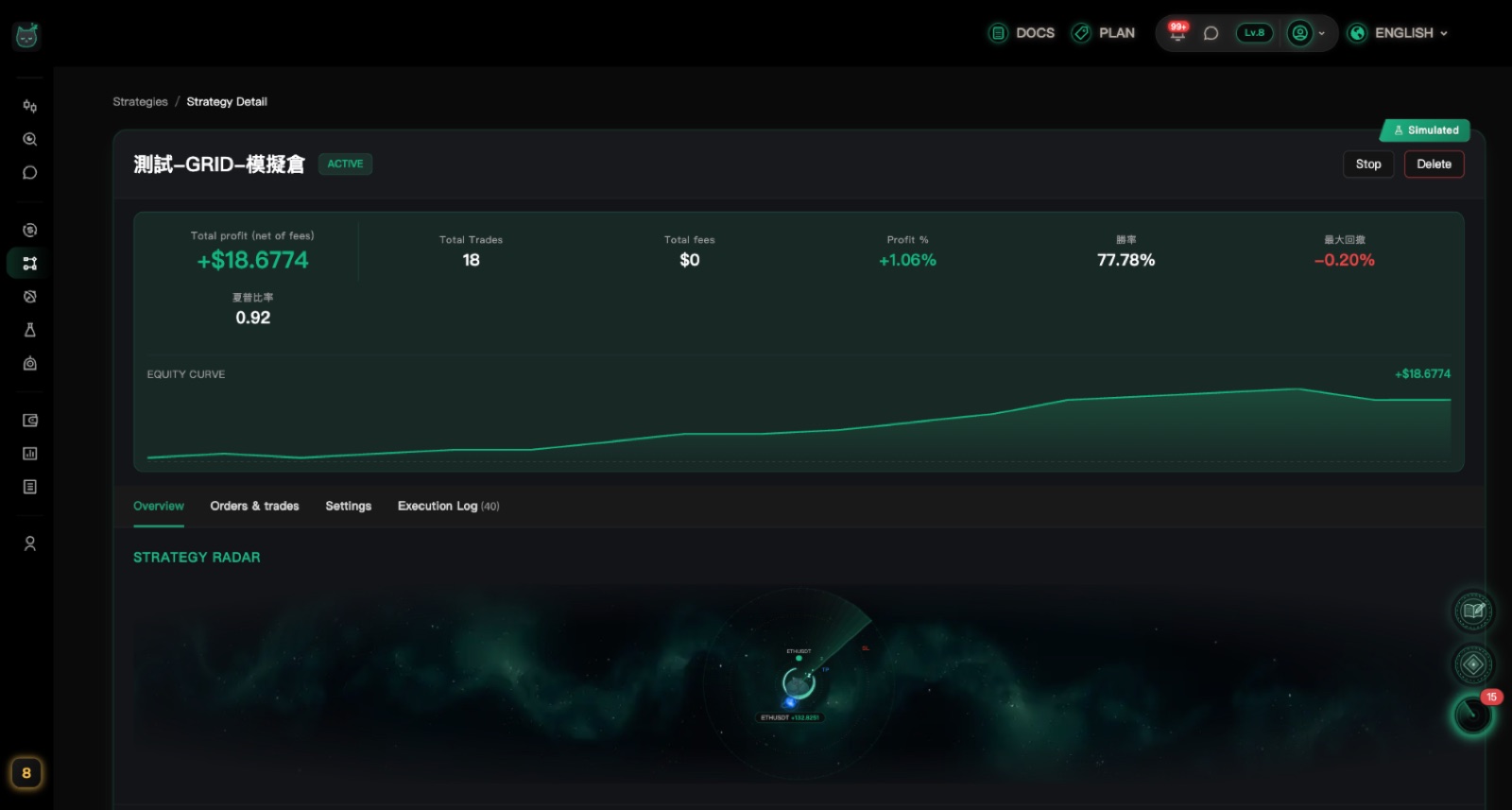
The four tabs
Below the results there are four tabs:
- Overview: the strategy radar, the strategy chart, and “Trading Status” — four boxes (Last Trigger, Next Entry, Position Info, Expected Exit) that show where the strategy is right now.
- Orders & trades: this strategy's open orders on the exchange, and the final result of each closed trade.
- Settings: everything you filled in when creating it.
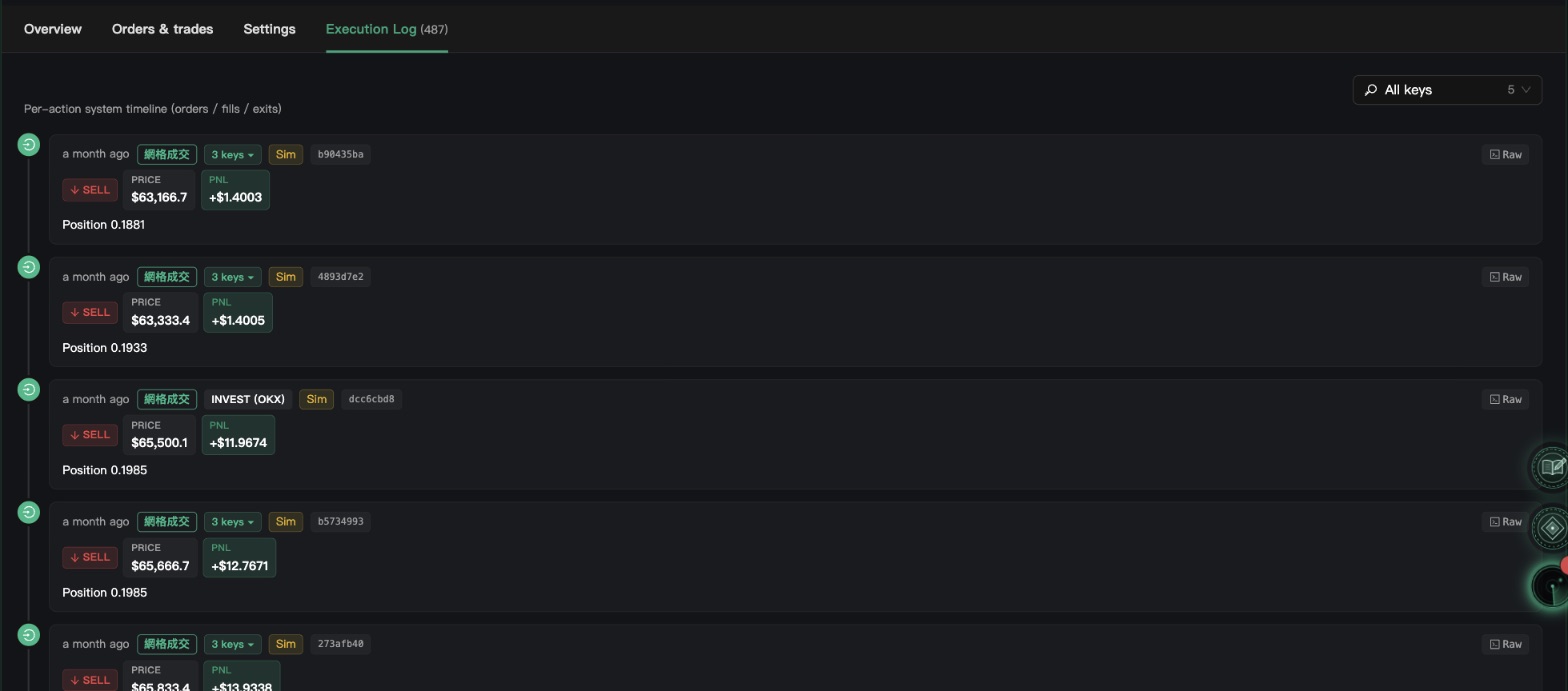
- Execution Log: every action the system has taken.
Reading the Execution Log
The “Execution Log” lists every order, fill and exit in time order, newest first. Simulated entries are marked “Sim”.
If the strategy uses several keys, a drop-down appears in the top-right. It starts on “All keys”; switch it to see just one key's history.
Range-T's “Execution Stage”
Range-T strategies have an extra “Execution Stage” box under the page title and above the results area (not inside a tab). The tag in its corner shows what the strategy is doing right now — for example “Detecting a range”, “Trading inside the range”, “Broke above the range, riding the base” or “Stopped out, waiting to re-detect”.
The box lists “Last evaluated”, “Range top”, “Range bottom” and “Range committed at”; when a Range-T order is waiting, an extra “Open order” block appears below. Finding the range and building the base only show up here, not in the Execution Log.

Plans and strategy limits
Each plan differs in how many strategies can run at once, the largest single order, and how long the Execution Log is kept.
How many strategies can run at once
Only strategies that are running count toward the limit; stopped ones don't. Simulated strategies count too.
- Free: 1
- Basic: 3
- Pro: 7
- Premium: 25
If you pick several keys in one go, it counts as a single strategy.Which strategies each plan can use
The Free plan can use seven of them. The other two need Basic or higher.
- Free: Grid Trading, DCA, Trailing Stop, Trendline Strategy, Spike Fade, Scalping, Custom Rules
- Basic and higher: also Range-T, MACD Divergence
When you create a strategy, types your plan can't use show a lock and the plan they need.Largest single order
Every plan can run strategies live, but each order has a size limit (Simulation too). For example, Grid looks at the amount per step, and DCA looks at its last — and largest — entry.
- Free: 30 USDT
- Basic: 5,000 USDT
- Pro: 100,000 USDT
- Premium: 2,000,000 USDT