Assets & Reports
See where your money is, how much you made or lost, and set up your account
This page walks you through the Assets and P&L Report screens (every single trade record lives under the report's "Trade details" tab), then explains each tab under Account & Settings. Subscriptions and payments are covered on the next page, Plans & Payment.
Assets: every exchange in one view
Once your exchange keys are connected, balances from each exchange are gathered here automatically. No more switching between apps.
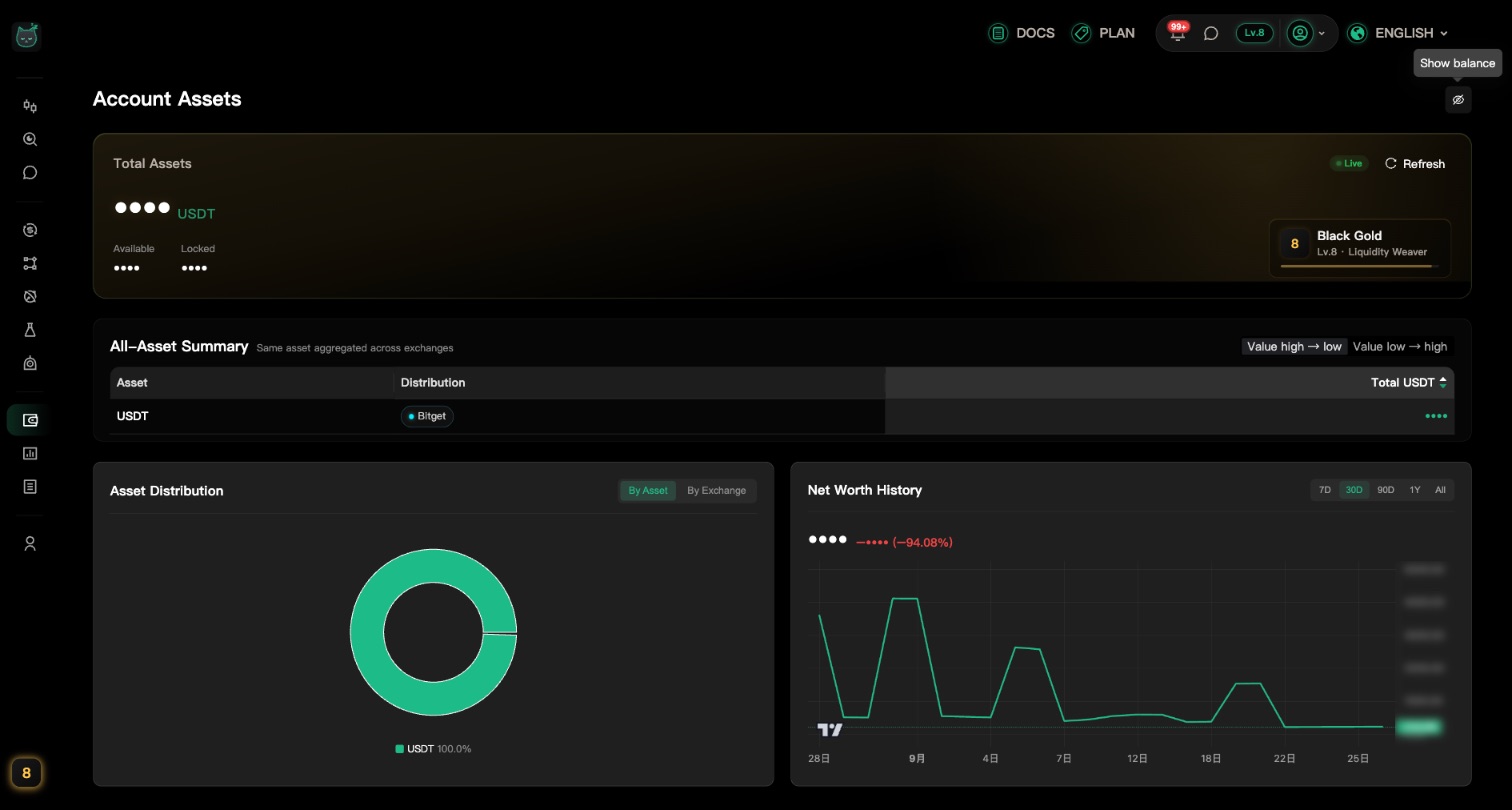
Start with "Total Assets" at the top
The big number is the combined value across all your exchanges. Below it, the total is split into "Available" and "Locked".
"Locked" is usually money held by orders that haven't filled yet.
When the top right shows "Live", the numbers update on their own. To refresh right away, click "Refresh".
In public? Hide your balances first
Click the eye icon next to the page title ("Hide balance") and every amount is masked. Click it again ("Show balance") to bring them back.
Your choice is remembered the next time you open the page.
"All-Asset Summary": each coin added up
If the same coin sits on several exchanges, this table adds it up for you. "Distribution" shows how much is on each exchange.
- Use the switch at the top right to sort by amount, high to low or low to high
- "Total USDT" is the value converted to USDT

"Asset Charts": breakdown and trend
"Asset Distribution" can be viewed "By Asset" or "By Exchange". "Net Worth History" lets you switch between 7D, 30D, 90D, 1Y and All to see how your assets changed.
On a phone, the charts are tucked inside "Asset Charts". Tap it to expand.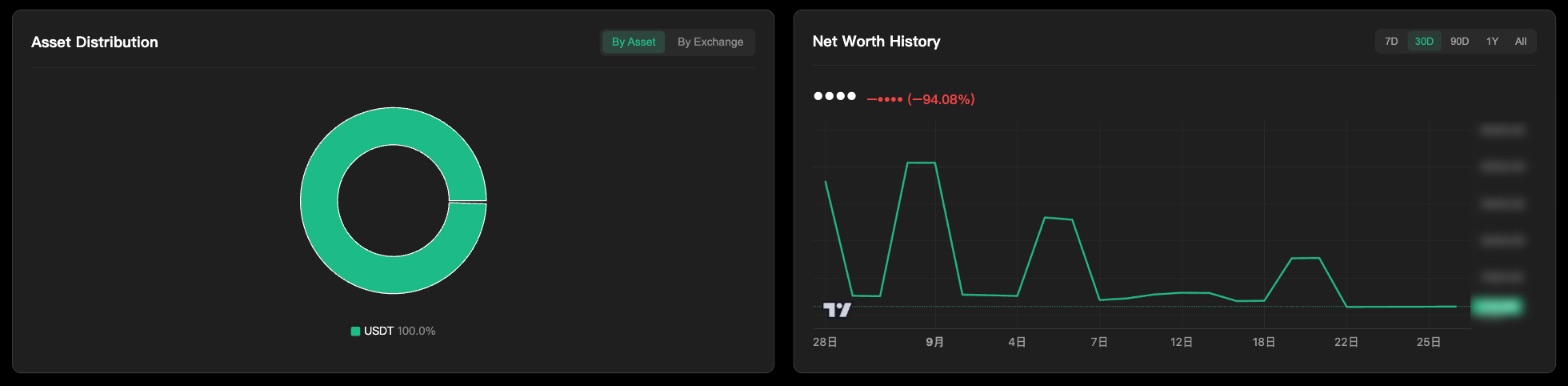
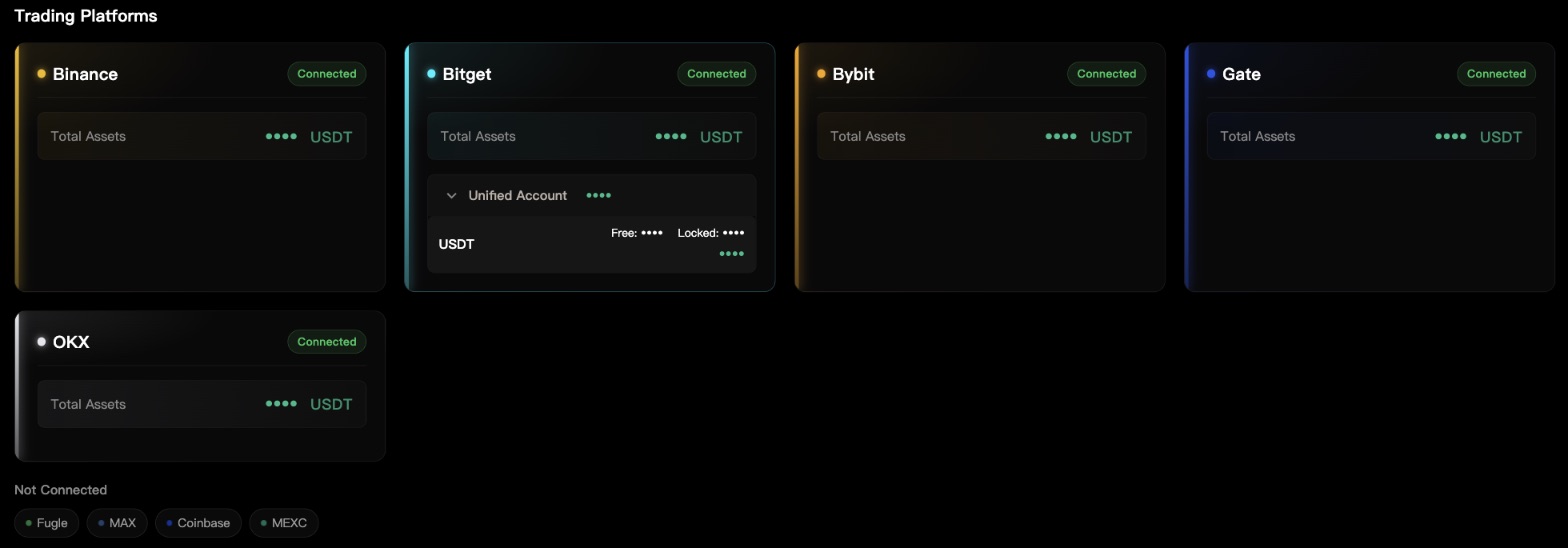
"Trading Platforms": details for each exchange
Each connected exchange gets its own card, listing the accounts on that exchange that hold assets. The names depend on the exchange — for example "Spot Account" and "Futures Account", or "Unified Account" for a Bitget unified account. Click an account row to expand it and see the "Free" and "Locked" amount of every coin.
Exchanges you haven't connected are listed at the bottom under "Not Connected".
Seeing a load error? Don't panic
If an error message appears, click "Reload" to try again.
This means the data didn't load. It does not mean your balance is zero. If it keeps failing, check your connection and make sure your exchange key is still valid.
P&L Report: results by day, week and month
Your trading results in tables, broken down by time, symbol, key and strategy.
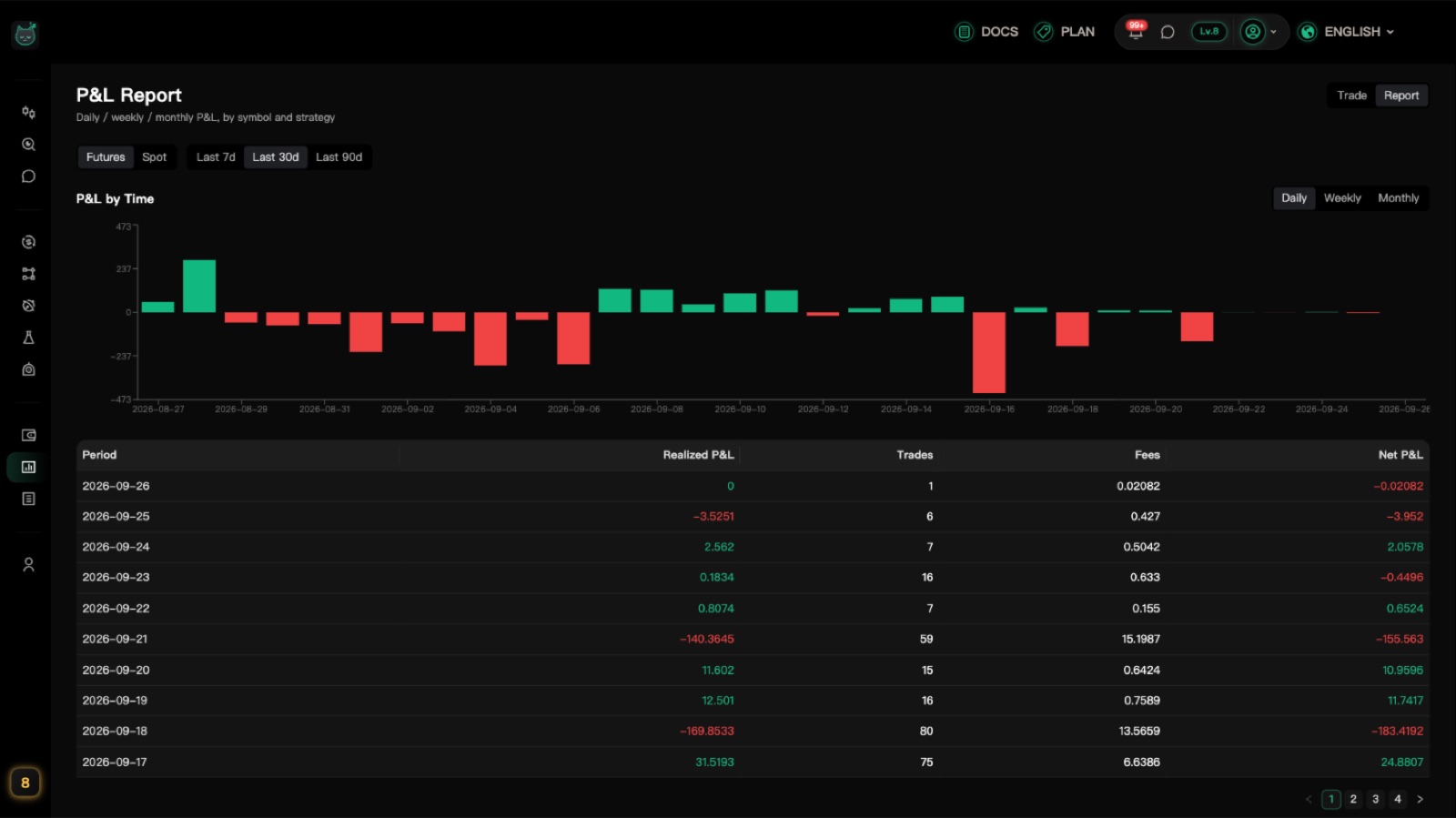
Pick a market and a period
Use the two switches at the top: first choose "Futures" or "Spot", then "Last 7d", "Last 30d" or "Last 90d". Every table below updates to match.

"P&L by Time": results for each period
Switch between "Daily", "Weekly" and "Monthly". Each row shows "Realized P&L", "Trades", "Fees" and "Net P&L".
"Net P&L" is realized P&L minus fees. It's the closest number to what you actually made or lost.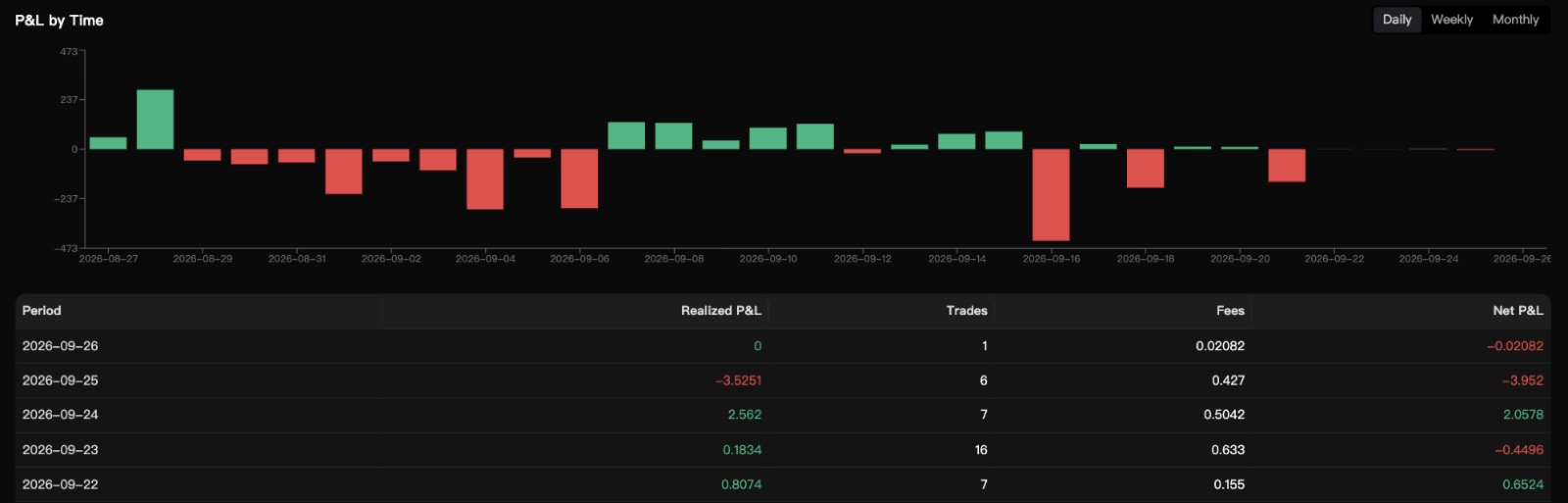
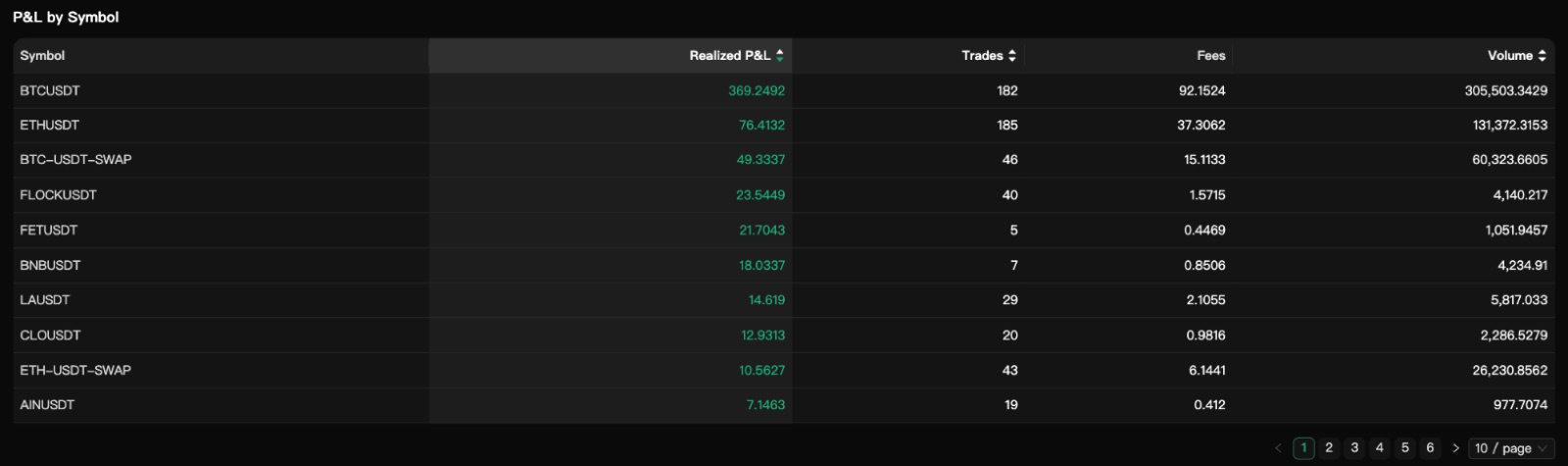
"P&L by Symbol": your best and worst coins
One row per trading pair, with its "Realized P&L", "Trades", "Fees" and "Volume".
"P&L by API Key": each key counted separately
If you've connected several exchange keys, the total for the selected period is listed separately for each one.
Trades that can't be matched to a key are grouped under "Unattributed".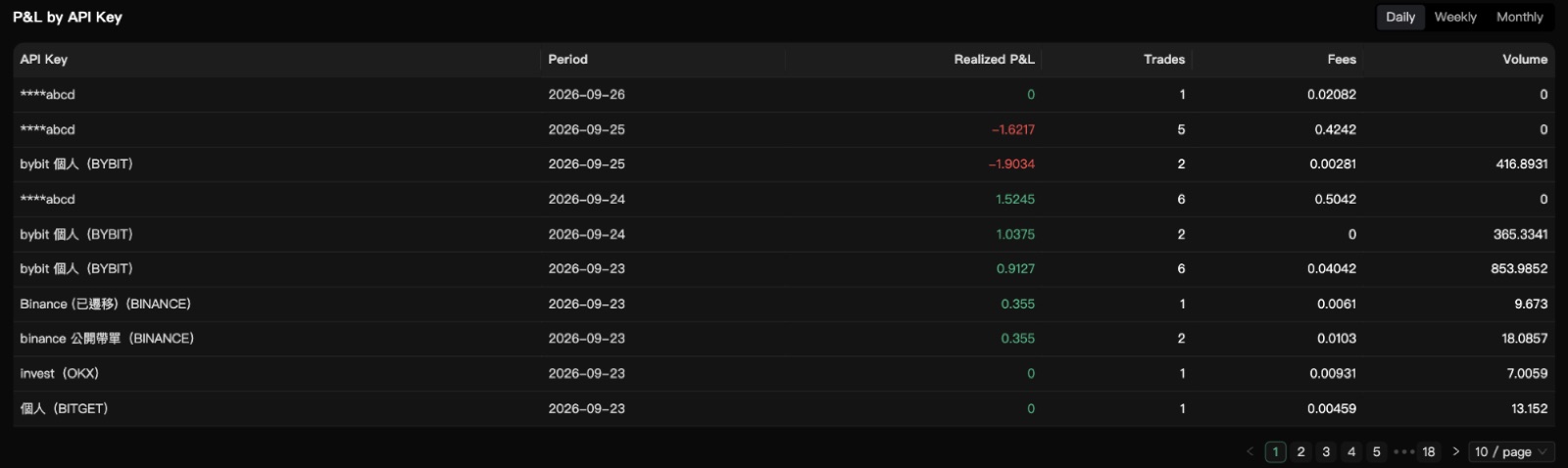
"P&L by Strategy": how each strategy is doing
Shows each strategy's "Total P&L" and "Return".
Only live strategies are shown by default. Turn on "Show simulated" to include paper-mode strategies too. They're marked "Sim".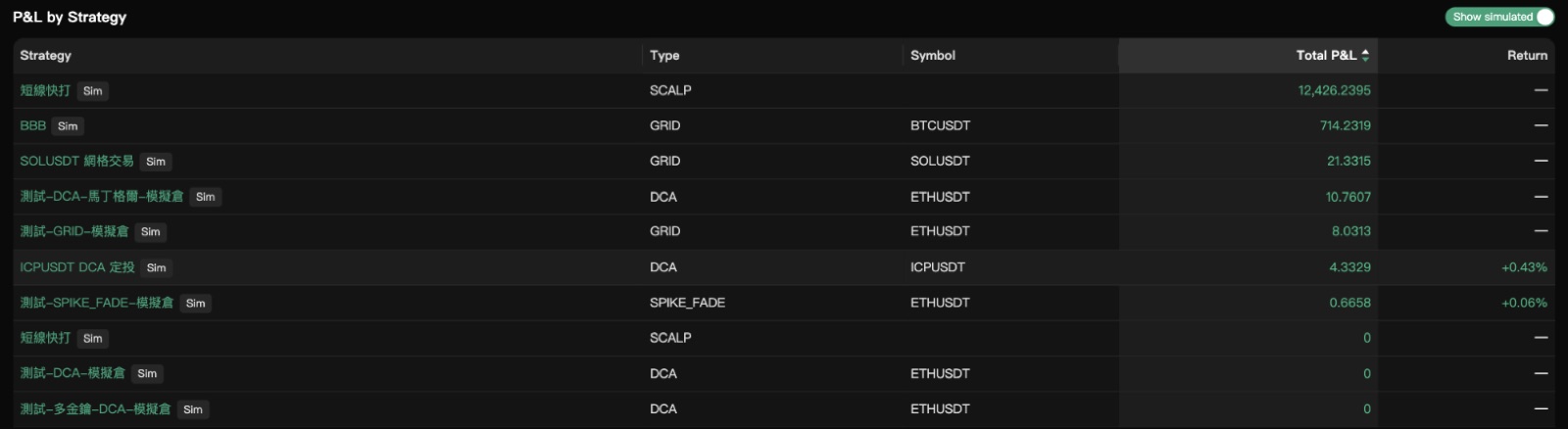
Trade details: look up every record
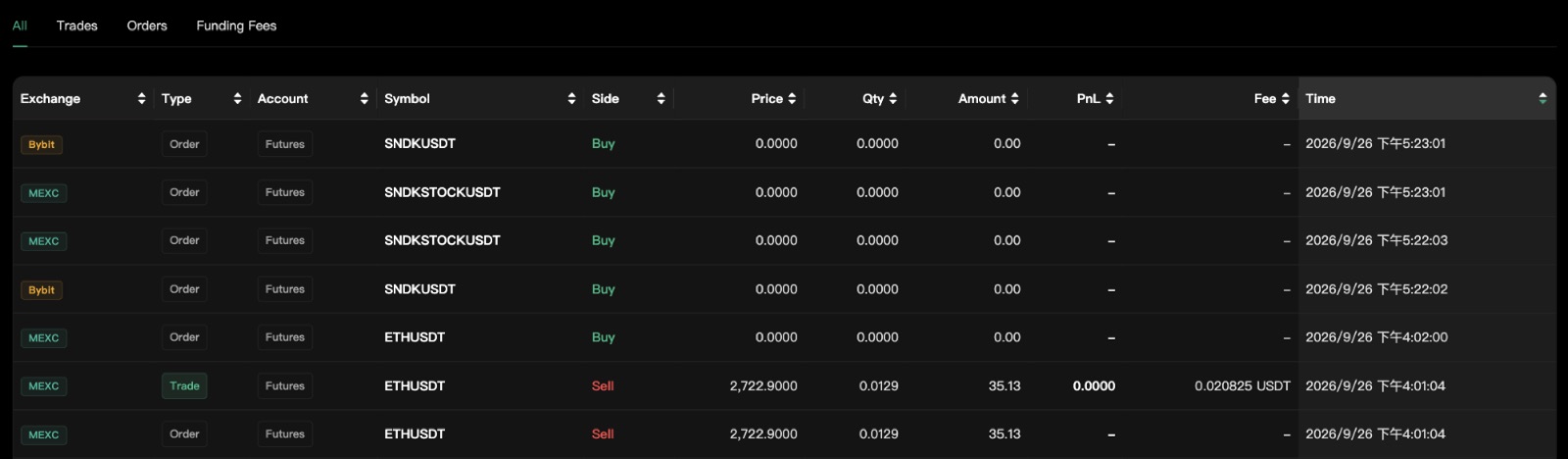
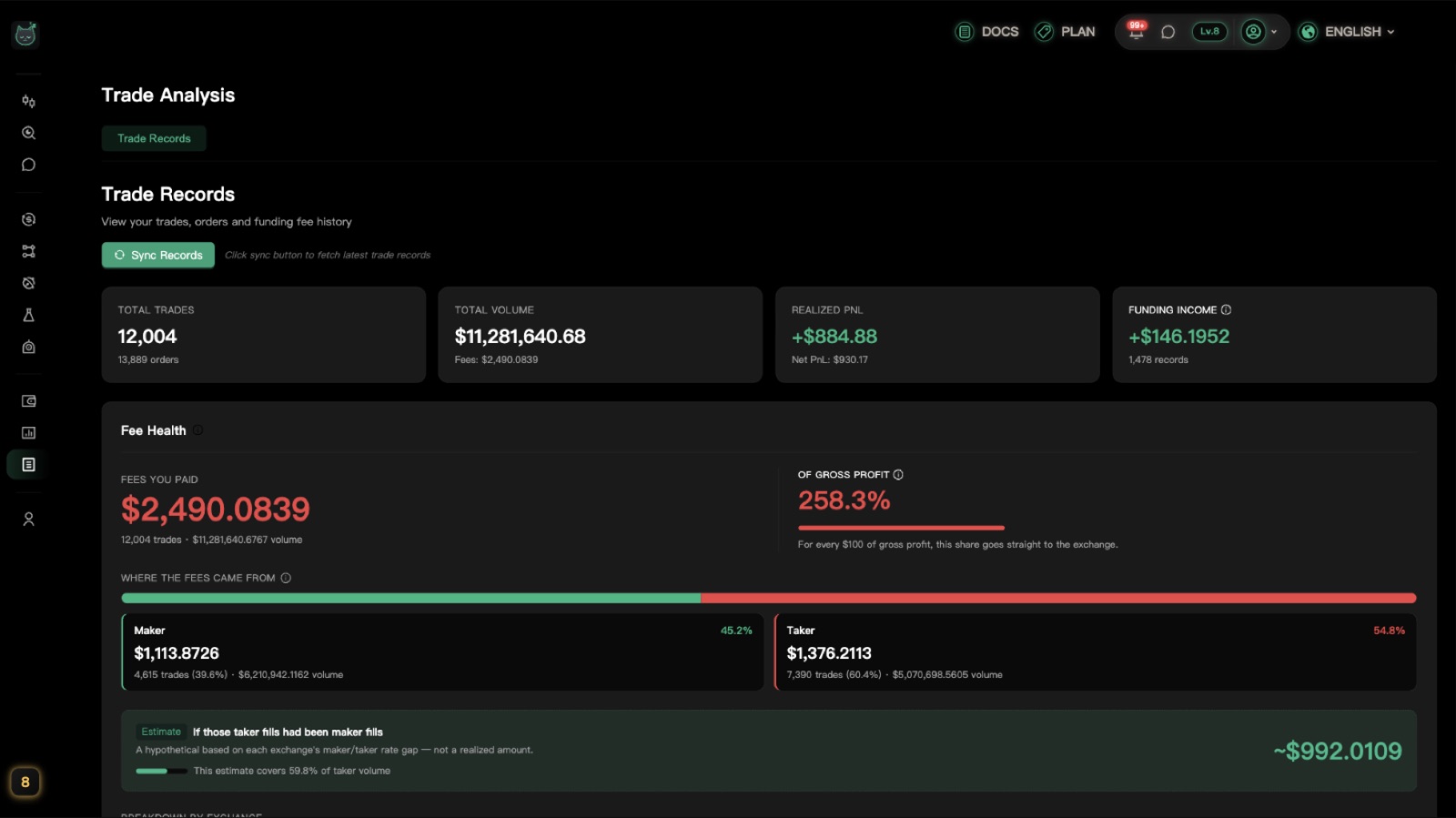
"Trade Records" collects your fills, orders and funding fees from your exchanges in one place, so you can filter them and check your history.
Click "Sync Records" to get the latest data
On your first visit, or whenever you want your newest trades, click "Sync Records". When it finishes, you'll see how many records were fetched.
After a sync, you need to wait a little before syncing again. The time left is shown next to the button. If you haven't connected an exchange key yet, the button is greyed out.
Summary cards at the top
Totals such as "Total Trades", "Total Volume", "Realized PnL" and "Funding Income".
Below the cards is "Fee Health": how much you paid in fees, how much of your gross profit they ate, and how much came from maker vs. taker fills.
"Funding Income" is the periodic payment between long and short holders on futures. Positive means you received it, negative means you paid it.
Narrow things down with "Filters"
Filter by "Account Type", "Symbol", "Side", "Date Range" and "Exchange", then click "Apply". Click "Reset" to clear everything.

Switch the record type
Use the tabs below to switch between "All", "Trades", "Orders" and "Funding Fees" and see only the kind you need.
Account & Settings: what each tab does
Your account details, exchange keys, notifications and security settings all live here.
Open "Account & Settings"
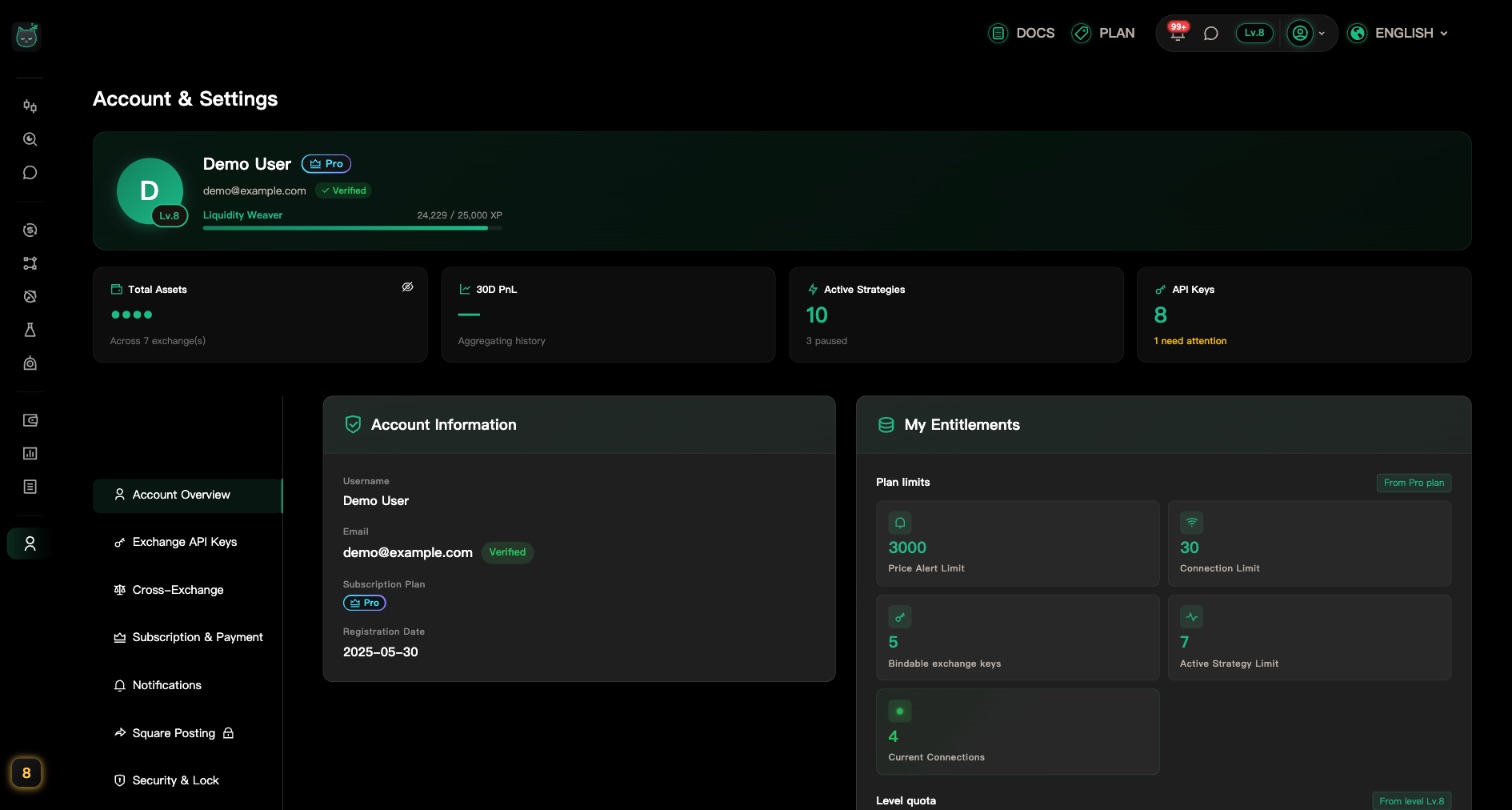
In the left menu, under "Settings", click "Account & Settings". The tabs run down the left side of the page (on phones they sit across the top instead):
- Account Overview: your account details, entitlements and exchange management
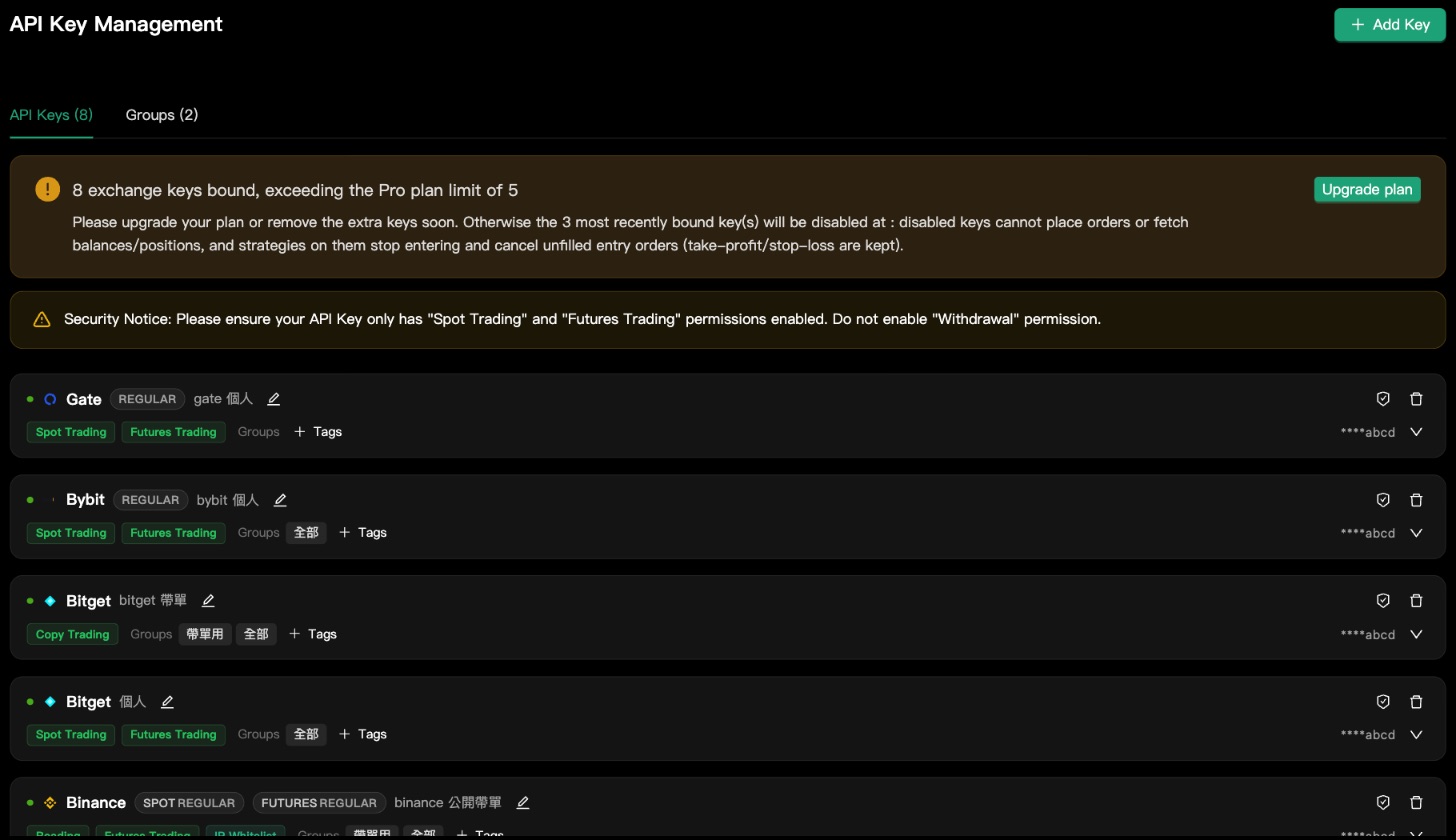
- Exchange API Keys: add and manage exchange keys, plus account risk limits
- Cross-Exchange: price comparison across exchanges
- Subscription & Payment: your plan and card (covered on the next page, Plans & Payment)
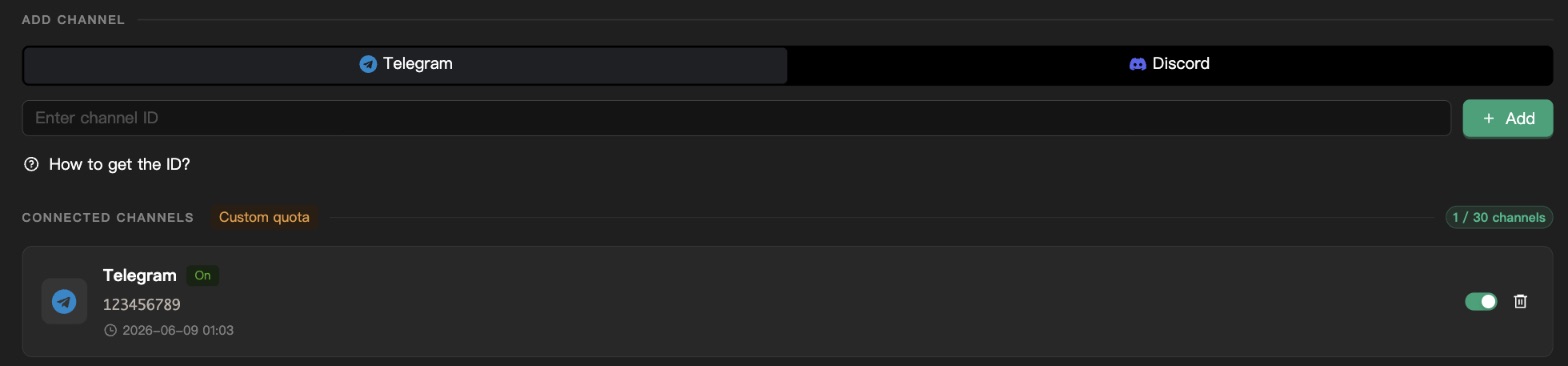
- Notifications: connect Telegram, Discord and other channels
- Security & Lock: an extra check before trades and strategy changes
"Account Overview": your account and limits
"Account Information" lists your username, email, subscription plan and registration date.
"My Entitlements" shows your plan limits (API keys, strategies running at once and more), all set by your subscription plan.
Need higher limits? Upgrade your plan on the "Plan" page.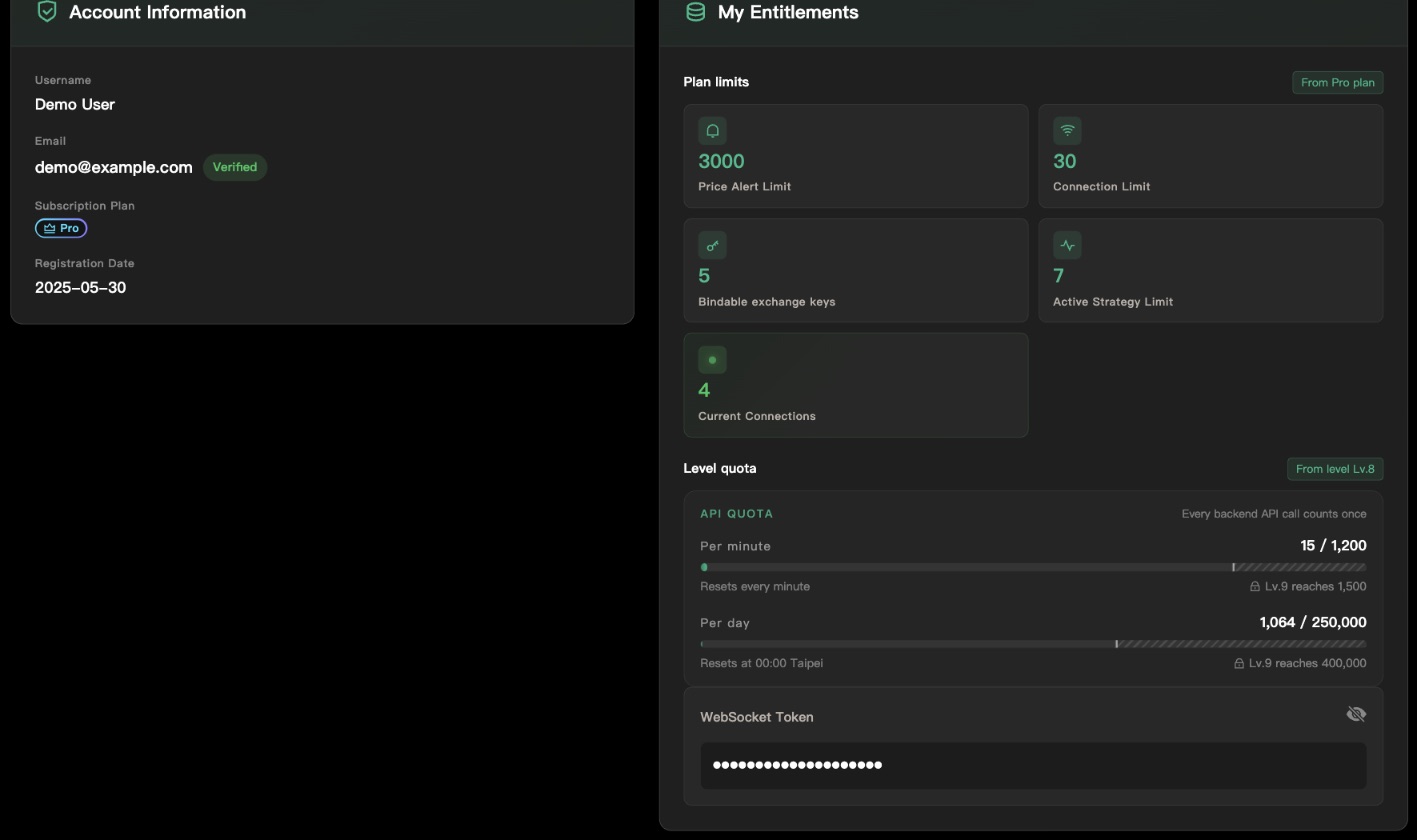
Verify your email
Next to your email under "Account Information", click "Verify email". A code is sent to your inbox.
Open the email, type the 6-character code into the window and click "Verify". When you see "Email verified", you're done.
The code is valid for 15 minutes. If it didn't arrive or has expired, click "Resend code". You must finish this step before you can link a credit card.No exchange account yet? Sign up with a referral code
After you pick an exchange while adding a key, you may see "No … account yet?" with our "Referral code" and a "Sign up" button.
Signing up with the referral code gives you a trading fee discount on that exchange. Not every exchange has a referral code.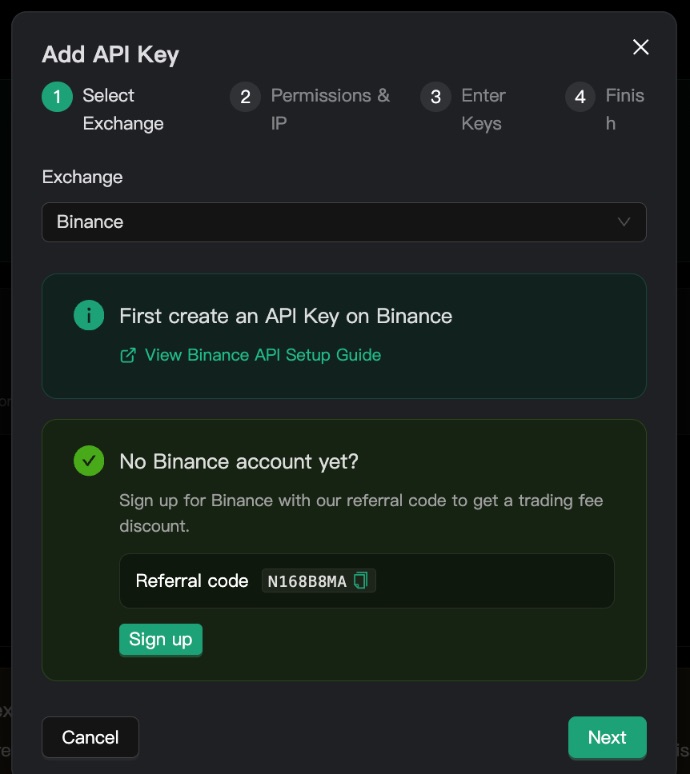
"Account risk limits": a cap for each exchange account
Lower on the same tab, "Account risk limits" gives each key its own set of limits, and every strategy on that key follows them. Expand the key, turn on "Enable risk limits for this account", then fill in "Daily loss limit", "Total exposure limit", "Same-direction limit" and "Per-symbol limit".
Enter 0 to leave a limit off, and click "Save" after changes.
Hitting a limit only stops new entries. Open positions, take-profit / stop-loss and exits keep working.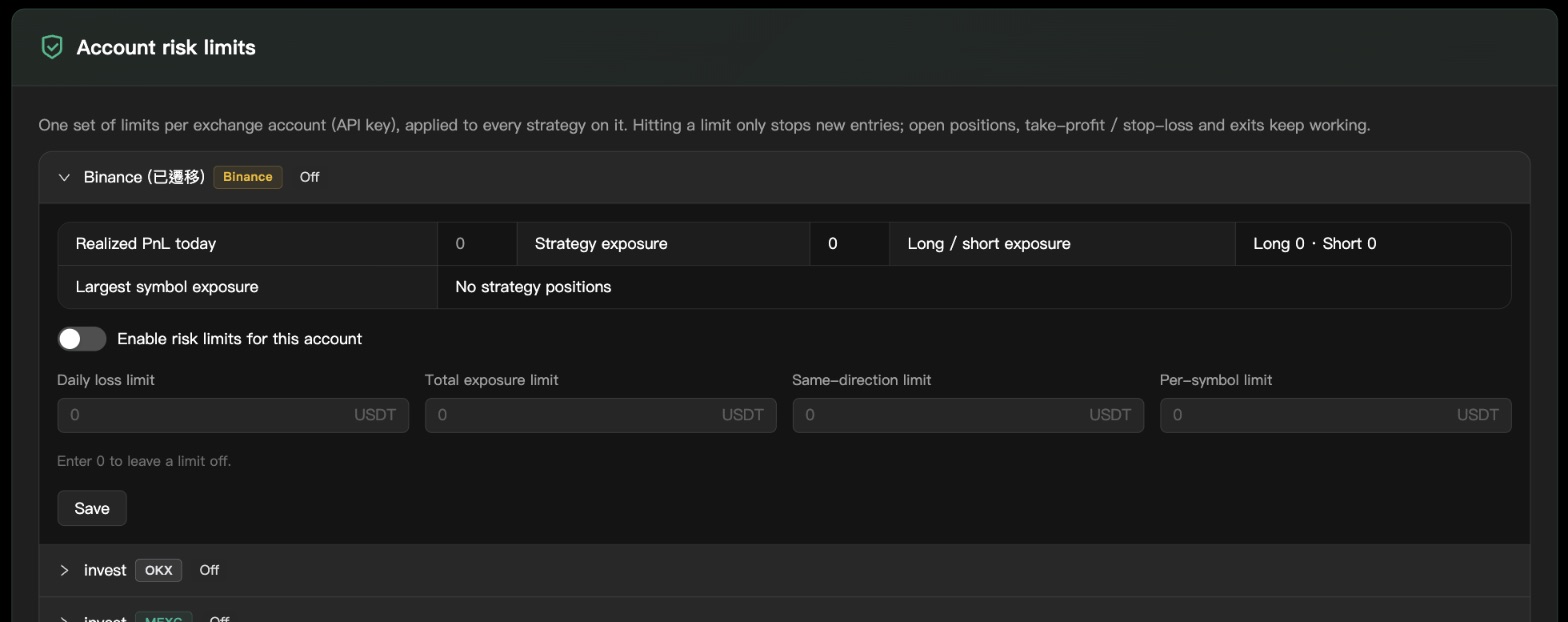
"Security & Lock": one more layer of protection
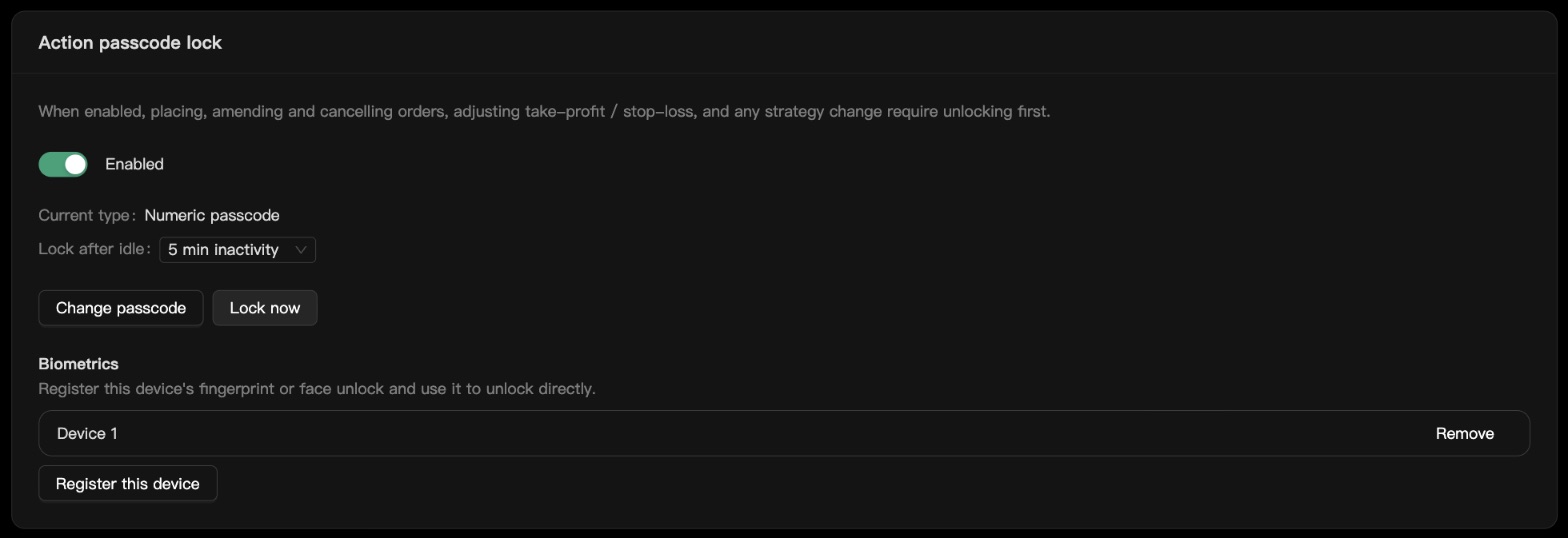
Before it's on, this shows "Disabled": pick "Pattern" or "Numeric passcode", then turn on the switch and set your passcode. With the "Action passcode lock" on, placing, amending and cancelling orders, adjusting take-profit / stop-loss and changing strategies all require your passcode first.
Once it's on, you can also set "Lock after idle", click "Change passcode" or "Lock now", and under "Biometrics" click "Register this device" to unlock with your fingerprint or face.
There's no self-service reset yet, so if you forget the passcode you can't turn the lock off yourself. Too many wrong attempts also locks it for a while, during which you can't even cancel orders or stop strategies. Make sure you remember it before turning it on.