
Plans & Payment
What sets the plans apart, how to upgrade, and what happens when you switch
Every plan has the same features. What differs is the limits and the strategies you can use. This page helps you compare plans and pay, and explains the rules for switching plans, cancelling renewal and refunds. Prices and limits may change, so always go by what the plan page shows.
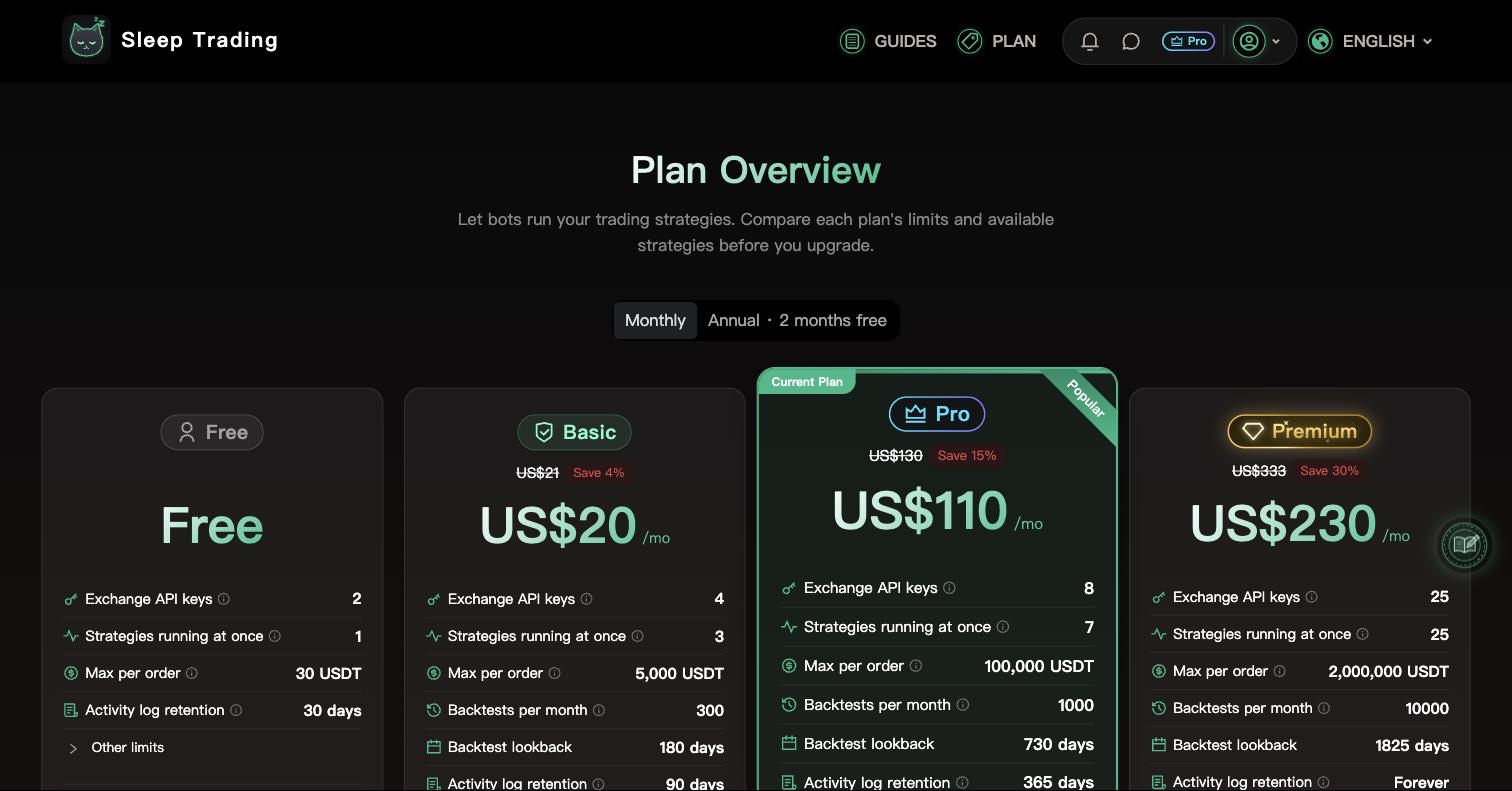
Reading the plan page
Compare first, then decide whether to upgrade.
Choose "Monthly" or "Annual"
Above the plan cards you can switch between "Monthly" and "Annual". The prices on the cards change to match.
The annual option shows how much you save, which is better value for long-term use. The Free plan has no billing cycle and appears on both.
Compare the limits on each card
Each card lists that plan's limits. These three matter most:
- Exchange API keys: how many exchange accounts you can connect at once
- Strategies running at once: how many strategies can run at the same time (paused or stopped ones don't count)
- Max per order: the largest amount allowed for a single order
Not sure what something means? Hover over the small icon next to it (or tap it on a phone) for an explanation. Less commonly used limits are tucked under "Other limits". Open it to see them.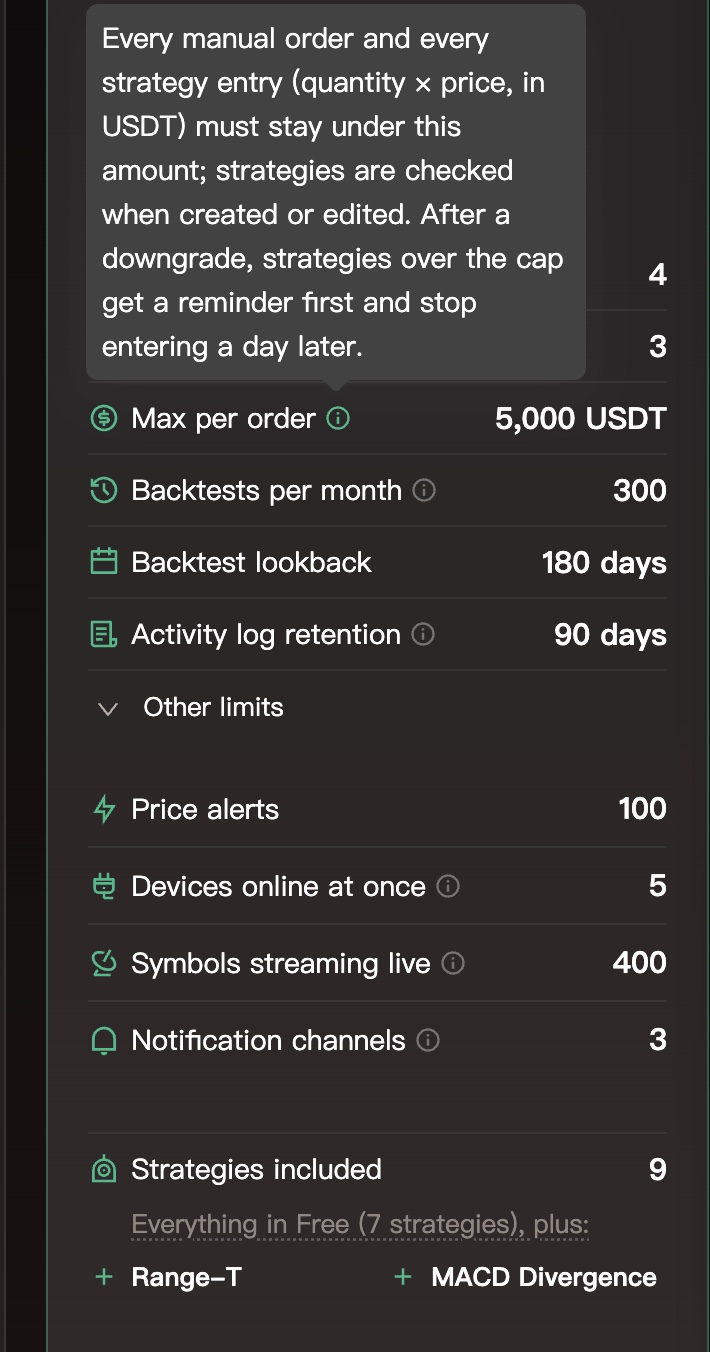
Check "Strategies included"
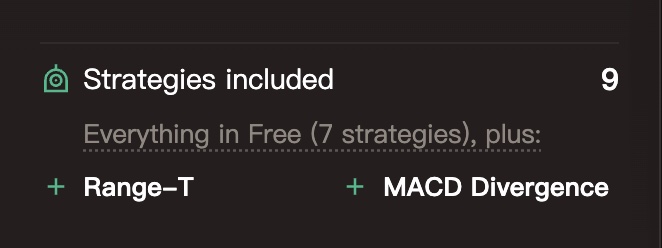
Near the bottom of each card, "Strategies included" shows how many strategies that plan can use. The Free plan lists all of its strategies by name. Higher plans say "Everything in" the plan below, "plus", and list only the extra ones; a plan with the same strategies as the one below just says so. Hover over a strategy name (or tap it on a phone) to see what it does.
Read the note below before paying
Below the plan cards is a short note on the currency used for pricing, with links to the "return policy" and "contact us". The plan you're on now is marked "Current Plan" on its card.

Upgrading, step by step
Payment happens on the "Subscription & Payment" tab in Account & Settings. Card details are handled by the payment center and never touch this site.
Click "Select Plan" on a plan card
You'll be taken to "Subscription & Payment" with the "Change Plan" window open. Each card's button tells you exactly what will happen: "Upgrade (takes effect now)", "Downgrade (next period)", "Switch to annual (next period)" or "Switch to monthly (next period)". Click the one you want.
You can also open the same window from the "Subscription & Payment" tab by clicking "Subscribe" (or "Change Plan" if you're already on a paid plan).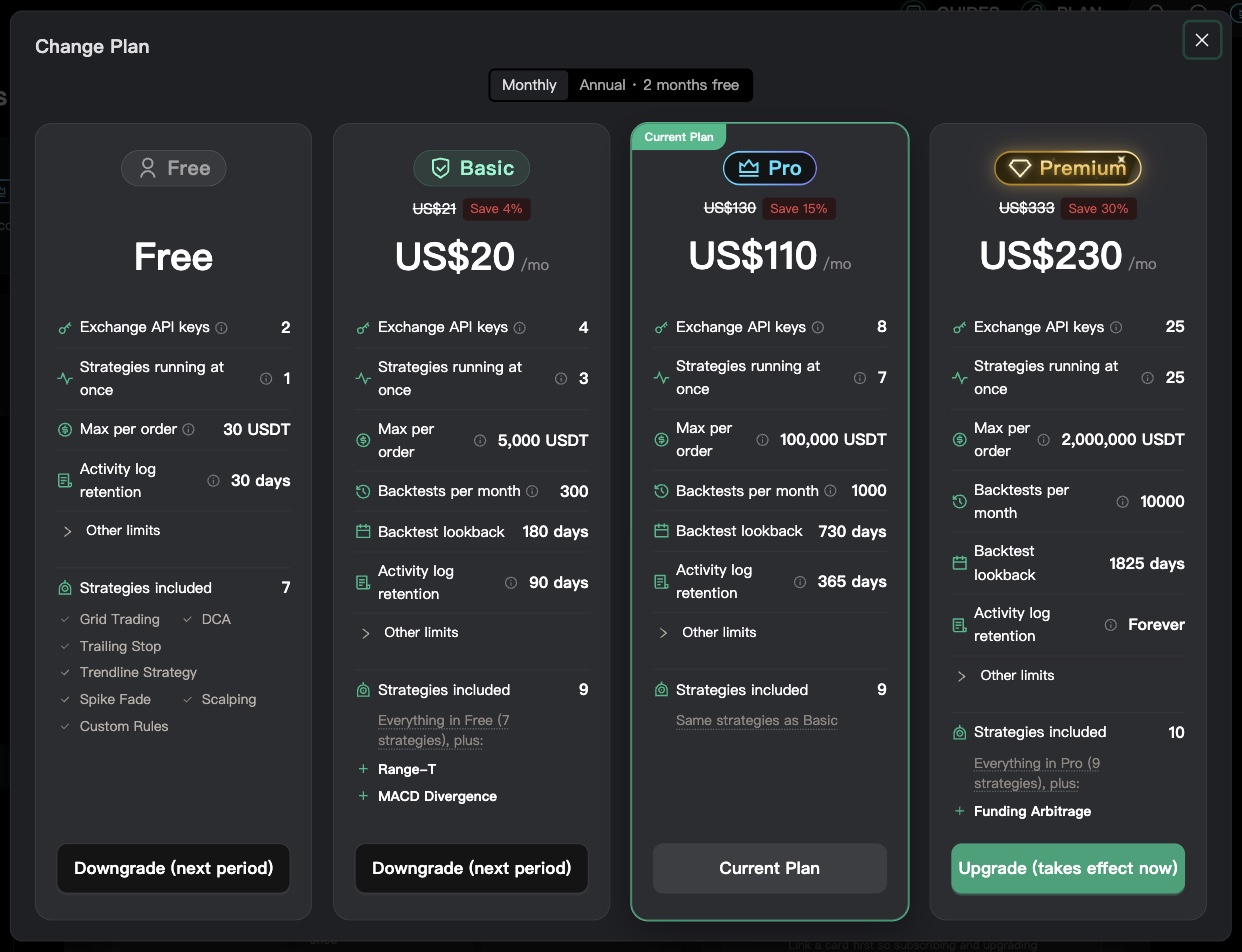
Email not verified yet? Do that first
If "Verify your email first" pops up, click "Verify now", follow the email verification steps on the previous page (Assets & Reports), then come back.
You must verify your email before you can link a credit card.(Optional) Link a credit card first
Under "Payment Method" on the right of "Subscription & Payment", click "Link Credit Card" and enter your card details in the window that opens. When you see "Card linked", future subscriptions and upgrades are charged to this card directly.
No need to link one in advance. You can also enter your card when you pay.No card linked: enter it in the "Checkout" window
After you pick the plan to upgrade to, the "Checkout" window opens. Enter your card details there and complete the payment.
Card linked: check the amount, then "Confirm payment"
A "Subscribe to …" window shows the amount "Charged today" and the "Charging card". If you're upgrading from a paid plan, there's also a line for the credit on your remaining days. When everything looks right, click "Confirm payment".
It then renews automatically on the same card each period. You can cancel anytime."Payment complete. Your plan is now active."
Once payment succeeds, your "Current Plan" and "Expiration Date" update right away, and the new limits are ready to use.
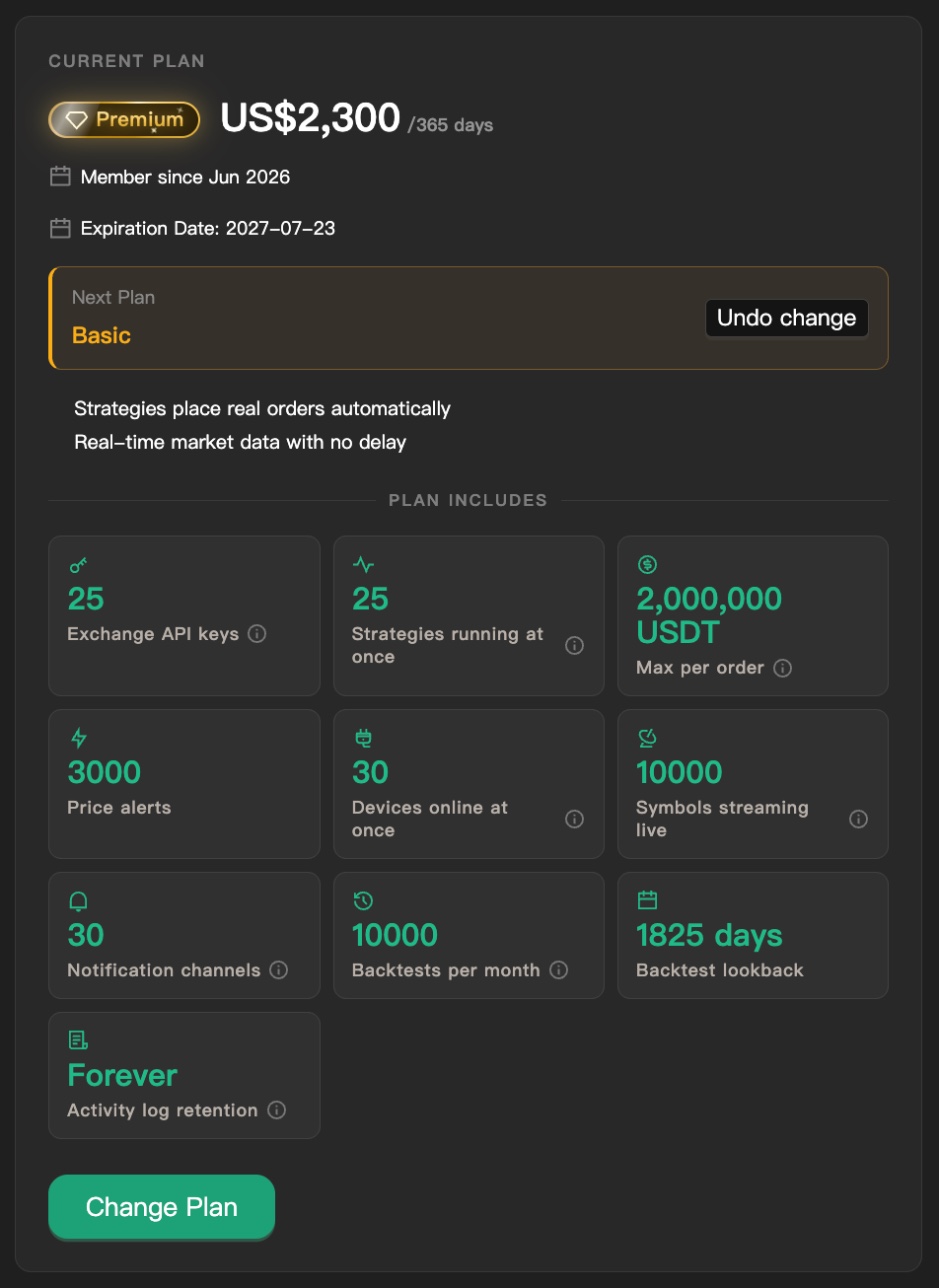
What happens when you upgrade, downgrade or cancel
Upgrades take effect immediately. Downgrades, billing-cycle changes and cancelling renewal all start next period, so you keep your current plan until then.
Upgrade: takes effect now, pay only the difference
An upgrade switches you to the new plan right away. Unused days on your current plan are credited pro rata against this charge. From the next period, you pay the new plan's price.
The exact amount is the "Charged today" figure in the payment window.Credit bigger than the charge? It becomes extra days
For example, if you have many days left on an annual plan and upgrade to a higher monthly plan, your credit may exceed what's due. The extra isn't lost. It's turned into days, making the first period of your new plan longer.
The payment window tells you how many days the first period lasts and when it ends.Downgrade: starts next period
In "Change Plan", choose "Downgrade (next period)". A "Switch to … next period" confirmation explains that you keep your current plan until the expiration date with no extra charge, and are charged the new plan's price after that. Click "Confirm change". When you see "Next-period plan scheduled", you're done.
Switching to annual or monthly: also next period
To change the billing cycle of the same plan, choose "Switch to annual (next period)" or "Switch to monthly (next period)". Nothing is charged now. The new cycle starts when the current one ends.
Changed your mind? Click "Undo change"
Once a change is scheduled, "Next Plan" appears under your current plan. Click "Undo change" next to it, then "Keep current plan", and your current plan renews as usual.
You can undo any time before the expiration date, or switch to a different plan instead.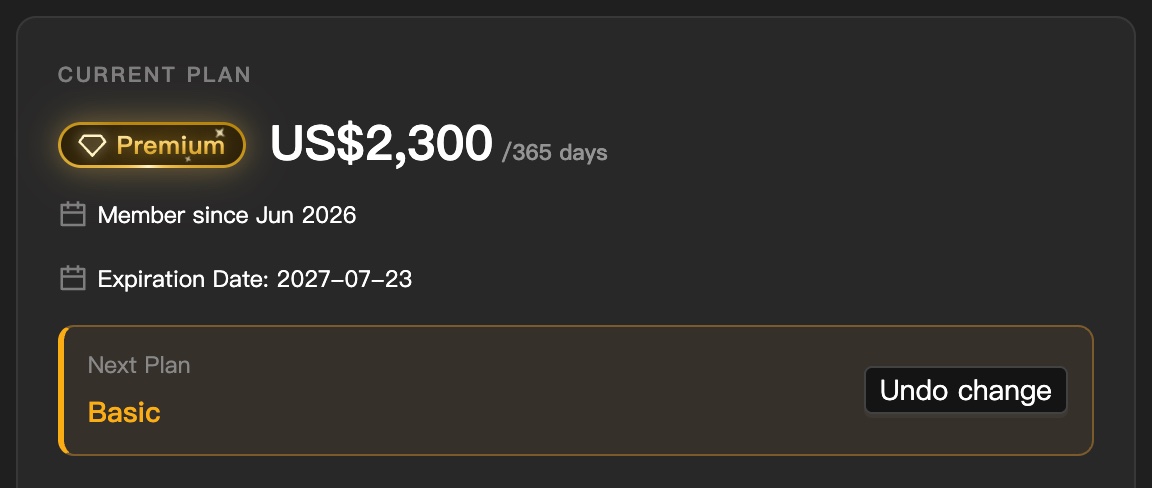
Don't want to renew? Switch to Free
In "Change Plan", choose the Free plan. You'll see "Switch to Free next period". You keep your current plan and limits until the expiration date, then move to Free and are no longer charged.
You can subscribe to a paid plan again anytime.Over the limits after a downgrade: a reminder first, limits about a day later
If what you're using exceeds the new, lower plan's limits, you get a reminder first, and limits apply about a day later:
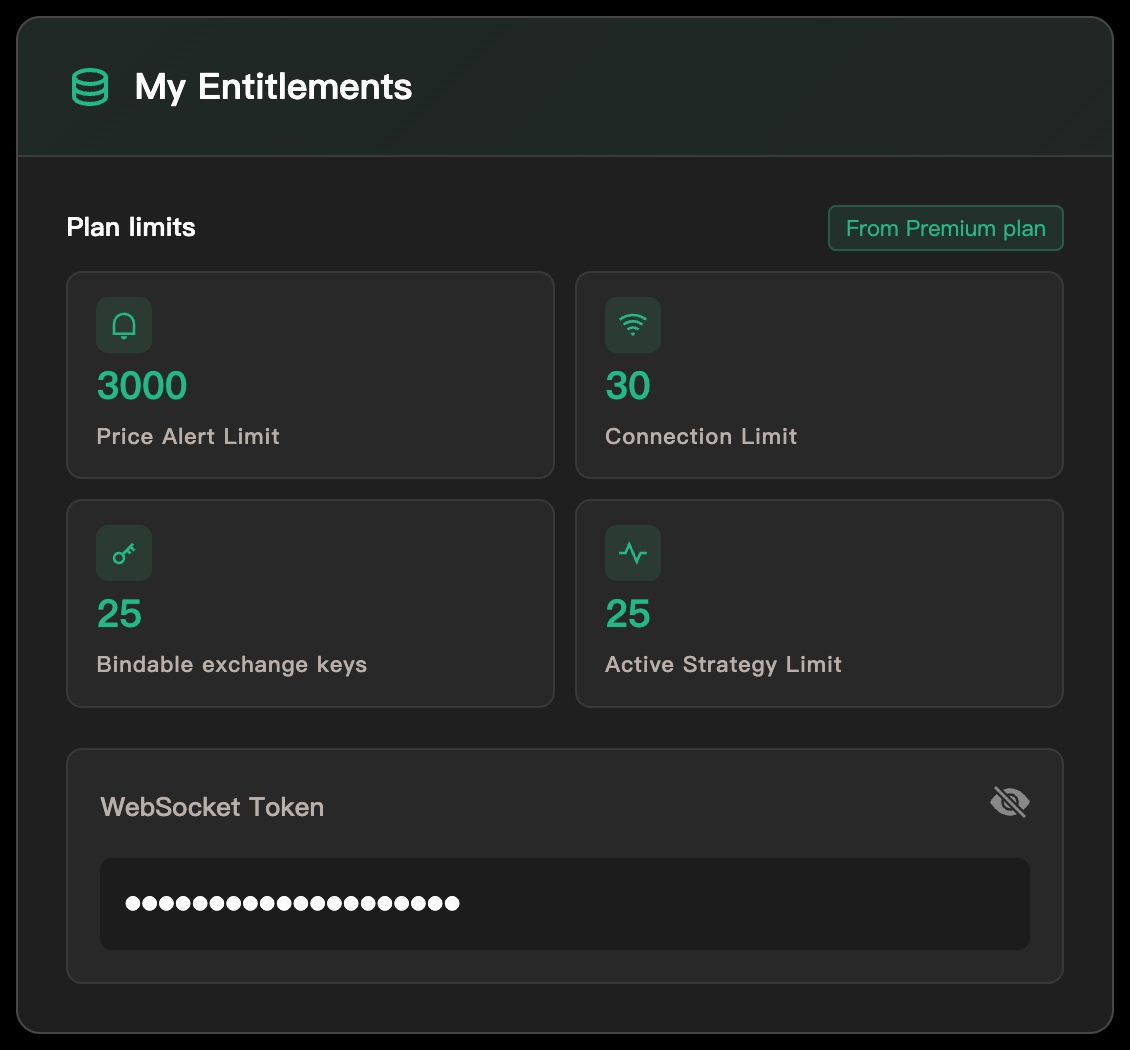
- Too many exchange keys: a notice appears on "Exchange API Keys" and "Account Overview". When the time comes, the most recently bound keys are disabled. Disabled keys can't place orders or show balances and positions
- Strategies over the plan (strategy type, number running, or max per order): the strategy detail page shows "Exceeds plan limits: no new entries from …", and after that it only manages exits
- For positions you already hold, take-profit and stop-loss are kept and they're managed until they exit
Upgrade, adjust the strategy settings or remove extra keys before the limit kicks in to avoid it. Anything already limited is restored automatically after you upgrade. The "Upgrade plan" button on the notice takes you straight to the plan page.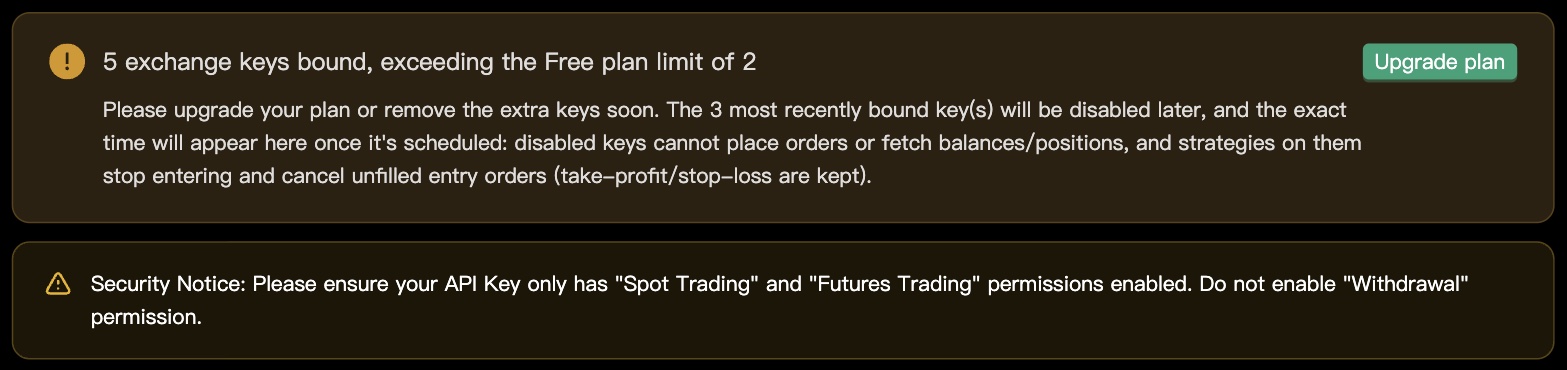
Refunds and charge questions
We recommend reading the refund policy once before you pay.
Read the refund policy
Plans are online digital services that activate right after payment. Once activated, refunds are generally not offered, but in these cases we refund to the original payment method after verification:
- You were charged more than once for the same billing cycle
- Payment succeeded but the plan was not activated
- An outage on our side made the service unusable for the entire billing cycle
If you cancel renewal, the current cycle isn't refunded, but you can keep using it until it ends.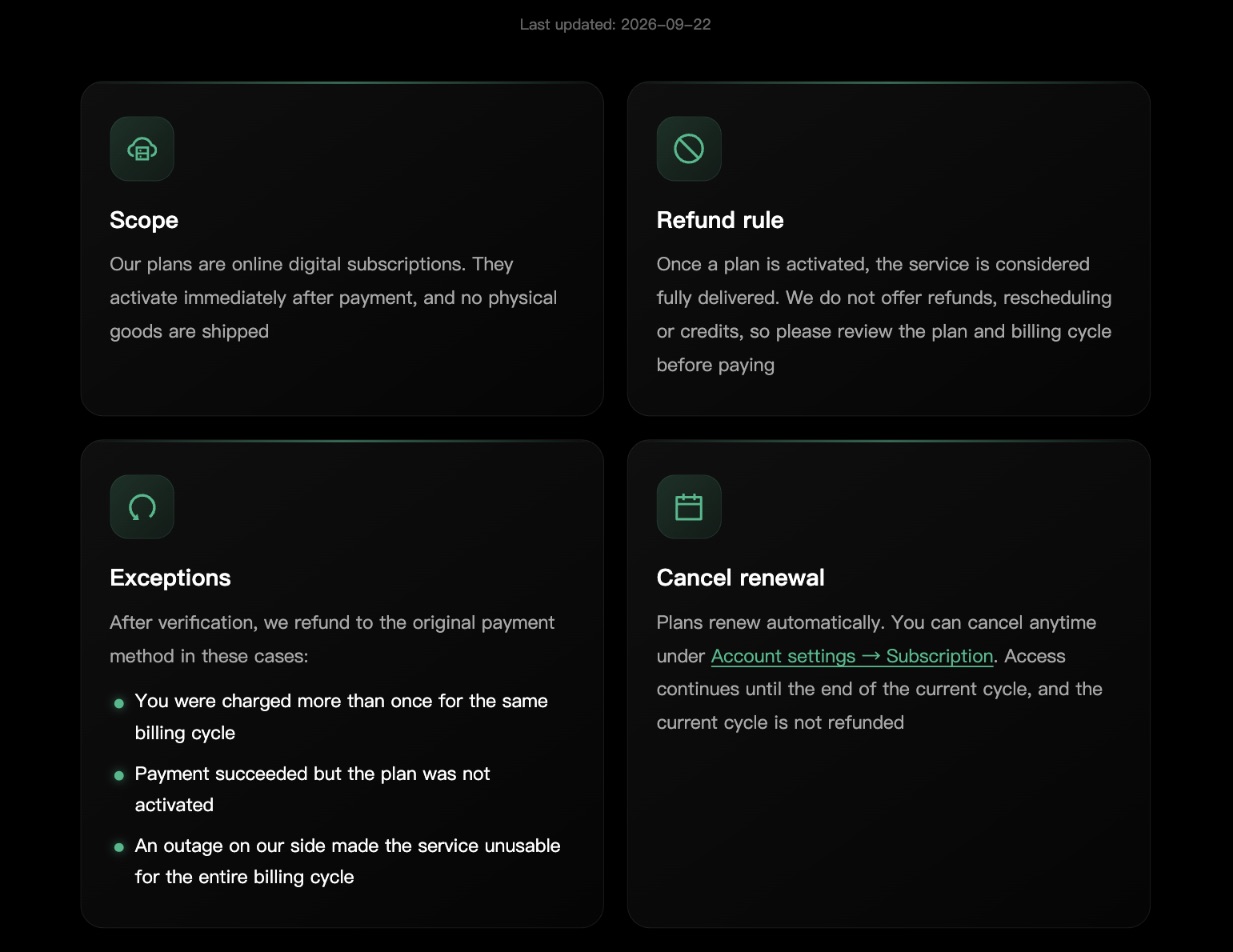
Removing your card? Sort out your subscription first
Under "Payment Method", click "Remove" to delete the card.
Without a card, renewals can't be charged. If you're still on a paid plan, switch to Free first (to cancel renewal) or click "Replace Credit Card" to use a different card.