Dashboard & Strategy Radar
See your assets, the market and what every strategy is doing — on one screen
The Dashboard is your first stop after signing in. This guide walks through the summary cards and the three tabs, and explains what every color, shape and number on the Strategy Radar means.
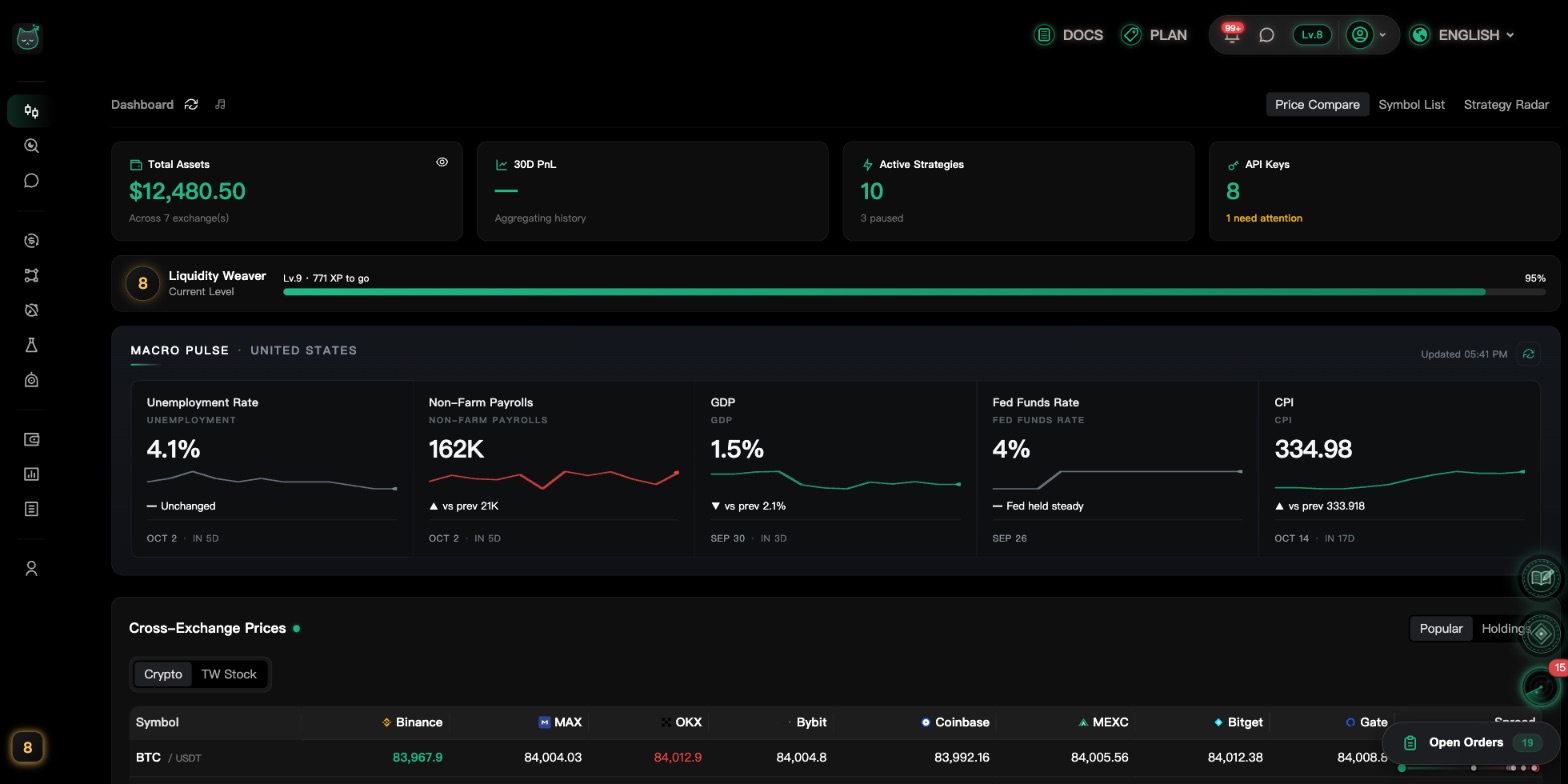
Dashboard at a glance
From top to bottom: the getting-started checklist, four summary cards, the macro pulse, and finally three tabs.
New here? Start with "Get started in 3 steps"
Right after you sign up, this checklist appears at the top and walks you through three things.
- Create your account: ticked as soon as you sign up.
- Connect an exchange key: click "Connect". Without a key, strategies cannot place orders for you.
- Create your first strategy: click "Create".
Once all three are done, the checklist disappears on its own.The four summary cards
See how your money is doing at a glance. Every card is clickable and takes you to the matching page.
- Total Assets: the total across all connected exchanges. Opens "Assets".
- 30D PnL: what you made or lost in the last 30 days. Opens the "P&L Report".
- Active Strategies: how many strategies are running; underneath it says "All running" or "N paused". Opens "Strategies".
- API Keys: how many keys you've connected. "All healthy" means all good; "N need attention" means you should check them.
The eye icon next to "Total Assets" hides the amount — handy when you're checking in public.
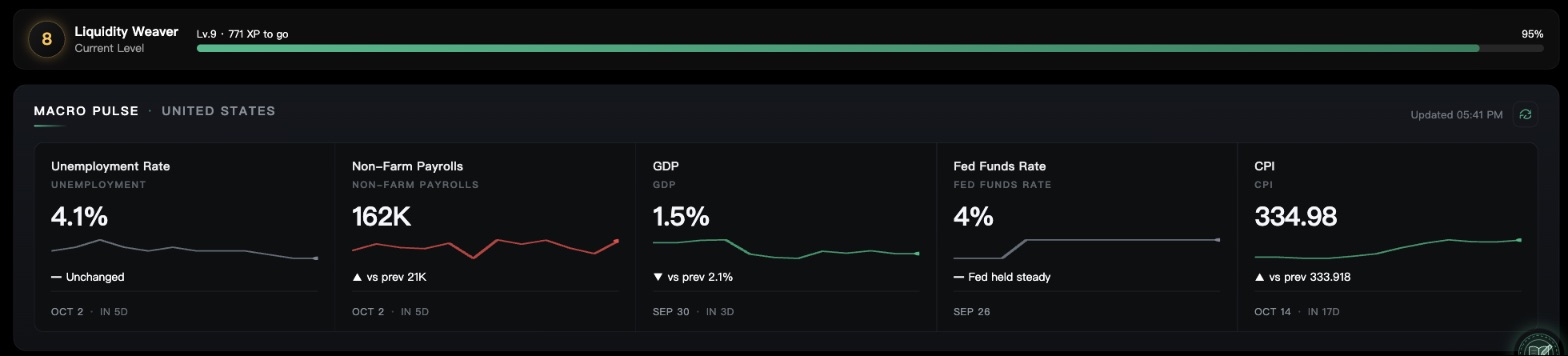
Macro Pulse
"MACRO PULSE" lists the latest key US economic figures (unemployment, non-farm payrolls, CPI and more) and when the next release is.
The three tabs
Switch tabs on the right side of the title bar (on mobile, below the Macro Pulse):
- Price Compare: the same coin's price across exchanges.
- Symbol List: market prices on each exchange.
- Strategy Radar: a live view of all your running strategies.

The "Open Orders" window in the corner
A floating window in the bottom-right corner lists your unfilled orders and positions across exchanges, so you can check them without leaving the page.
On mobile this window starts collapsed — tap it to open.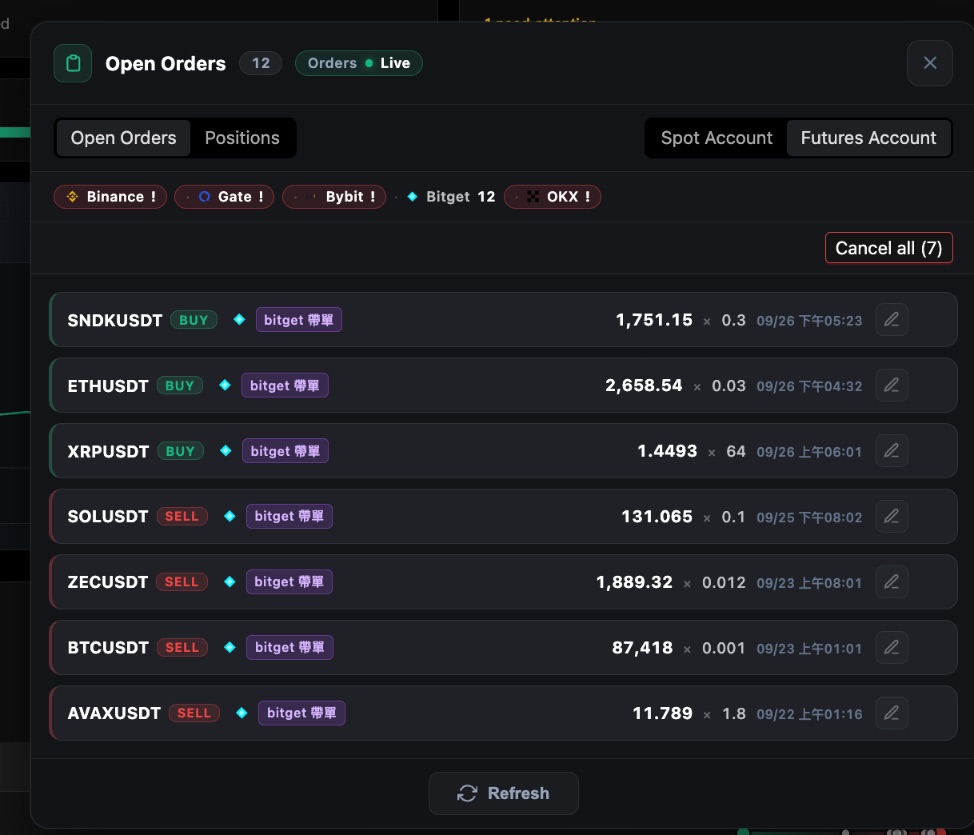
Finding features in the sidebar
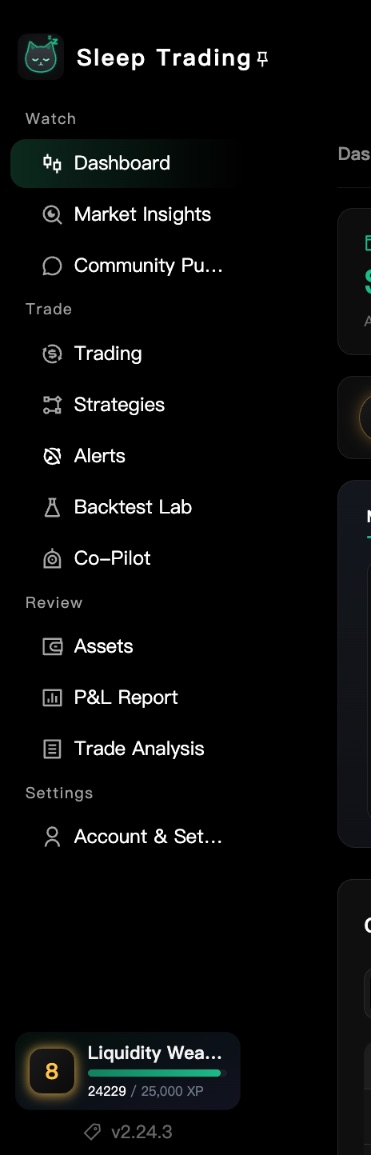
Every feature lives in one of four groups, ordered as "look, act, review, then settings".
What's in each group
Remember these four groups and you'll always know roughly where a feature is.
- Watch: Dashboard, Market Insights, Community Pulse.
- Trade: Trading, Strategies, Alerts, Backtest Lab, Co-Pilot.
- Review: Assets, P&L Report.
- Settings: Account & Settings.
Expanding and pinning the sidebar
On a computer the sidebar normally shows only a row of icons; hover over it to see the labels. To keep it open, click the pin ("Pin sidebar"); click again to "Unpin sidebar".
On mobile, features are in the bottom navigation bar — tap "More" for the rest.
A lock next to an item means your current plan can't use it yet; hover to see "Requires … or higher".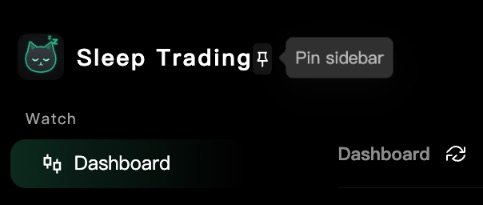
Price Compare and Symbol List
These two tabs are for looking at prices only — they never touch your funds.
Price Compare: where is a coin cheapest?
The table puts one coin's prices on every exchange in the same row, listing popular coins by 24h trading volume.
- Green price: the lowest price in that row.
- Red price: the highest price in that row.
- Spread: highest minus lowest; the larger the percentage next to it, the bigger the price gap between exchanges.
Click any price to open that coin's page on that exchange.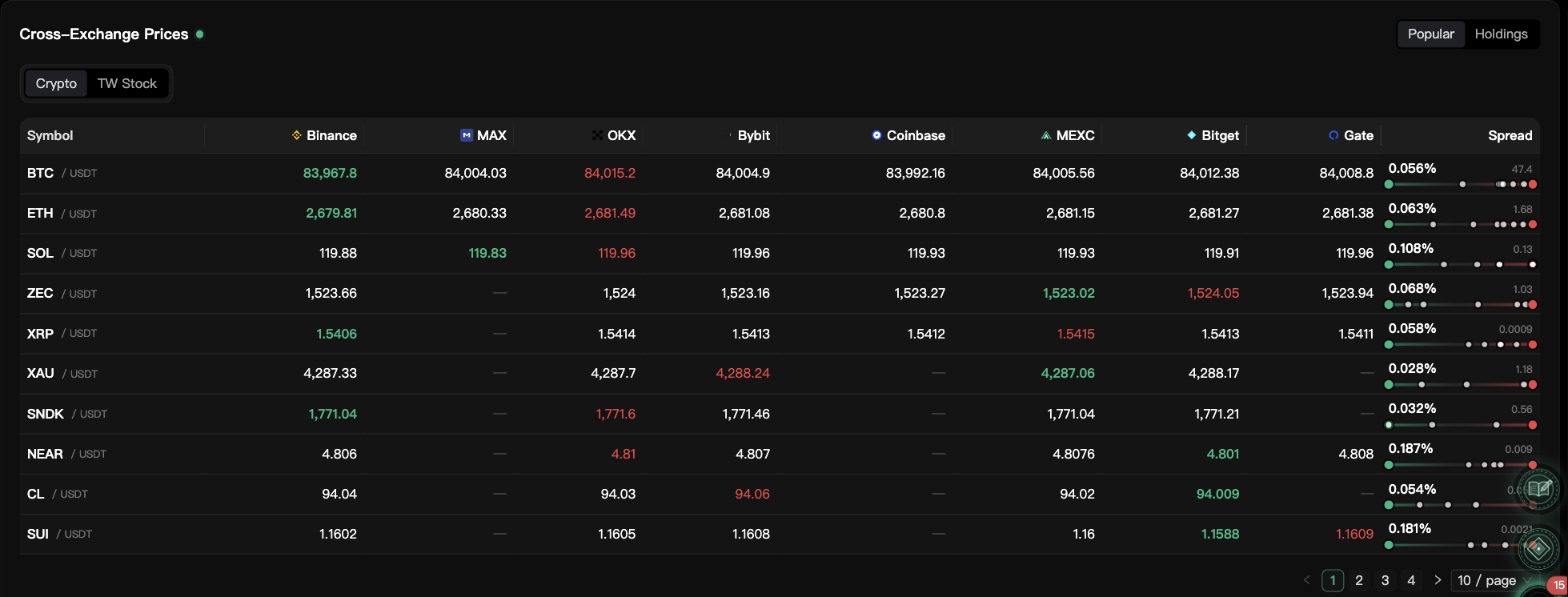
Symbol List: browse each exchange
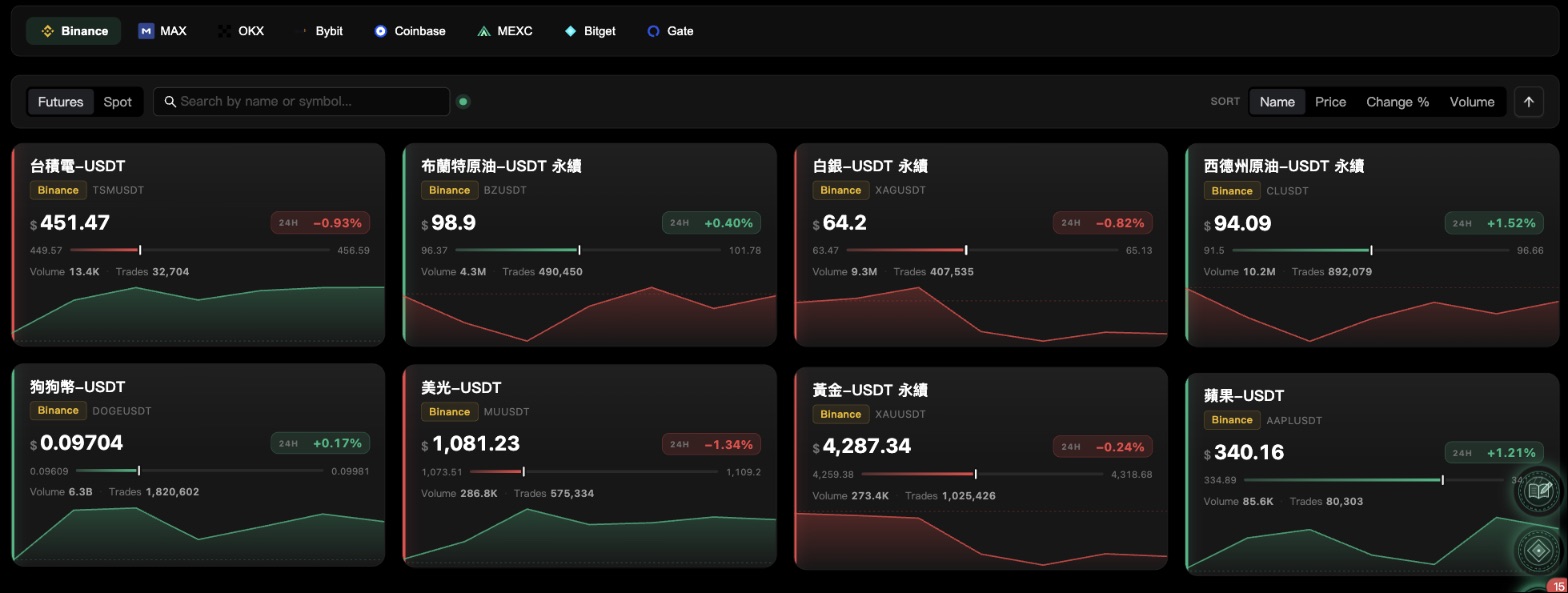
Click an exchange button at the top (e.g. Binance, OKX) to list its coins below. You can switch between "Futures" and "Spot", and sort by name, price or change %.
Strategy Radar: the layout
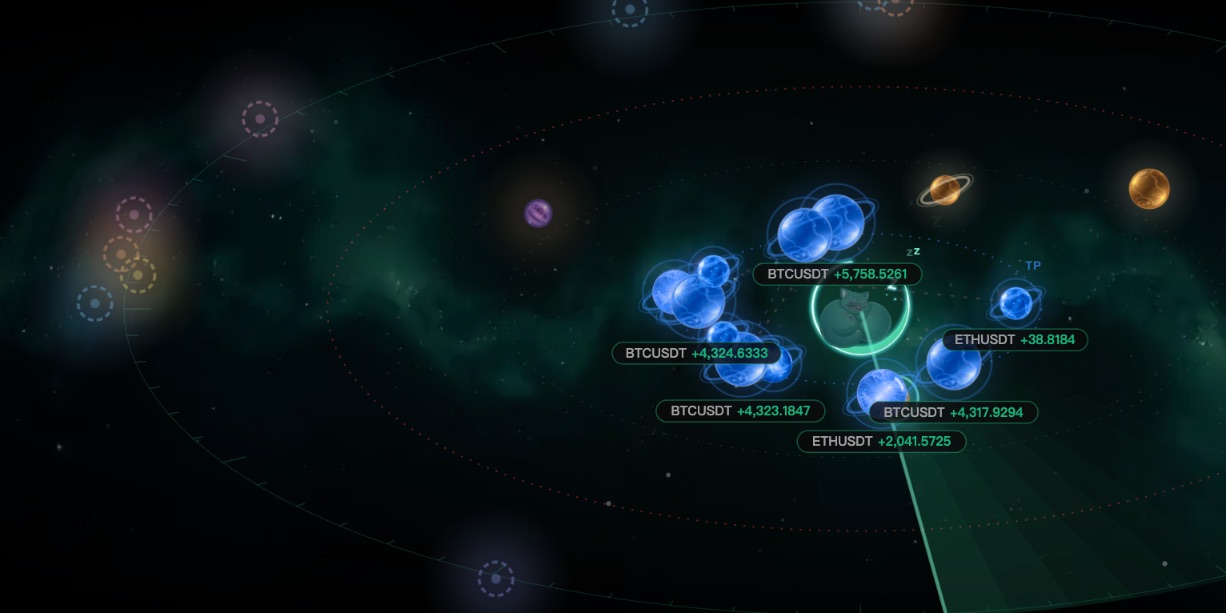
The Strategy Radar draws each running strategy as a planet. Where it sits, its color and its size all tell you how that strategy is doing right now.
Switch to the "Strategy Radar" tab
Click the "Strategy Radar" tab. The summary cards fold away so the radar fills the screen.
The screen has three parts: the nebula on top (where the planets are), a row of numbers in the middle, and at the bottom the "Active Strategies" list on the left and "Live Events" on the right.
The radar only shows running strategies. If none are running yet, the nebula is empty and the list says "No active strategies".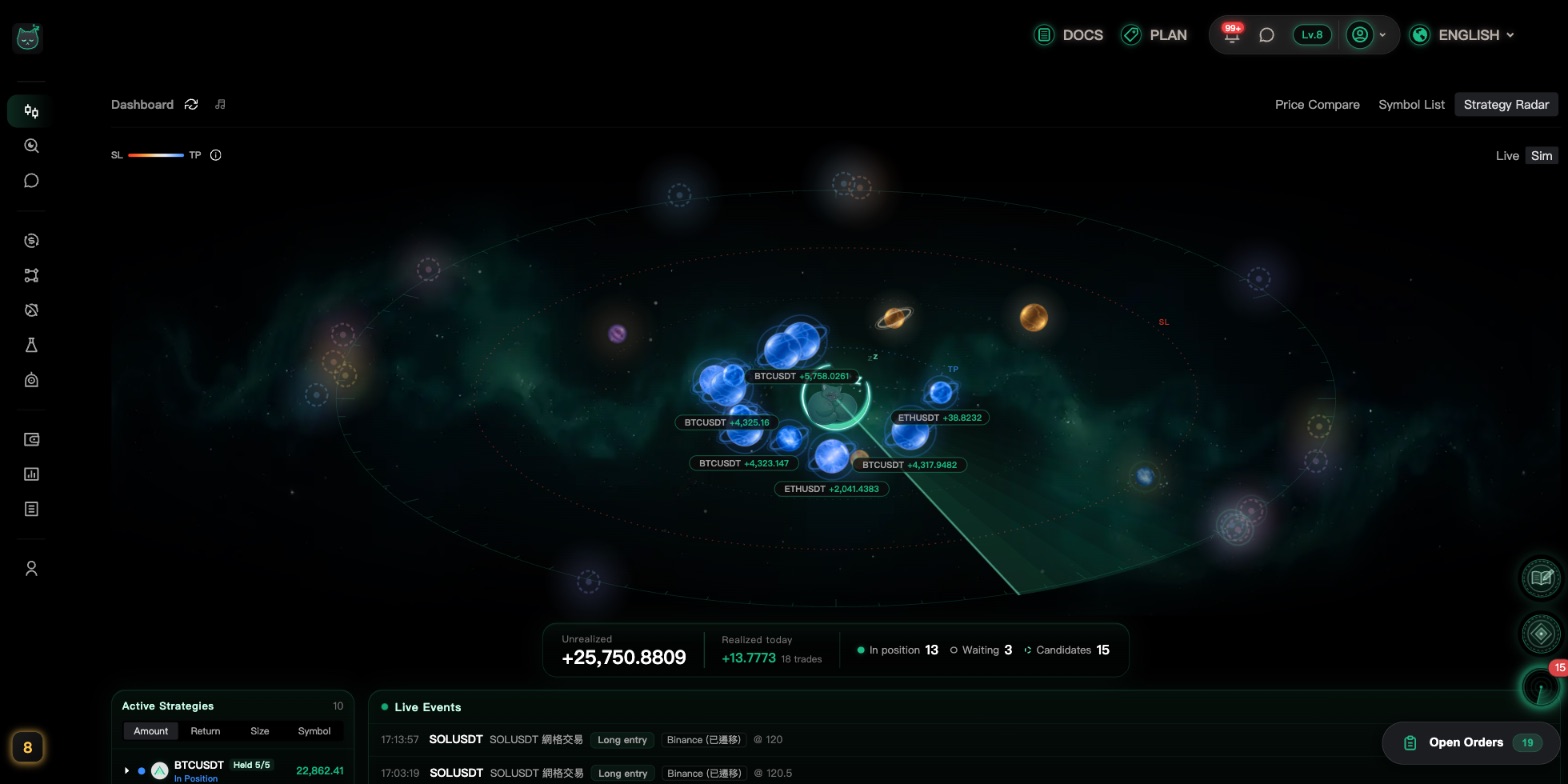
Switch between "Live" and "Sim"
The "Live / Sim" switch at the top right picks which strategies you see. The nebula, list, number row and live events all switch together.
Strategies you're testing in simulation only show under "Sim". If a planet is missing, check which one you're on.
Reading the legend (top left)
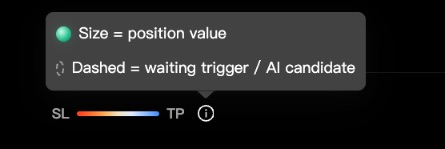
Top left there's a red-to-blue color bar labeled "SL" on the left and "TP" on the right. Planet colors match this bar.
Hover the ⓘ icon next to it for two more hints: "Size = position value" and "Dashed = waiting trigger / AI candidate".
Strategy Radar: what every marker means
This is the heart of the radar. A single planet uses position, color, size, outline and motion to tell you different things — let's go through them one by one.
Position: closer to the center = closer to take-profit
A glowing moon cat sits in the middle of the radar. A planet's distance from the center shows how close the price is to your take-profit or stop-loss.
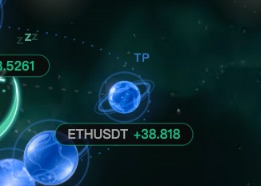
- The inner dotted ring labeled "TP": the further in, the closer to your take-profit price.
- A faint dotted ring in the middle: roughly your entry price — breaking even.
- The outer dotted ring labeled "SL": the further out, the closer to your stop-loss price.
- The outermost tick ring is decoration only.
On a computer the nebula is stretched into a wide oval to fill the screen. Read it the same way: distance from the center.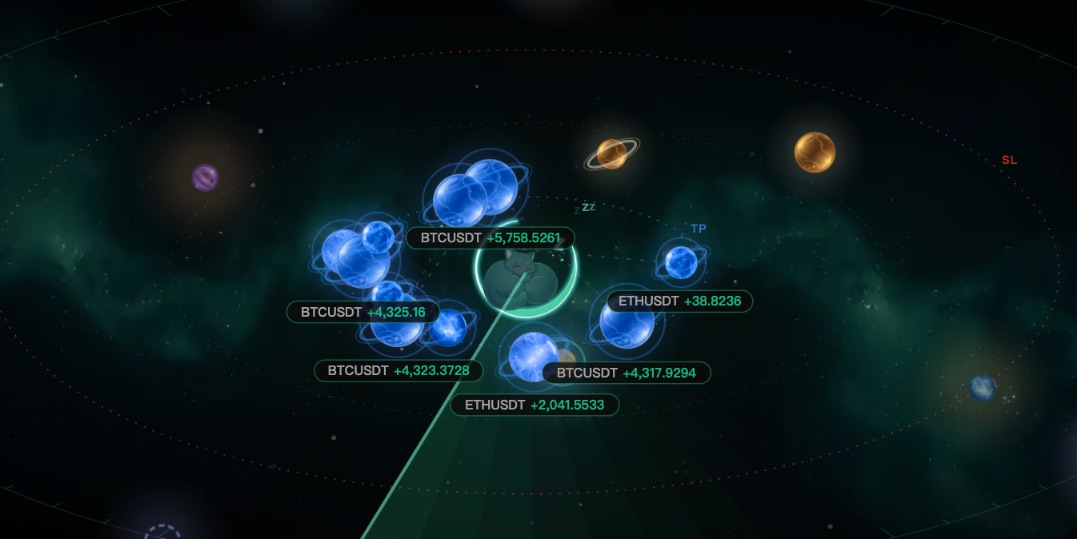
Color: red means danger, blue means near take-profit
Planets with a position are colored by where the price is, matching the legend bar:
- Fiery red / orange-red: very close to stop-loss.
- Pale yellow-white: around your entry price, no clear gain or loss yet.
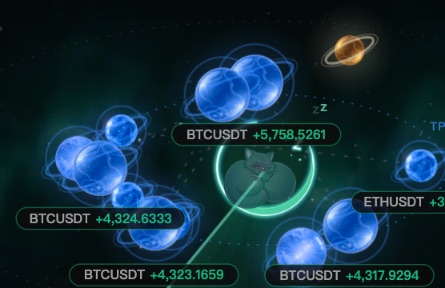
- Light blue / blue: very close to take-profit.
- Planets still waiting (no position) look like colorful glass orbs. Their color just helps you tell strategies apart — it says nothing about profit or loss.
A strategy's planet always looks the same, so you can learn to recognize it.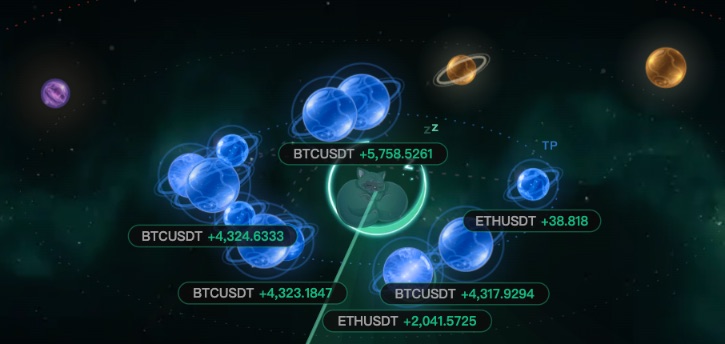
Size: bigger position, bigger planet
A planet's size shows how much the position is worth — the more money, the bigger the planet. Strategies that haven't entered yet have no position and show at a medium size.
Size has nothing to do with profit or loss; use position and color for that.
Outline and status: solid, faded or dashed
Click a planet or look at the list to see its status. Here is how each one looks:
- In Position: a solid planet, colored by profit/loss and orbiting the center.
- Waiting Entry: a slightly faded solid planet that gently pulses — the strategy is waiting for the price to enter.
- Waiting for Trigger: a dashed circle with a small dot in the middle, sitting toward the outside — still waiting for your start condition.
- AI Candidate: a dashed circle on the very outer edge — a suggestion from Co-Pilot you haven't accepted yet.
- Took Profit: a blue planet near the center, with small green sparks bursting out.
- Stopped Out: a red planet on the outer edge, with small red sparks shrinking inward.
Warning signs: watch out for red
When a position gets close to its stop-loss, the radar warns you in these ways:
- A thin red outline around the planet: it's already near the outer (stop-loss) side.
- Red ripples spreading outward: it has entered the danger zone.
- The planet flashes quickly: the price is very close to stop-loss.
- A red glow behind the whole nebula: on average, your positions lean toward stop-loss.
If you see these, click the planet to open its details, check that the stop-loss order is in place, then decide whether to step in.Good signs: rings and a bright rim
As a position moves toward take-profit, you'll see:
- Two thin tilted rings around the planet (like Saturn): it's well in profit and getting close to take-profit.
- A bright rim in the planet's own color: very close to take-profit.
- A green glow behind the whole nebula: on average, your positions lean toward take-profit.
Motion: orbiting, tails and the sweep
The radar moves, and each movement means something:
- Planets orbiting the center: only planets with a position and a gain or loss orbit. The bigger the amount, the faster; near zero they barely move.
- A few small dots trailing behind (a comet tail): the planet is moving toward take-profit or stop-loss; the tail points to where it came from.
- A green beam sweeping around: just the radar scan effect. Still planets light up briefly as it passes.
- Z's floating from the moon cat: decoration — the system is watching the market for you.
If your device has "reduce motion" turned on, these animations stop. Position and color still mean the same thing.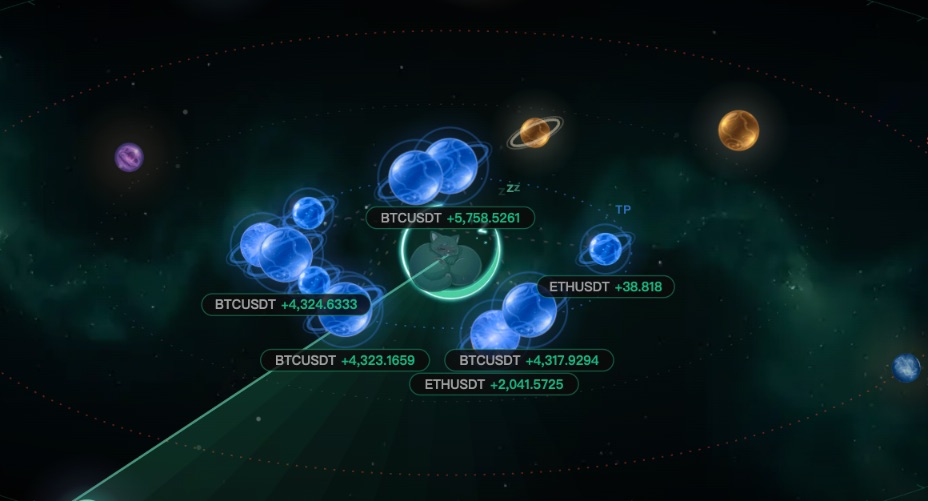
Labels and lines
Text and lines around the planets:
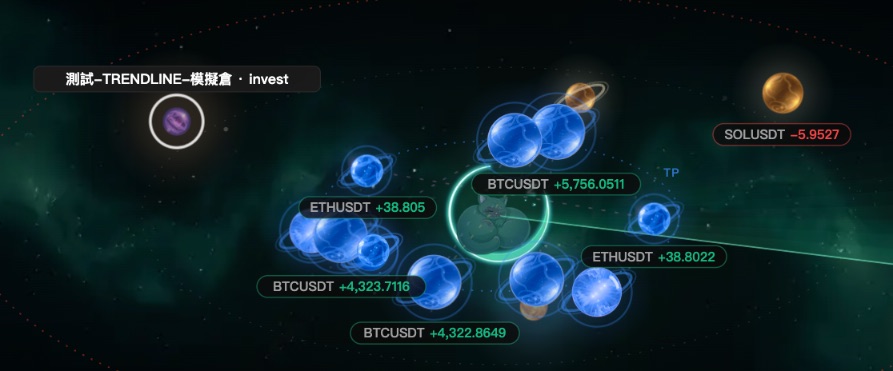
- The small pill under a planet (e.g. "BTCUSDT +12.5"): the coin and its unrealized PnL — green is profit, red is loss. Up to 6 show at once; some hide when they overlap.
- Hover a planet: a white ring appears around it and its strategy and key names show above.
- Thin lines between planets: one strategy using several keys — each key is its own planet, linked together.
Beams shooting from the center
When a strategy enters, exits, changes status or updates performance, a beam shoots from the center to its planet and a ring ripples out there — so you can see at a glance who just did something.
- Green beam: a normal entry, exit or status change, or positive performance.
- Red beam: a performance update showing a loss.
Click a planet for details
Want the details on a planet? Just click it.
Click a planet to open the details panel
Click any planet (or any row in the list below) and a details panel opens at the top right of the nebula, showing the strategy name, coin, key name, current status, unrealized PnL and the live price on that key's exchange.
Close it three ways: the ✕ at the top right, clicking empty space away from the planets, or pressing Esc. On mobile the details slide up from the bottom.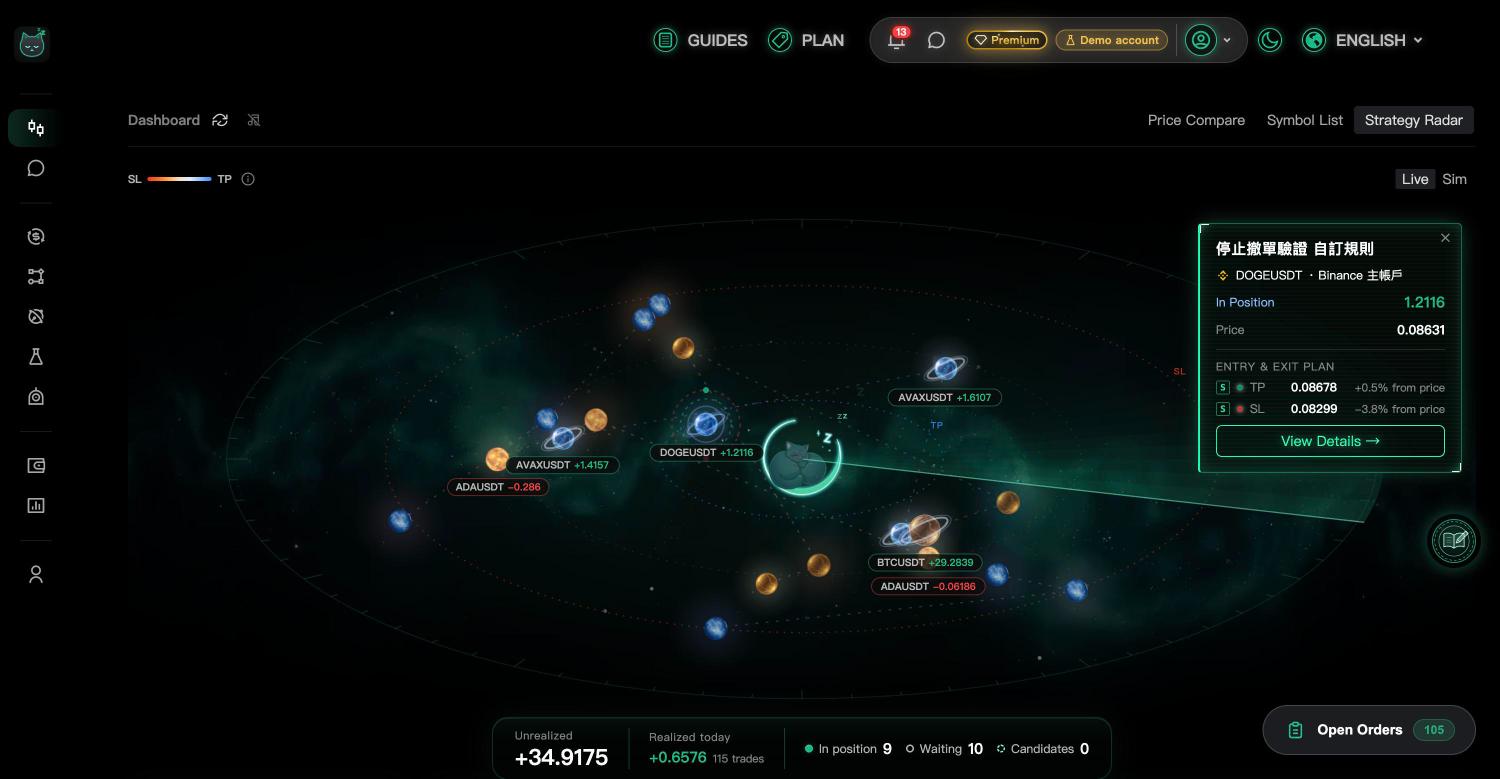
The selected planet shows exit rings
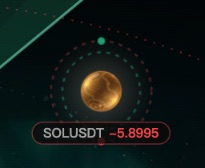
When you select a planet that's in position, dotted rings appear around it:
- Green inner dotted ring: this position has a take-profit set.
- Red outer dotted ring: this position has a stop-loss set.
- Small dots on the outer ring: one per exit order — red for stop-loss, green for take-profit or other exit orders.
Reading the "Entry & Exit Plan"
The "Entry & Exit Plan" in the middle of the panel lists this key's pending entry orders and how it plans to exit. Each row shows:
- B / S box: B is buy, S is sell.
- Dot + label: a red dot is "SL"; a green dot is "TP" or another order such as "Entry", "Exit" or "Grid".
- The price and "±x% from price": how far it is from the current price.
- A "Sim" tag: a simulated order that was never sent to the exchange.
- A hollow dot "Est. exit": the system's estimated exit price, not yet placed on the exchange.
"No open orders yet" means this key has no orders on the exchange right now, neither entry nor exit. If there are many orders, only the first 6 are listed and the rest show as "N more".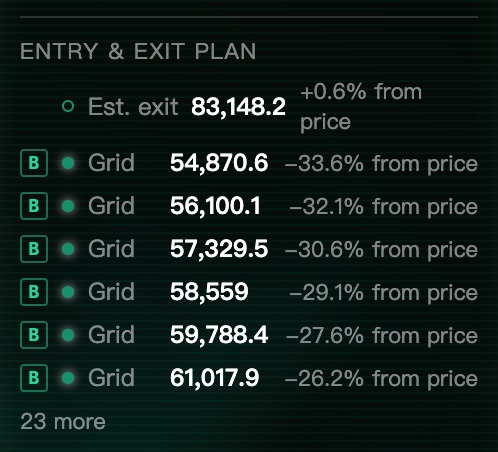
AI candidates: accept or skip
Click a dashed AI candidate planet and the panel shows "Suggested: …", a confidence bar ("Unscored" if there's no score), and how much money and how many accounts it plans to use.
Click "Accept" to start running it as suggested, or "Skip" if you don't want it.
"Accept" really starts placing orders — check the amount before you click.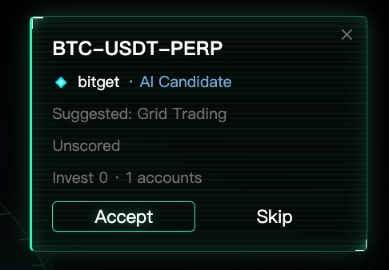
Go to the strategy page
To change settings or see the full history, click "View Details →" at the bottom of the panel. Clicking a planet itself never leaves the page, so no need to worry about misclicks.
The number row under the nebula
This row adds up everything the planets are showing.
Unrealized, Realized, and the three counts
From left to right:
- Unrealized: the combined gain or loss of all open positions that hasn't been locked in yet — green is profit, red is loss.
- Realized: by default this is "Realized today" — profit or loss from positions closed today; "N trades" is how many times you closed. Click the title to open a calendar and look at another date, or use the arrows on either side (or the ← → keys) to move one day at a time (a day starts at 00:00 UTC). Each row in "Active Strategies" below also gains a line showing that strategy's realized result for the same day.
- In position (solid dot): how many planets are holding a position.
- Waiting (hollow ring): how many are waiting to enter or waiting for a trigger.
- Candidates (dashed ring): how many Co-Pilot suggestions are waiting for your decision.
These numbers follow the "Live / Sim" switch and only count the view you're on. "—" means no data yet.
The Active Strategies list
The list at the bottom left spells out each planet in words, so it's easier to find one.
What each row shows
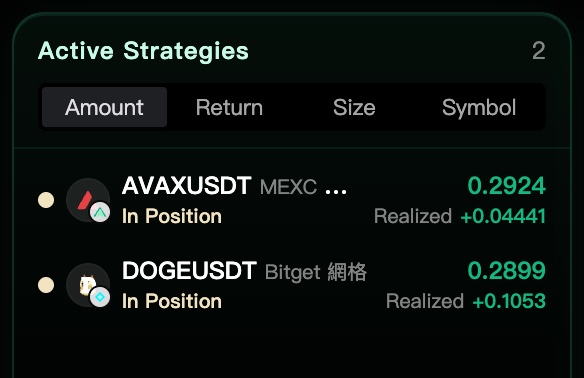
The number next to "Active Strategies" is the total. Each row, from left to right:
- A small colored dot: the same color as the planet in the nebula.
- The exchange icon, coin and key name.
- The status: In Position, Waiting Entry, Waiting for Trigger and so on, in the planet's color.
- A blue "Assistant" tag: this strategy was created by Co-Pilot.
- The number on the right: unrealized PnL — green is profit, red is loss; "—" if there's no position. When a "Realized" line appears underneath, it is this strategy's realized result for the day selected in the number row; with no open position but a close on that day, only this line is shown.
Sorting and highlighting
Switch the sort order at the top right: "Amount" (profit/loss amount), "Return" (how close to take-profit), "Size" (position value), "Symbol" (coin name A–Z).
Hover a row and its planet lights up with a white ring; click a row to open its details, just like clicking the planet.
With lots of strategies only the first 30 are listed, followed by "N more hidden (by current sort)". Change the sort to see the others.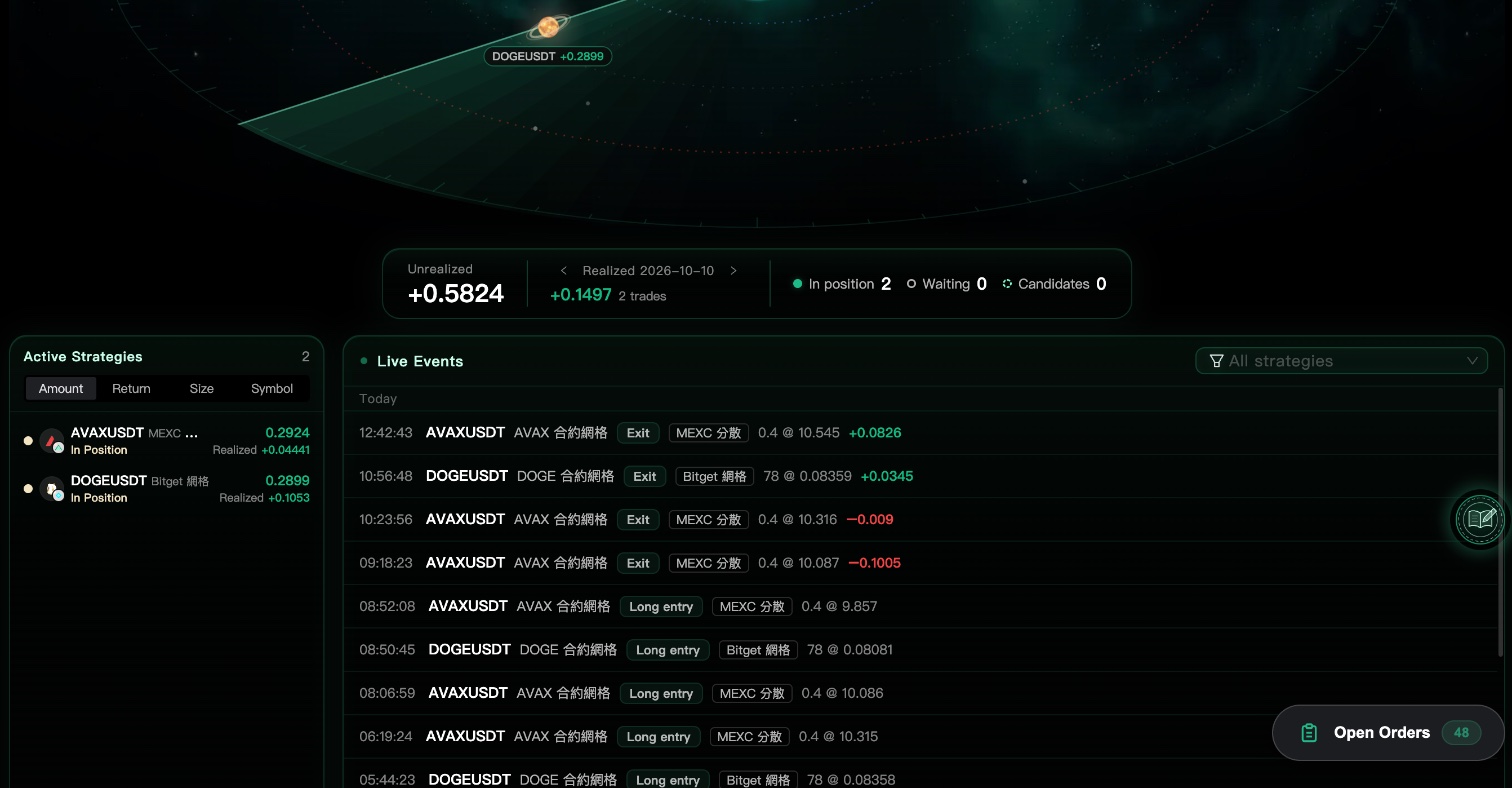
One strategy, several keys
When a strategy uses several keys, they're combined into one row with a small badge:
- "Held 2/3": 2 of its 3 keys currently hold a position.
- "×3": 3 keys in total, none holding a position yet.
- The PnL on the right is the total across all keys.
Click the small arrow on the left of the row to expand it and see each key's PnL. Hovering the collapsed row lights up the whole group of planets.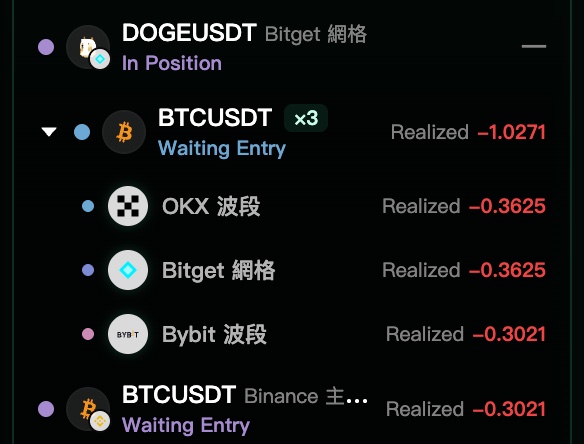
Live Events
At the bottom right, a new line pops up the moment a strategy does something, newest on top.
How to read each line
The small dot before "Live Events" is the connection light: blinking green means you're connected live; grey means the connection dropped and new events won't appear right away.
Each line shows, in order:
- The time (hh:mm:ss).
- The coin and strategy name.
- The event tag: "Long entry", "Short entry", "Entry", "Exit", "Status", "Performance" or "Position Sync". "Performance" turns green or red with profit or loss.
- The key name: which key triggered it.
- "@ price": the price it filled at.
- The green / red number on exits: how much that close made or lost; "Total" after it is the strategy's overall PnL so far.
Before anything happens it shows "Waiting for events". Events also follow the "Live / Sim" switch.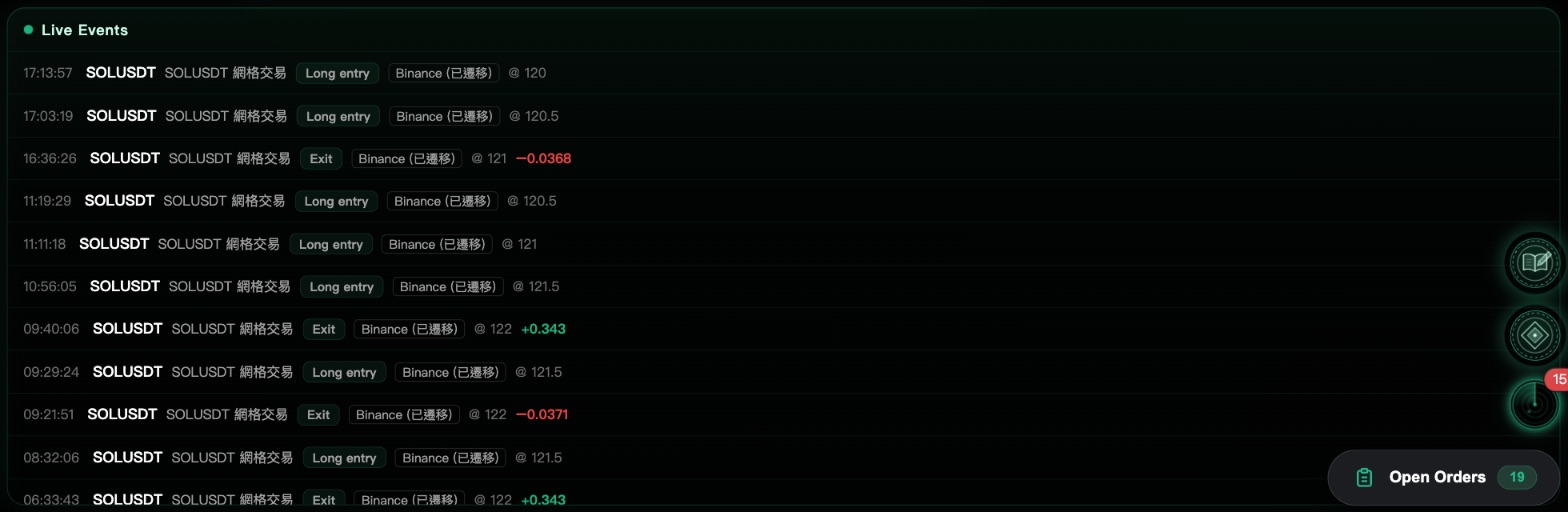
"Held N/M" on multi-key strategies
For a strategy using several keys, events end with "Held N/M": at the moment of that fill, N of its M keys still held a position.
Hover it to see which keys; if every key had exited, it shows "All keys had exited at the time".
Background sound
The Dashboard can play a little background sound while you watch the market.
Pick a sound, or turn it off
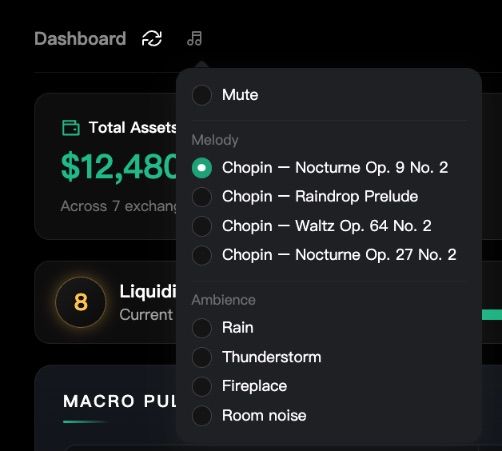
Next to the Dashboard title there's a small music-note button (hover shows "Background sound"). Click it to open the menu:
- Mute: no sound; the button shows a crossed-out note.
- Melody: four Chopin piano pieces.
- Ambience: Rain, Thunderstorm, Fireplace, Room noise.
Your choice is remembered next time. If your browser blocks autoplay, click anywhere on the page and it will start.